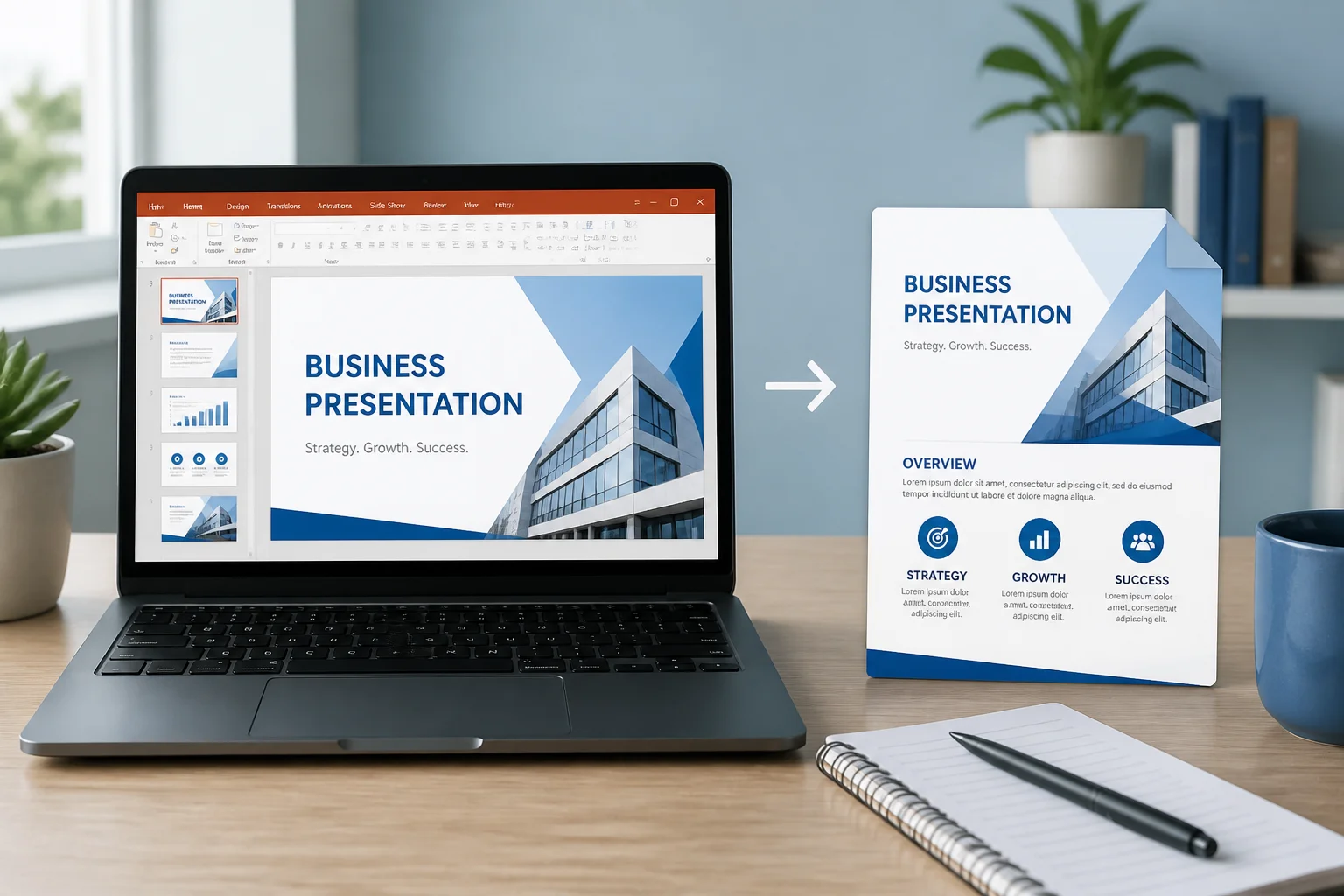
Chromebooks are designed to work in a browser, so converting a PowerPoint presentation to PDF is usually done with a web-based app rather than a traditional desktop program. You can use PowerPoint for the web, Google Slides, or an online PPTX-to-PDF converter.
The quickest method depends on where your file is stored. If the presentation is already in OneDrive, PowerPoint for the web is often the most direct option. If it is in Google Drive, Google Slides may be convenient. For a fast conversion without editing the slides, an online converter can be simpler.
Quick answer: the main ways to convert PPTX to PDF on a Chromebook
- PowerPoint for the web: Upload or open the presentation in a Microsoft account, then download it as a PDF.
- Google Slides: Upload the PPTX to Google Drive, open it with Google Slides, and download a PDF copy.
- Online converter: Upload the PPTX, convert it in the browser, and download the resulting PDF.
- Print to PDF: Open the presentation in a compatible browser-based app and choose the Chromebook print option to save it as a PDF.
Before sending or printing the file, open the PDF and check the slides. Fonts, animations, video, transitions, speaker notes, and unusual PowerPoint effects may not appear in a PDF exactly as they did in the original presentation.
Method 1: Use PowerPoint for the web
PowerPoint for the web is a good choice when you want to keep the presentation close to its original PowerPoint format. It works in the browser, so you do not need to install the Windows or macOS desktop version of PowerPoint on your Chromebook.
- Open the Microsoft Office or PowerPoint website in Chrome.
- Sign in to your Microsoft account if required.
- Open the PPTX file from OneDrive, or upload it to your Microsoft cloud storage.
- Wait for the presentation to finish loading.
- Open the file menu or download options.
- Choose the option to download or export the presentation as a PDF.
- Save the PDF to your Chromebook, Google Drive, or another available location.
The exact wording of the export command can vary depending on the version of the web app. Look for options such as Download as PDF, Export to PDF, or a similar command.
When this method is best
Use PowerPoint for the web when the presentation contains PowerPoint-specific formatting, charts, SmartArt, or carefully positioned objects. It is also a sensible first choice when the original file is already stored in OneDrive.
What to check afterward
- Confirm that every slide is present and in the correct order.
- Look for missing fonts or text that has moved to a new line.
- Check charts, tables, images, and diagrams.
- Open the PDF in a new tab to make sure it is not still downloading or incomplete.
Method 2: Convert the PPTX with Google Slides
Google Slides can open many PowerPoint presentations and export them as PDFs. This method is convenient if your PPTX is already in Google Drive or if you regularly use Google Workspace for school or work.
- Open Google Drive on your Chromebook.
- Upload the PPTX file if it is not already in Drive.
- Right-click the presentation.
- Choose Open with, then select Google Slides.
- Wait for the presentation to open and review the slides.
- In Google Slides, open the File menu.
- Choose Download, then select PDF document.
- Open the downloaded PDF and check its appearance.
Google Slides may convert some PowerPoint elements while opening the file. If the presentation has complex layouts, custom fonts, embedded media, or advanced effects, compare the Google Slides version with the original PPTX before exporting.
How to reduce formatting problems in Google Slides
- Use common fonts that are likely to be available in both applications.
- Review slides with text close to the edge of the page.
- Check images and logos for unexpected resizing.
- Look at tables and charts individually rather than assuming they converted correctly.
- Keep the original PPTX so you can return to it if the imported version changes.
Method 3: Use an online PPTX-to-PDF converter

An online converter can be the fastest option when you only need a PDF and do not want to edit the presentation. This is especially useful when the PPTX is saved locally in your Chromebook’s Downloads folder.
- Open a reputable PPTX-to-PDF conversion website in Chrome.
- Select the upload button or file picker.
- Choose the PPTX file from your Chromebook or cloud storage.
- Start the conversion.
- Download the PDF when it is ready.
- Open the PDF and inspect the slides before sharing it.
You can use the PPT to PDF converter on this site when you want a browser-based route. If you are comparing different online methods, the guide to converting PPTX to PDF online for free explains the general process and the checks to make after conversion.
Important considerations before uploading a file
Review the website’s terms and privacy information before uploading presentations that contain confidential business information, student records, client data, or unpublished work. You can read the site’s Privacy Policy before using its converter.
For sensitive documents, your school’s or employer’s approved storage and software may be a better choice than an unfamiliar third-party service. If you only need to convert a non-confidential presentation, an online tool may save time.
Method 4: Print the presentation to PDF
Printing to PDF is a useful fallback when a direct download or export option is unavailable. The result depends on the app you use to open the PPTX, but the basic Chromebook workflow is straightforward.
- Open the presentation in PowerPoint for the web, Google Slides, or another compatible browser app.
- Open the browser or app menu and choose Print, or press Ctrl+P.
- In the printer destination or print dialog, select Save to PDF.
- Choose the paper size and orientation.
- Review the preview carefully.
- Click Save and choose where to store the PDF.
Printing may not reproduce every presentation feature. It can also use different settings for page size, margins, notes, and handouts. Use the direct PDF export option when it is available and produces the layout you need.
Which Chromebook method should you choose?
| Situation | Recommended method | Why |
|---|---|---|
| The file is in OneDrive | PowerPoint for the web | It keeps the file in the Microsoft environment and avoids unnecessary re-importing. |
| The file is in Google Drive | Google Slides | It is convenient when you already use Google Drive and Google Workspace. |
| You need a quick conversion | Online converter | It can convert the file without requiring slide editing. |
| The normal export option is unavailable | Print to PDF | It provides a browser-based fallback. |
| The presentation is confidential | Approved organizational software | Follow your school’s or employer’s rules for handling sensitive files. |
How to preserve the presentation’s layout
A PDF is a fixed-layout document, but the conversion process still has to interpret the PPTX. Small differences can appear when fonts, objects, or presentation features are not supported in the browser-based app.
Check slide size and orientation
Most modern presentations use a widescreen layout, but some use a standard or custom size. Make sure the exported PDF has the same proportions as the presentation. If you use the print method, check the paper orientation and preview before saving.
Use reliable fonts
If a font used in the PPTX is unavailable, it may be replaced. That can change line breaks and cause text to overlap nearby objects. Common fonts are generally less troublesome, but always inspect slides with dense text.
Review media and animations
PDF files are static. Videos, audio, transitions, and animations normally will not function as they do in a slideshow. If viewers need the media, share the original presentation or provide separate links where appropriate.
Inspect notes and handouts
A standard PDF export usually creates one page per slide. Speaker notes, audience handouts, or multiple slides per page may require a separate export or print setting. Check the available layout choices before saving.
Where is the converted PDF saved on a Chromebook?
Files downloaded through Chrome commonly appear in the Downloads folder unless you selected a different location. To find the file:
- Open the Chromebook’s Files app.
- Select Downloads or the location you chose during saving.
- Sort by recent files if you have many downloads.
- Rename the PDF if necessary, then move it to Google Drive or another folder.
If you cannot find it, check Chrome’s download history and look for the filename. The file may also have been saved automatically to a cloud storage folder rather than local Chromebook storage.
Common problems and fixes
The PDF has missing or shifted text
Try opening the PPTX in its original web application and exporting it again. If you used Google Slides, compare the imported slides with the original and replace unavailable fonts or adjust crowded text boxes.
The PDF contains blank slides or missing images
Reopen the source presentation and check whether the images load correctly before exporting. Large, linked, or unusual image files may not be handled consistently by every browser-based app. Replacing a problematic image with a standard format can help.
The file will not upload
Confirm that you selected the correct PPTX file and that the upload finished. If the file is stored in Google Drive or OneDrive, download a local copy and try again. You can also use a different browser-based method.
The PDF looks different when printed
Open the PDF itself and compare it with the print preview. If the PDF is correct but the physical printout is not, check scaling, paper size, orientation, and printer settings.
The PDF is too large to share
Remove unnecessary high-resolution images from the presentation or use a PDF compression tool approved by your organization. Keep an original copy before reducing the file size, because compression can affect image quality.
Can you convert PPTX to PDF on a Chromebook without Microsoft PowerPoint?
Yes. A Chromebook can use Google Slides, an online converter, or the print-to-PDF workflow without the desktop version of Microsoft PowerPoint. The best choice depends on how closely the exported PDF must match the original and whether the presentation contains sensitive information.
If you need more options for working without the desktop application, see this guide to converting PowerPoint to PDF without PowerPoint.
Final checklist before sharing the PDF
- Open the PDF rather than relying only on the download notification.
- Confirm that every slide is included and ordered correctly.
- Check fonts, line breaks, images, charts, tables, and alignment.
- Make sure the slide size and orientation are suitable for the recipient.
- Confirm whether notes, animations, video, or audio need to be provided separately.
- Rename the file clearly and save a copy of the original PPTX.
- Use an approved workflow when the presentation contains confidential information.
For most Chromebook users, PowerPoint for the web and Google Slides are the easiest starting points. An online converter is useful for a quick browser-based conversion, while printing to PDF is a practical fallback. Whichever method you choose, checking the finished PDF is the step that prevents most unpleasant surprises.