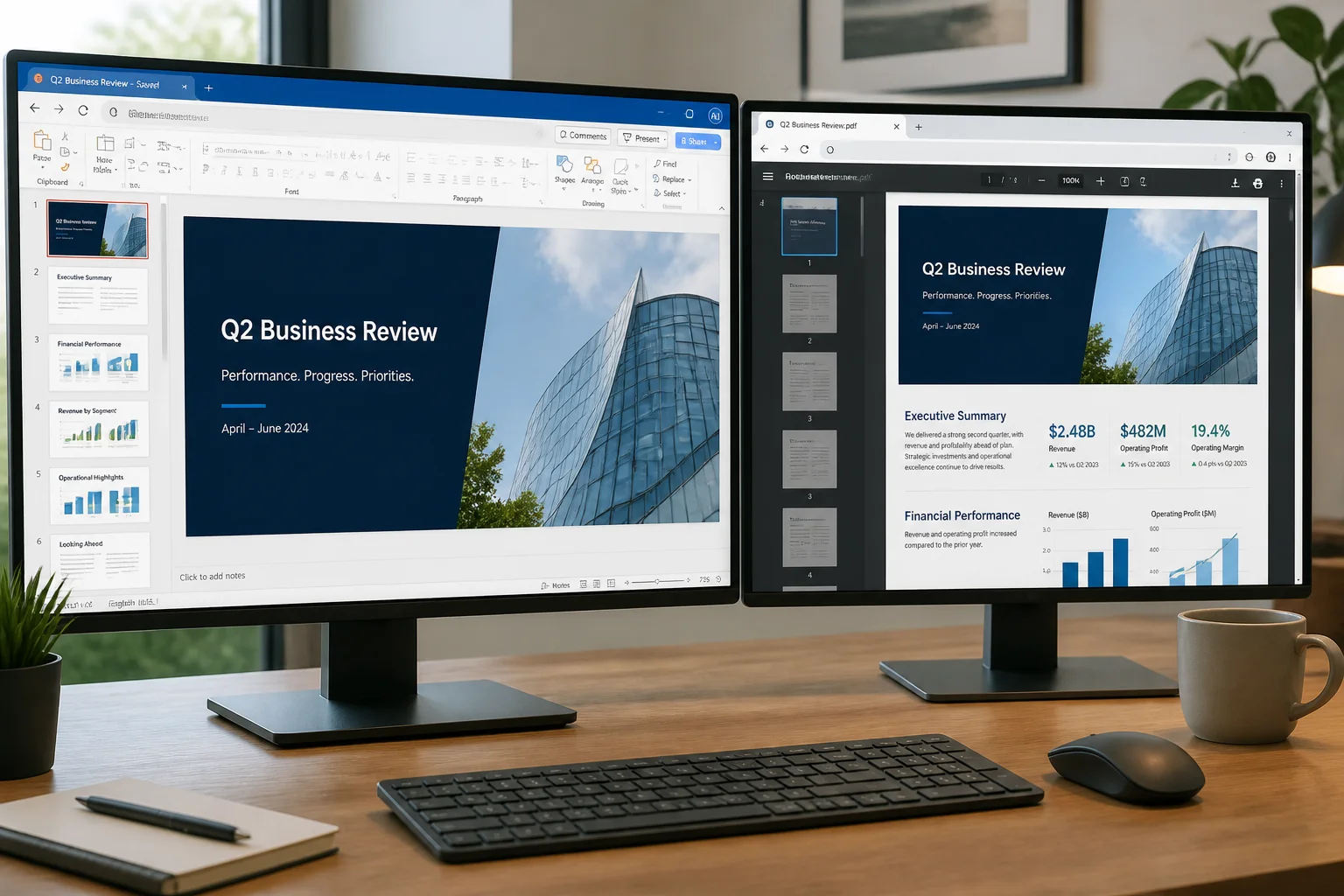
Microsoft 365 lets you convert a PowerPoint presentation to PDF from your web browser, without installing the desktop version of PowerPoint. This is useful when you need a fixed-layout copy for emailing, uploading, printing, or sharing with people who may not have PowerPoint.
To convert a PPTX file to PDF online, open the presentation in PowerPoint for the web, choose the download or export option for PDF, and save the generated file to your device. Before sharing it, check the PDF for missing fonts, cropped content, incorrect slide size, and other layout changes.
How to convert PPTX to PDF in Microsoft 365 online

- Open Microsoft 365 in your browser. Sign in to your Microsoft account and open PowerPoint from the Microsoft 365 app area.
- Open the presentation. Select the PPTX file from OneDrive or upload it if it is stored on your computer. Wait for PowerPoint for the web to finish loading the presentation.
- Review the slides. Check the presentation in editing view or slideshow view. Look especially at text near the edges, images, charts, tables, and slides with unusual layouts.
- Open the File menu. In PowerPoint for the web, select File, then look for the option to download or export the presentation as a PDF. The exact wording may vary slightly with the Microsoft 365 interface.
- Download the PDF. Confirm the PDF download when prompted. Your browser will normally save the file to its default Downloads folder unless you choose another location.
- Open and inspect the result. Scroll through the PDF before sending it. Confirm that every slide is present and that the text, images, colors, and page order look correct.
The resulting PDF normally represents the slides as static pages. Presentation animations, transitions, embedded video, and interactive elements will not behave as they do in slideshow mode.
What to check before exporting
A PDF is often used as a final, shareable version of a presentation, so it is worth preparing the PPTX first. Small changes that are easy to overlook in PowerPoint can become more noticeable after conversion.
Check slide size and orientation
Make sure the presentation uses the intended aspect ratio, such as widescreen or standard. A slide designed for a different shape may produce unexpected white space or make content look cramped when printed or viewed as a PDF.
Inspect text close to the edges
Text boxes, logos, footers, and page numbers positioned near the edge can be cut off or appear too close to the page boundary. Move important content inward and avoid relying on an area that may be outside a printer’s margins.
Review fonts and symbols
If a presentation uses a font that is unavailable to the browser or conversion environment, the appearance can change. Look for altered line breaks, substituted typefaces, missing special characters, and headings that no longer fit on one line.
Check images, charts, and tables
Zoom in on detailed slides. Confirm that images are sharp enough for their intended use and that chart labels, table borders, and small captions remain readable. A layout that looks acceptable in editing view may be difficult to read on a printed page.
Which PowerPoint content changes in a PDF?
Converting a presentation to PDF preserves the visual arrangement of slides more reliably than sharing the editable PPTX with someone who may have different software or fonts. However, a PDF is not an interactive PowerPoint file.
- Animations and transitions: Only the slide’s static appearance is represented.
- Embedded video and audio: These may not play as they do in PowerPoint.
- Speaker notes: The standard slide PDF generally shows the slides, not your private presenter notes. If you need notes, use an available notes or handout layout option when your workflow provides one, then verify the output.
- Hyperlinks: Links may remain usable, but test important links in the finished PDF rather than assuming they work exactly as expected.
- Editing: Text and objects are no longer as convenient to edit as they are in the original PPTX.
How to choose the right PDF output
For most people, the default slide-page PDF is the right choice. Each presentation slide becomes a separate PDF page, which works well for online sharing and screen viewing.
Consider a different layout when the PDF is intended as a handout. A handout layout may place several slide thumbnails on each page, sometimes with space for notes. This can reduce the number of printed pages, but it is less suitable when readers need to view each slide at full size.
If the presentation contains important speaker notes, do not assume that a normal export includes them. Check the available print or export choices in your Microsoft 365 environment and open the result afterward to confirm that the notes appear as intended.
How to convert a presentation stored on your computer
If the PPTX file is not already in OneDrive, upload it to Microsoft 365 before opening it in PowerPoint for the web. After the file finishes uploading, open it and wait for any synchronization or saving activity to complete.
Keep the original PPTX file unchanged until you have checked the PDF. The original is useful if you discover a font problem, need to revise a slide, or want to create a second PDF with a different layout.
Common problems with Microsoft 365 PowerPoint to PDF conversion
The PDF option is not visible
PowerPoint for the web’s menus can vary by account, browser, and interface version. Start with the File menu and look for download, export, or print-related options. If the browser window is narrow, expand it or open the relevant menu fully.
If the online editor does not provide the option you need, the desktop PowerPoint application may offer additional export controls. Alternatively, you can use a separate online conversion workflow. See how to convert PowerPoint to PDF without PowerPoint for other approaches.
The downloaded file is missing slides
Reopen the original presentation and confirm that all slides are present. Also check whether you exported a selected range, a custom presentation, or a handout rather than the complete deck. Compare the slide count in the PPTX with the page count in the PDF.
Fonts or line breaks changed
Look for substituted fonts and text that wraps differently. Replace unusual fonts with ones that are available to your intended audience, or adjust the affected text boxes so that a small change in line wrapping does not damage the layout.
Pictures look blurry
Check the original image quality and how far the image has been enlarged on the slide. If the source picture is already low resolution, exporting the slide again will not restore missing detail. Use a better source image and replace it in the PPTX before exporting.
Content is cut off when printed
View the PDF in a PDF reader and use its print preview. The printer’s paper size, scaling, and margins can affect the physical result even when the PDF itself looks correct. Choose a suitable scaling option and avoid enlarging slides beyond the printable area.
How to make the PDF easier to share
- Use a clear filename that identifies the presentation and version.
- Open the PDF on a second device or in another PDF reader if the file is important.
- Check the first and last pages, then skim every page for layout problems.
- Remove accidental draft slides before exporting.
- Keep the editable PPTX separately in case a later revision is needed.
For a presentation that must be submitted online, confirm whether the recipient expects a standard slide PDF, a handout, or a PDF with notes. These formats serve different purposes and should not be treated as interchangeable.
Microsoft 365 online versus a separate PPTX-to-PDF converter
| Option | Useful when | Things to consider |
|---|---|---|
| PowerPoint for the web | Your presentation is already in Microsoft 365 and you want a direct workflow. | Export controls and layout options may be more limited than in the desktop application. |
| Desktop PowerPoint | You need more control over printing, notes, handouts, or presentation settings. | The application must be installed and the file may need local access. |
| Online PPTX-to-PDF tool | You need an alternative browser-based conversion workflow. | Review the service’s privacy information and confirm that its supported file types and output meet your needs. |
If you choose an online converter, read its privacy information before uploading work documents, school assignments, or confidential presentations. You can review the Privacy Policy for this site before using its services.
Frequently asked questions
Can I convert PPTX to PDF online without installing PowerPoint?
Yes. PowerPoint for the web can open a presentation in a browser and provide an online download or export route to PDF. If you do not have access to PowerPoint for the web, another browser-based converter may be an option.
Does the conversion change my original PPTX file?
The PDF is a separate output file. Keep the original PPTX so you can edit the presentation or export it again if you find a problem.
Will animations appear in the PDF?
No. A PDF represents static pages, so animations and slide transitions do not play. If motion is essential, share the presentation in a format that supports slideshow playback as well as providing a PDF handout.
Can I convert only selected slides?
That depends on the export or print choices available in your Microsoft 365 interface. If a slide range or custom presentation option is available, verify the page count and order in the resulting PDF.
What should I do if the PDF quality is poor?
Inspect the source images, fonts, slide dimensions, and print settings. Replacing low-quality images and correcting crowded layouts often improves the result more than repeating the conversion. If you need another method, compare the options in this guide to converting PPTX to PDF online for free.
Final checklist
Before you send or upload the converted file, confirm the following:
- Every required slide appears in the PDF.
- The page order is correct.
- Fonts, symbols, and line breaks look normal.
- Images, charts, and tables are readable.
- No text, logos, or footers are cropped.
- The PDF uses the intended slide or handout layout.
- Important links work if the PDF is meant to be interactive.
- The filename is clear and the original PPTX is retained.
For a typical Microsoft 365 workflow, PowerPoint for the web is the quickest place to start: open the PPTX, use the File menu to download or export it as a PDF, and inspect the finished document before sharing. If you need a different workflow, you can also compare the available PPTX and PDF tools.