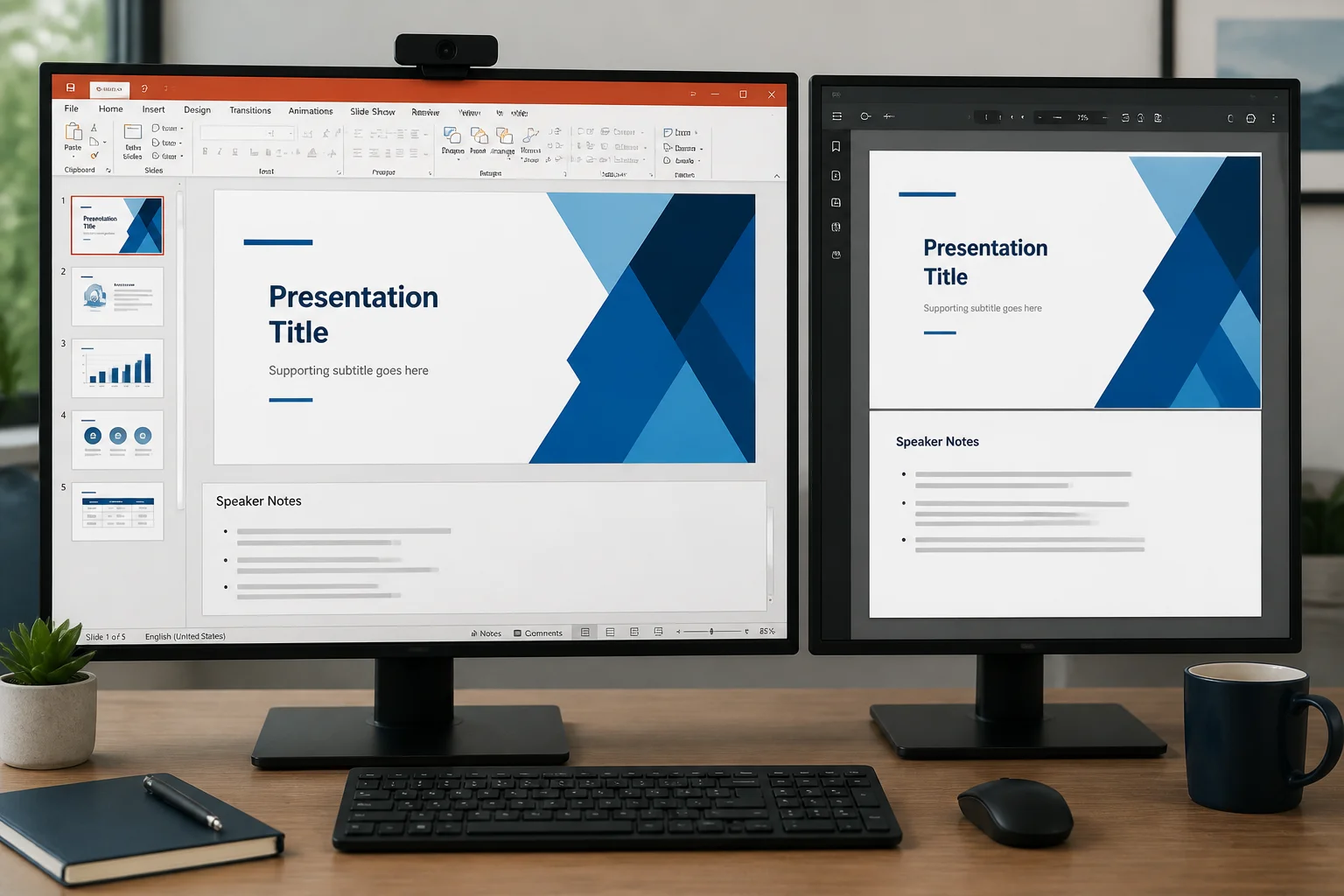
PowerPoint does not usually place speaker notes underneath each slide when you use the standard slide export. To keep your notes, you need to choose a notes-based print layout or export the presentation through PowerPoint’s print settings.
The most reliable method is to open the presentation in PowerPoint, select Print, choose Notes Pages as the layout, and then select a PDF printer or PDF output option. This creates a PDF where each page contains one slide and its corresponding speaker notes.
How to save PowerPoint notes as a PDF

- Open your presentation in the desktop PowerPoint application.
- Check that the notes are present by selecting a slide and opening the Notes pane below the slide.
- Choose File, then Print.
- Open the layout menu that normally says Full Page Slides or a similar option.
- Select Notes Pages.
- Choose a PDF printer or PDF-saving option, such as Microsoft Print to PDF on Windows or Save as PDF on macOS, depending on your setup.
- Select the destination and save the file.
- Open the resulting PDF and confirm that both the slide image and notes appear on each page.
The exact names of buttons can vary between PowerPoint versions and operating systems, but the important setting is Notes Pages. Choosing Slides, Handouts, or Outline will produce a different document and may leave out the notes.
What the Notes Pages layout includes
A Notes Pages PDF normally contains one slide per page, with the speaker notes displayed below or beside the slide area. It is designed for reviewing, presenting, teaching, rehearsing, or printing a presentation with its supporting script.
This is different from a regular slide PDF. A regular slide PDF generally contains only the visible slide content: text boxes, images, shapes, charts, and other objects shown in the presentation. Speaker notes are stored separately from the slide canvas, so they are not automatically included in a normal slide export.
| PowerPoint layout | What the PDF usually contains | Best use |
|---|---|---|
| Slides | One slide per page | Sharing or displaying the presentation |
| Notes Pages | One slide plus its speaker notes | Presenter copies, study material, and review |
| Handouts | Several slide thumbnails per page | Audience printouts |
| Outline | Presentation text in outline form | Reviewing the written structure |
How to export PowerPoint notes to PDF on Windows
On Windows, the most common approach is to use the print dialog and select a PDF printer. The workflow is usually as follows:
- Open the presentation and select File > Print.
- Under the layout or settings section, change Full Page Slides to Notes Pages.
- Choose Microsoft Print to PDF or another installed PDF printer.
- Review the preview to make sure notes are visible.
- Click Print, choose a folder, enter a filename, and save.
If the print preview shows only the slide, stop before saving and check the layout setting again. The selected printer controls the file format, but Notes Pages controls whether the notes are included.
How to export PowerPoint notes to PDF on Mac
On macOS, PowerPoint also uses the print workflow for notes pages. The wording may differ slightly by version:
- Open the presentation in PowerPoint.
- Choose File > Print.
- Open the layout menu and select Notes or Notes Pages.
- Use the PDF menu in the print dialog and choose Save as PDF.
- Name the file, select a folder, and save it.
Always inspect the preview before saving. If your notes are long, PowerPoint may divide them across pages or reduce the available writing area. A short test export can help you catch layout problems before creating the final document.
Why PowerPoint’s Export or Save As PDF option may omit notes
PowerPoint’s direct Export or Save As PDF command is generally intended to create a PDF of the slides. It may not include speaker notes because notes are not part of the visible slide design.
If you need a standard presentation PDF, direct export is often appropriate. If you need the notes, use the print method and select Notes Pages. These are two different output goals:
- Slide PDF: clean slides for viewing, sharing, or uploading.
- Notes PDF: slides combined with speaker notes for the presenter or reader.
If you are converting a PPTX file only to preserve the slide appearance, a regular PPTX-to-PDF conversion may be the appropriate workflow. It will not replace the PowerPoint notes-page process when the notes themselves must appear in the document.
How to make the notes readable in the PDF
Exporting the notes is only the first step. Before saving the final file, improve the notes layout so the PDF is useful on screen and on paper.
Review the notes master
PowerPoint uses a Notes Master to control elements such as headers, footers, page numbers, slide placement, and the notes text area. If the notes appear too small or are positioned poorly, open the Notes Master and adjust the layout before exporting.
Shorten or format long notes
Very long speaker notes can create several pages for one slide. That may be acceptable for a detailed script, but it can make the document difficult to follow. Use headings, short paragraphs, and bullet points where appropriate. Remove temporary editing comments and repeated instructions before sharing the PDF.
Check the page orientation
Notes pages are commonly laid out in portrait orientation, while slides are often designed in widescreen landscape format. This can make the slide thumbnail appear smaller than expected. Test both the page layout and print preview before committing to the final file.
Inspect fonts and special characters
Look for missing symbols, unexpected line breaks, substituted fonts, or clipped text. A PDF may display differently from the PowerPoint editing view, especially when the presentation uses fonts that are unavailable on the computer creating the PDF.
What to do if the notes are missing
If the PDF contains slides but no notes, work through these checks:
- Confirm the notes exist. Select several slides and check the Notes pane in PowerPoint.
- Verify the selected layout. Return to the print settings and choose Notes Pages, not Full Page Slides or Handouts.
- Check the print preview. If notes are missing in the preview, they will also be missing in the saved PDF.
- Check whether notes text is hidden or outside the usable area. Review the Notes Master if the notes area looks unusual.
- Try a local PDF printer. If one output method behaves unexpectedly, use the operating system’s built-in PDF printer or another available PDF option.
- Open the finished PDF in another viewer. This helps determine whether the issue is with the file or with the application displaying it.
Also remember that comments, annotations, and speaker notes are different PowerPoint features. A workflow that includes speaker notes does not necessarily include review comments or ink annotations.
Can you keep notes when converting PPTX to PDF online?
Many online PPTX-to-PDF services focus on converting the visible slides. That means the resulting PDF may contain the presentation pages without the private speaker notes stored in the file.
If notes are essential, the safest general approach is to create the Notes Pages PDF directly in PowerPoint first. You can then use a standard PPT-to-PDF converter for presentations where only the visible slides are required.
Before uploading a presentation to any online service, consider whether the file contains confidential material, personal information, unpublished work, or speaker notes that were not intended for sharing. You can review the site’s Privacy Policy before using an online conversion service.
How to create two PDFs: one for the audience and one for the presenter
In many cases, the best solution is to create separate files:
- Audience PDF: export the slides without notes so the pages are clean and presentation-focused.
- Presenter PDF: print the presentation using the Notes Pages layout.
Give the files clear names, such as project-presentation-audience.pdf and project-presentation-speaker-notes.pdf. Open both files before sending them to confirm that the correct content is in each one.
This approach prevents accidental disclosure of preparation notes while still giving the presenter a portable reference copy. It is particularly useful when notes contain timing reminders, discussion prompts, draft wording, or information intended only for the person delivering the presentation.
Can PowerPoint notes be printed without the slides?
PowerPoint’s standard Notes Pages layout includes a slide thumbnail with the notes. If you want text-only notes, you may need to copy the notes into a separate document or use an outline-based workflow, depending on how your presentation is organized.
Do not assume that selecting Outline will reproduce the speaker notes. An outline normally represents slide titles and slide text, not the complete notes written for each slide. Check the output carefully if you need a text-only document.
Final checklist for a PowerPoint notes PDF
- The notes are present on the intended slides.
- The print layout is set to Notes Pages.
- The preview shows both the slide and its notes.
- Long notes are not unexpectedly clipped or difficult to read.
- Fonts, symbols, images, and page numbers appear correctly.
- The PDF has the right orientation and page order.
- Private notes have been removed if the file will be shared publicly.
- The saved PDF has been opened and checked before distribution.
To keep PowerPoint notes when saving as PDF, use the print workflow rather than a regular slide export. Select Notes Pages, check the preview, and review the finished file. When you only need the visible slides, use a normal PowerPoint-to-PDF workflow without PowerPoint instead, but do not expect speaker notes to appear unless the conversion process explicitly supports them.
Related: How to Make PowerPoint PDF Links Open Reliably on Different Devices