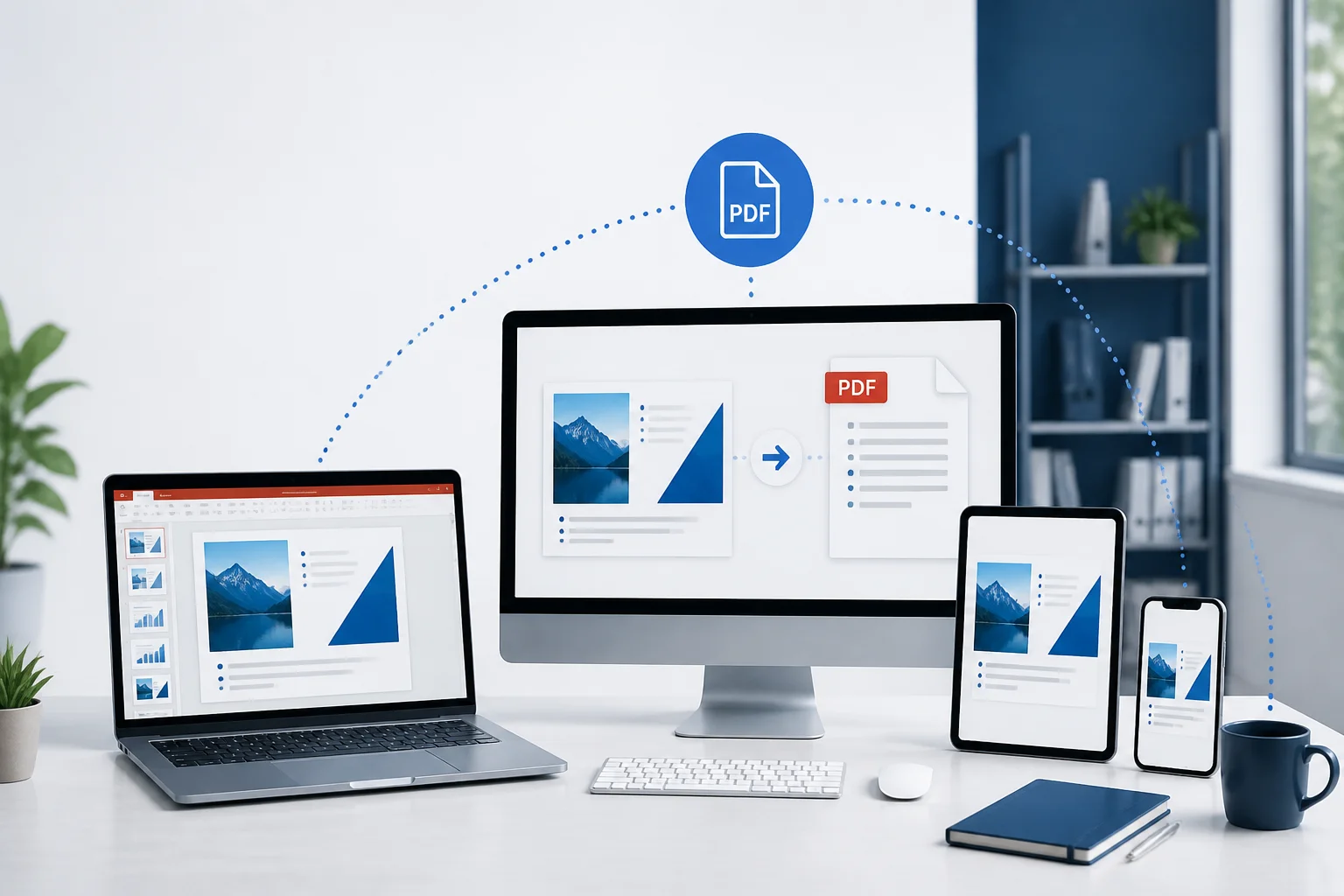
When PowerPoint PDF links are not working, the problem may come from the original hyperlink, the export method, the PDF viewer, or the device opening the file. A link that works during a PowerPoint presentation is not automatically guaranteed to work in the exported PDF.
The most reliable approach is to use standard hyperlinks, export the presentation through a method that preserves link annotations, then test the finished PDF in more than one viewer and on the device your audience will use.
Why PowerPoint links may stop working in a PDF
PowerPoint and PDF handle interactive content differently. In PowerPoint, a link can be attached to text, a shape, an image, an action button, or a presentation action. In a PDF, links are normally represented as clickable annotations over a page area.
Problems commonly occur when:
- The object uses a PowerPoint action or presentation command rather than a conventional web or file hyperlink.
- The URL is incomplete, mistyped, or contains characters that need encoding.
- The file is exported through a workflow that flattens or removes interactive elements.
- The PDF is opened in a browser, preview pane, or mobile app with limited link handling.
- A local file link points to a path that exists only on the original computer.
- The link is present, but the destination requires a sign-in, permission, network connection, or compatible app.
- A transparent shape or another object is covering the clickable area.
Use standard hyperlinks before exporting
For the best chance of cross-device compatibility, add links using PowerPoint’s regular hyperlink command. Select the text, image, or shape, open the hyperlink option, and enter the complete destination.
For a website, use the full address, including the protocol, such as https://example.com. Avoid relying on a shortened display label alone. The visible text might say “Open the registration page,” while the hyperlink destination should contain the complete web address.
Use ordinary hyperlinks for:
- Web pages
- Online documents
- Email addresses
- Telephone links, where supported by the receiving device
- Other pages within the same presentation, when the export method supports them
Be more cautious with PowerPoint-specific actions, such as jumping to a slide during a slideshow, starting an animation, or running a file. These actions depend on PowerPoint’s presentation environment and may not have an equivalent in a static PDF.
For a detailed preparation checklist, see How to Keep Hyperlinks Working When Converting PowerPoint to PDF.
Check the hyperlink destination, not just the visible text
A link can appear correct while its underlying destination is wrong. Before exporting, inspect each important link and confirm that:
- The address begins with the intended protocol, usually https://.
- There are no accidental spaces at the beginning or end.
- The domain name and page path are spelled correctly.
- The destination does not depend on a temporary session or private browser tab.
- Any shared document has the correct access permissions.
- The link does not point to a local drive, removable disk, or private network location unless every recipient can access that location.
Local paths are a frequent source of confusion. A link such as C:UsersNameDocumentsfile.pdf may work on one Windows computer but not on a phone, Mac, or another user’s computer. If recipients need the file, provide an accessible shared location or attach the file separately rather than relying on your personal path.
Export the presentation in a way that preserves links
When possible, use PowerPoint’s built-in PDF export or save-as-PDF workflow rather than printing the slides to a virtual printer. Printing creates page content, but it may not preserve interactive hyperlink annotations.
Before confirming the export, review the available options. Avoid settings that convert pages into images or otherwise flatten the document if you need clickable links. If you use a separate PPTX-to-PDF converter, check the resulting PDF rather than assuming that every interactive element was preserved.
After conversion, save the PDF with a new name so you can distinguish it from the PowerPoint source. This makes it easier to test the exact file you plan to send.
If you need a broader conversion workflow, these guides may help: How to Save a PowerPoint as PDF on Windows and How to Convert PowerPoint to PDF Without Microsoft PowerPoint.
Test the exported PDF before sharing it
Do not test only the PowerPoint file. Open the exported PDF and click the links in the finished document.
- Close the PowerPoint presentation.
- Open the PDF in a desktop PDF reader.
- Click each important link, including links on images and buttons.
- Return to the PDF and check links on several different pages.
- Open the same PDF in a web browser.
- If the audience uses phones or tablets, copy the PDF to a mobile device and test it there.
- Confirm that the destination opens without unexpected permission or sign-in problems.
Testing this way separates two different issues: whether the PDF contains a link, and whether the destination or viewing environment can open it. If the link works in a desktop reader but not in a browser, the PDF may be fine and the browser or destination may be responsible.
What to check when a PDF link is not clickable
The pointer does not change over the link
If the cursor does not indicate a link when you move over the supposed clickable area, the hyperlink may not have survived export. Recheck the original PowerPoint object and export the file again using a PDF workflow rather than a print workflow.
Also check whether the link was applied to the object itself or only to text inside it. A shape may look like a button but contain no hyperlink. Likewise, an image may have a link attached to a small portion of the object rather than the entire image.
The link is clickable but opens the wrong place
Inspect the destination in PowerPoint and compare it with the intended address. Pay attention to copied URLs that contain tracking parameters, line breaks, punctuation, or incomplete paths. Replacing the hyperlink with a freshly copied full URL often resolves this problem.
The PDF opens the link only after a warning
Some PDF readers warn users before opening an external website, file, or application. This is a security feature, not necessarily a conversion failure. The recipient may need to approve the action or adjust the reader’s trust settings.
Do not tell recipients to bypass security warnings blindly. Instead, make the destination clear and use a reputable, expected address. For local files and executable content, consider providing a safer alternative.
The link works on a computer but not on a phone
Mobile PDF apps vary in how they handle links. A web URL may open correctly, while a local file link, telephone link, or link requiring a desktop application may not.
For mobile audiences, favor standard web addresses and make sure the destination has a mobile-friendly experience. If a document requires a particular app or account, explain that near the link instead of assuming every recipient has the same setup.
The link works in one PDF app but not another
First download the PDF instead of viewing it inside an email preview or cloud-storage preview. Then open the downloaded file in a dedicated PDF reader and compare the result with the browser version.
If the link works in a dedicated reader but not a preview pane, the document is likely intact and the preview tool is limiting interaction. Tell recipients to download the file when necessary.
Make links easier to use across devices
Reliability is not only about whether a link technically exists. The link should also be easy to identify and activate.
- Use descriptive link text, such as “Download the assignment brief,” instead of displaying a long URL where space is limited.
- Use a visible color or underline for text links.
- Leave enough space around buttons and linked images for touch users.
- Do not place several small links too close together.
- Repeat essential destinations in text if a decorative button may be difficult to use.
- Keep the link target large enough to select on a phone.
For printed PDFs, remember that a printed page cannot be clicked. If people may receive a paper copy, include a short, readable URL or a QR code as an additional access method. The QR code is useful as a supplement, not a replacement for an accessible text link.
Understand what does not carry over from PowerPoint
A PDF preserves a fixed page layout, not the full behavior of a slideshow. Basic external hyperlinks are usually the most suitable interactive feature to carry into a PDF, but animations, transitions, triggered effects, and slideshow actions are not equivalent to PDF links.
If a slide says “click to reveal the answer,” the exported PDF may show only the static state selected during export. If the audience needs the interaction, share the PowerPoint presentation or a web-based presentation in addition to the PDF.
Similarly, embedded videos may appear as a poster image or static object rather than a playable video. See How to Handle Embedded Video When Converting PowerPoint to PDF and Do PowerPoint Animations Work in PDF? for related limitations.
Use a simple link checklist before sending the PDF

| Check | What to confirm |
|---|---|
| Destination | The full URL or intended target is correct and accessible. |
| Hyperlink type | The object uses a standard hyperlink rather than a PowerPoint-only action. |
| Export | The PDF was exported or saved, not merely printed to an image-based file. |
| Desktop test | Important links open in the finished PDF. |
| Browser test | The downloaded PDF behaves as expected outside PowerPoint. |
| Mobile test | Links are usable on the devices your audience is likely to use. |
| Permissions | Recipients can access the destination without unexpected restrictions. |
When to export the presentation again
Export a new PDF after changing a hyperlink, moving a linked object, replacing an image, or altering slide content. Editing the PowerPoint source does not update a PDF that has already been created.
Use a clear file naming system, such as a version number or date, so you do not accidentally distribute an older PDF with broken links. Before sharing, open the final copy from the location where it will be distributed—such as an email attachment, learning platform, or shared folder.
Final takeaway
To make PowerPoint PDF links open reliably on different devices, create standard hyperlinks with complete destinations, export without flattening the document, and test the finished PDF in a desktop reader, browser, and mobile environment. When a link fails, identify whether the problem is in the hyperlink, the export, the PDF viewer, or the destination itself.
Basic web links are generally the most dependable option. PowerPoint-only actions, local file paths, animations, and embedded media need extra care because a PDF cannot reproduce every slideshow feature.
Related: How to Share a PowerPoint PDF Securely: Passwords, Permissions, and Redaction
Related: How to Make a PowerPoint PDF Easy to Annotate During Review