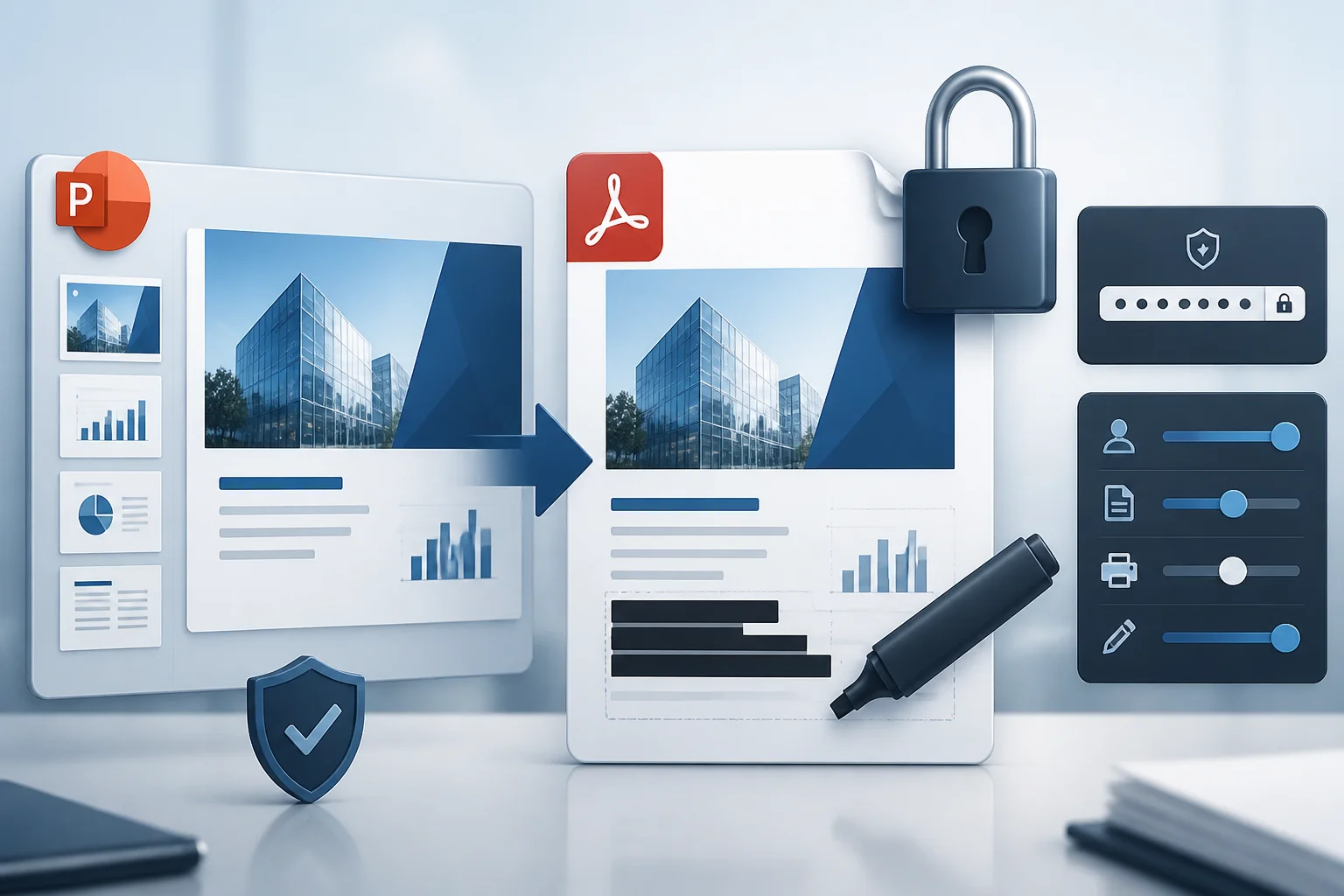
Secure PowerPoint PDF sharing involves more than exporting a presentation and emailing the resulting file. A PDF can still contain sensitive text, speaker notes, comments, personal information, or selectable content that you did not intend to distribute. It may also be forwarded after delivery.
The safest workflow is to prepare the presentation, remove information that should not be shared, export it to PDF, apply appropriate security settings, and then test the final file as a recipient would. Passwords and permissions help control access, but they do not replace redaction or careful delivery.
A quick workflow for sharing a PowerPoint PDF securely
- Classify the content. Decide whether the presentation contains confidential, personal, financial, internal, or legally sensitive information.
- Prepare the PowerPoint. Remove hidden slides, comments, speaker notes, unused objects, and metadata that should not leave your organization.
- Export and inspect the PDF. Check every page, link, image, text layer, and page size.
- Apply PDF security settings. Use an opening password when access must be restricted, and permissions when you want to limit editing, copying, or printing.
- Redact sensitive content properly. Permanently remove confidential text rather than covering it with a shape.
- Deliver the file safely. Send the PDF and its password through separate channels when possible.
- Verify the recipient and final file. Open the exact attachment you plan to send and test it without your authoring software.
Decide what kind of protection you need
Different risks require different controls. A presentation intended for public viewing does not need the same treatment as a board document, client proposal, student record, or internal financial report.
| Goal | Useful control | Important limitation |
|---|---|---|
| Prevent casual access | Require a password to open the PDF | The password must be delivered securely and may still be shared by the recipient. |
| Discourage changes | Set editing restrictions | Permissions are not a substitute for strong access control or trusted recipients. |
| Limit paper copies | Restrict printing | Recipients may still photograph or reproduce visible content. |
| Prevent copying | Disable text and image copying where supported | It cannot reliably stop every method of reproducing information. |
| Remove confidential information | Use a genuine redaction process | Visual coverage alone can leave the original text recoverable. |
For particularly sensitive material, consider whether a PDF should be shared at all. A secure document portal, controlled workspace, or view-only system may provide better oversight than an attachment that can be downloaded and forwarded.
Prepare the PowerPoint before exporting
Security problems often begin in the source presentation. Before converting it, create a clean sharing copy rather than editing the only original.
Remove hidden slides and unused content
Hidden slides may contain backup material, draft figures, internal commentary, or information intended only for the presenter. Delete slides that should not be shared, or confirm that your PDF export settings exclude them.
Also inspect objects placed outside the visible slide area. Text boxes, images, charts, and shapes may be overlooked during a normal presentation but can remain in the file or affect what is exported.
Check notes, comments, and collaboration information
Speaker notes and comments can reveal internal instructions, review discussions, names, or unfinished wording. Make sure the export contains only the slide content you intend to deliver. If the presentation has been collaboratively edited, review comments and version-related information before creating the final copy.
Review metadata and file names
The presentation and exported PDF may contain author names, company details, subject lines, or other document properties. Remove or change metadata when it could reveal information that recipients do not need. Choose a neutral, professional filename and avoid including confidential details in the filename itself.
For a broader pre-send checklist, see how to prepare a PowerPoint for PDF before sending it to a client.
Use a password to control PDF access

An opening password prevents the PDF from being viewed without the correct credential. This is the most direct option when the document should be accessible only to selected recipients.
Choose a strong, unique password
- Use a long phrase or a mixture of words, numbers, and symbols.
- Do not use the recipient’s name, the project name, a company phone number, or an obvious date.
- Do not reuse a password from email, cloud storage, or another account.
- Use a different password for a different confidential document or recipient group when practical.
A password does not help if it is sent in the same unprotected message as the file. Send the PDF by email and communicate the password through a separate channel, such as a phone call, text message, or approved messaging system. Confirm that you are sending the password to the intended person.
Understand the two common PDF password types
PDF software may distinguish between a password required to open a document and an owner or permissions password used to control actions such as editing, copying, or printing. The names and available options vary between applications.
An opening password protects access. A permissions password can signal that certain actions are restricted, but compatible PDF software and user behavior affect how effective those restrictions are. Treat permissions as a useful control for ordinary sharing, not as an absolute barrier against a determined recipient.
Set permissions for editing, copying, and printing
When recipients need to read a document but should not alter the official version, you can restrict editing. Depending on the PDF software, you may also be able to control printing, copying text and images, commenting, form filling, or document assembly.
Choose the least restrictive settings that still meet your goal. For example, a client may need to print a proposal, while a draft internal document may not be ready for printing or commenting. Overly restrictive settings can create practical problems for legitimate users, including accessibility, note-taking, or required business processes.
Before relying on permissions, test the final PDF in a separate PDF reader. Check whether editing, copying, printing, and commenting behave as intended. Different applications may display or enforce permission settings differently.
Redact sensitive information correctly
Redaction is different from hiding text. Drawing a black rectangle over a name, changing the text color to match the background, or placing an opaque shape on top of a number may leave the original content in the PDF. A recipient could sometimes select, copy, search, move, or remove the covering object.
Use a genuine redaction workflow
- Make a working copy of the presentation or PDF.
- Identify every occurrence of the sensitive information, including repeated names, identifiers, labels, notes, and figures.
- Use a PDF editor’s dedicated redaction tool, if available.
- Apply or finalize the redactions so the underlying content is removed.
- Sanitize hidden information and metadata when the software provides that option.
- Save a new final file rather than overwriting the untouched source.
- Test the result by searching for the redacted term, selecting text near the redaction, copying the page, and checking the document properties.
If your PDF software does not support true redaction, create a new sanitized version with the sensitive content removed before export. Do not assume that a visual cover is sufficient.
Consider whether the PDF should be flattened
Flattening can combine certain interactive or layered elements into a more fixed page appearance. This may reduce accidental editing of annotations, form fields, or overlays, but it is not the same as encryption or redaction. Flattening also has trade-offs: links, accessibility features, selectable text, forms, or other useful behavior may be affected.
Use flattening only after deciding which features recipients need. Always keep an editable source copy separately and inspect the flattened output before sending it.
Deliver the file safely
Even a well-protected PDF can be exposed during delivery. Use an approved storage or transfer method for confidential documents, confirm the recipient’s address, and avoid sending sensitive files to large mailing lists unless every person should receive them.
- Use a private link with access controls when your organization provides one.
- Set an expiration date or revoke access when the sharing system supports it and the document does not need permanent availability.
- Send the password separately from the file.
- Do not paste confidential content into the email subject line or message unnecessarily.
- Check that you are attaching the final sanitized PDF, not the original PowerPoint.
- Be cautious with forwarding and automatic cloud-sharing permissions.
If you use an online conversion or document service, review its privacy information before uploading sensitive material. You can read the privacy policy for the relevant service before deciding whether it is appropriate for your file.
Verify the final PDF before sending it
Open the exported file as a recipient would, preferably in a PDF reader rather than only in PowerPoint. Use this final check:
- Confirm that the PDF opens with the expected password.
- Check that no hidden slides, speaker notes, comments, or draft pages are present.
- Search for words and identifiers that should have been removed.
- Try selecting and copying text from a redacted area.
- Review links, page order, images, charts, and fonts.
- Test printing if printing is allowed or required.
- Check the document properties and filename.
- Open the file on a different device or PDF reader if compatibility matters.
Conversion can change links, animations, videos, and interactive behavior. A PDF is generally a fixed-page format, so dynamic PowerPoint elements may not work as they did in the slideshow. For related checks, see how to keep hyperlinks working when converting PowerPoint to PDF and how to handle embedded video when converting PowerPoint to PDF.
Common mistakes to avoid
Putting the password in the same email
This reduces the benefit of the password because anyone who gains access to the message may receive both the file and credential.
Covering information with a shape
A shape is a design object, not necessarily a redaction. Remove sensitive content or use a proper redaction tool.
Protecting the PDF but not the source file
The original PowerPoint may contain editable slides, hidden material, notes, and unprotected data. Store it separately and share only the sanitized PDF.
Assuming permissions cannot be bypassed
Permissions can discourage ordinary editing, copying, or printing, but they are not a complete solution for highly sensitive information.
Skipping the recipient test
A file that looks correct on your computer may have missing fonts, broken links, unexpected notes, or unusable restrictions elsewhere. Test the exact final attachment.
Secure sharing checklist
- Create a separate sharing copy of the presentation.
- Remove hidden slides, notes, comments, unused objects, and unnecessary metadata.
- Export the correct slides and review the resulting PDF.
- Redact sensitive content permanently, not with an overlay.
- Use an opening password when access must be limited.
- Apply editing, copying, or printing permissions only when they support the actual sharing goal.
- Send the file and password through separate channels.
- Use an approved delivery method and verify the recipient.
- Open and test the final PDF before sending it.
Secure PowerPoint PDF sharing is a layered process: minimize the information first, remove what should not be present, protect access where appropriate, and verify the exact file that leaves your hands. This approach is more reliable than depending on a password or a visual cover alone.