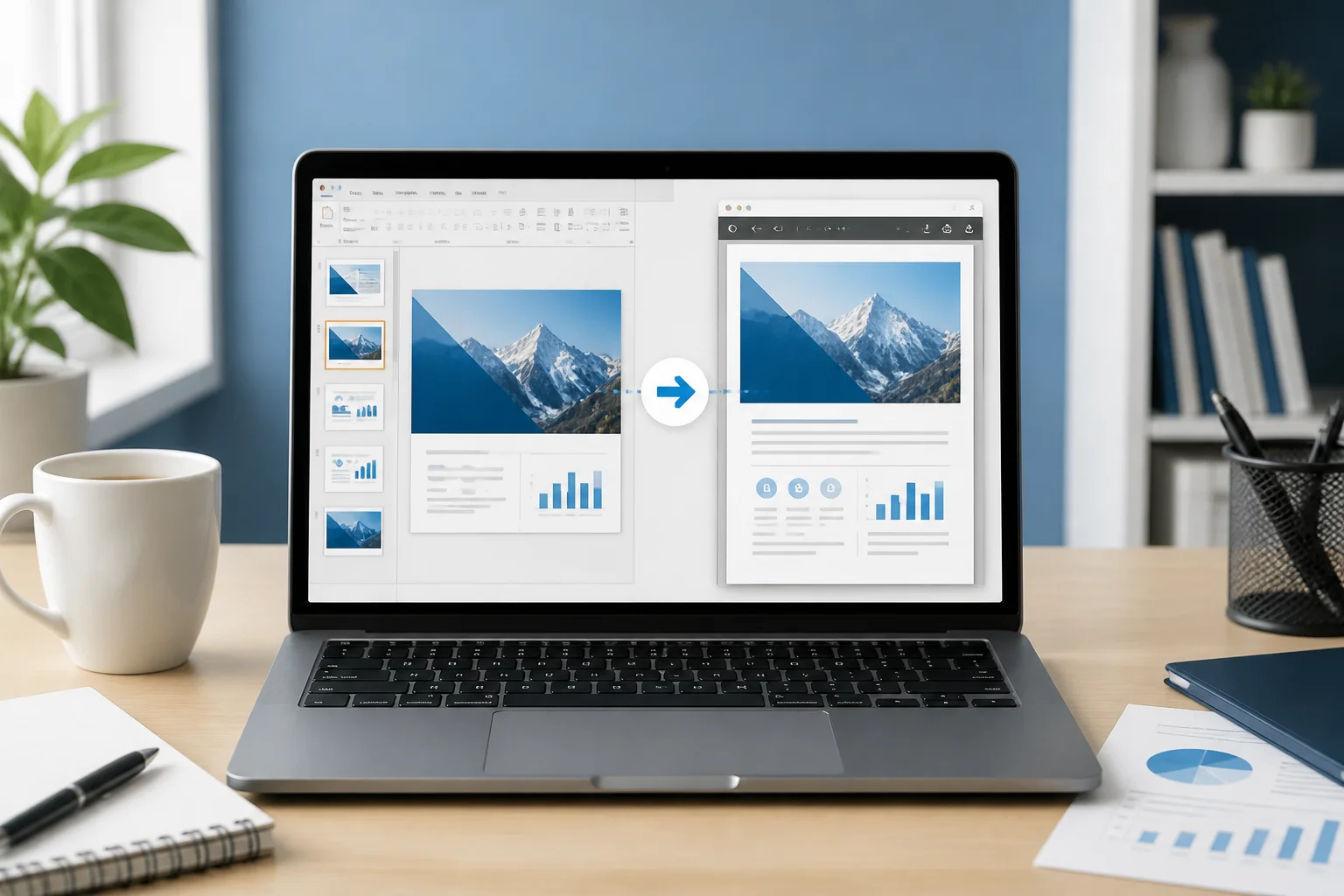
You can convert a PowerPoint presentation to PDF without Microsoft PowerPoint. The simplest option is usually an online PPTX-to-PDF converter: upload the presentation, choose PDF if prompted, convert it, and download the result. If the presentation contains confidential information or you need an offline workflow, a free office suite or another presentation application may be a better choice.
This guide explains the main methods, when to use each one, and how to check that the converted PDF still looks correct.
Quickest method: use an online PPTX-to-PDF converter
An online converter is useful when you need a PDF quickly and do not have PowerPoint installed. It can also be convenient on a shared computer, Chromebook, phone, or computer where you cannot install desktop software.
- Open a reputable PPTX-to-PDF conversion tool.
- Select your .ppt or .pptx presentation.
- Start the conversion and wait for the process to finish.
- Download the resulting PDF.
- Open the PDF and review several pages before sending or printing it.
You can use the PPT to PDF converter when you want a focused conversion workflow. The site also provides a broader tools page if you are looking for related file-conversion options.
When an online converter is the best choice
- You need a PDF immediately.
- You do not have Microsoft PowerPoint.
- You are working from a browser or mobile device.
- You do not want to install office software.
- The presentation is suitable for processing through an online service.
Before uploading a file, consider whether it contains private client information, student records, internal business data, passwords, or other sensitive material. Review the service’s privacy information and terms before using it. You can read the site’s Privacy Policy for information about its stated privacy practices.
Method 2: open the presentation in Google Slides
Google Slides can open many PowerPoint files in a browser, making it possible to export a presentation without installing PowerPoint. This method is particularly useful if you already use Google Drive and want to make small edits before creating the PDF.
- Sign in to Google Drive.
- Upload the PPT or PPTX file.
- Open the file with Google Slides.
- Allow the file to be converted or opened in an editable Slides format if prompted.
- Review the slides for layout changes.
- Use the download or export option and choose PDF.
Possible formatting changes in Google Slides
A presentation may look different after being opened in another application. Fonts that are unavailable may be replaced, text can wrap differently, and some animations, transitions, embedded objects, charts, or special effects may not transfer exactly. Review the exported PDF rather than assuming that the original slide appearance was preserved.
Google Slides is a good choice when you need to edit the content first. For a simple conversion with no editing, an online converter may require fewer steps.
Method 3: use free desktop office software
A free office suite with presentation software can open many PowerPoint files and export them as PDFs. This is a practical offline option when you prefer not to upload your presentation.
- Install a trusted office suite that includes presentation software.
- Open the PPT or PPTX file in its presentation application.
- Check the slides, fonts, images, charts, and speaker notes if they matter to your output.
- Choose Export as PDF, Save as PDF, or a similar command.
- Select the output location and save the file.
- Open the PDF and compare it with the presentation.
Advantages of an offline conversion
- The file can remain on your computer.
- You can inspect and edit the presentation before exporting it.
- You can retry the export without uploading the file again.
Limitations to keep in mind
Compatibility is not identical across office applications. A file with unusual fonts, complex animations, advanced transitions, linked media, or specialized PowerPoint features may not render exactly as it did in PowerPoint. If the PDF is for a formal submission, inspect every important slide after export.
Method 4: use a presentation app already installed on your device
Some computers and mobile devices include a presentation application that can open PPT or PPTX files and print or export them as PDFs. The exact menu names vary, but look for options such as Export, Share, Print, or Save as PDF.
If there is no direct PDF export, the system print dialog may offer a Print to PDF option. Select it as the printer, check the paper size and orientation, then save the output. Printing to PDF can work well for basic slides, but it may not preserve every presentation-specific feature.
Which method should you choose?

| Method | Best for | Main consideration |
|---|---|---|
| Online converter | Fast conversion from a browser | Review privacy information before uploading sensitive files |
| Google Slides | Browser-based opening and light editing | Fonts and advanced elements may change |
| Free desktop office software | Offline conversion and editing | Compatibility can vary between applications |
| Print to PDF | Basic output when export is unavailable | Print settings can affect page size and layout |
For a quick, ordinary presentation, start with an online converter. For confidential work, consider an offline application. For files that need editing, use a presentation editor first and then export the corrected version.
How to preserve slide quality during conversion
A PDF is usually intended to preserve a fixed page layout, but conversion does not automatically guarantee a perfect match. These checks can prevent common problems:
- Check the slide size: A widescreen presentation may appear differently when printed on standard paper. Confirm the page orientation and dimensions in the export or print settings.
- Review fonts: Missing fonts can cause text substitution, line wrapping, or content that runs outside a text box.
- Inspect images: Look for blurry graphics, missing pictures, transparent areas, and unexpected cropping.
- Check charts and tables: Small text and complex objects deserve a close review at normal viewing size and at print size.
- Look at backgrounds and colors: Dark backgrounds, gradients, and transparency can appear differently in some applications or printers.
- Confirm links: If clickable links matter, test them in the exported PDF.
- Review notes and handouts: Decide whether you need one slide per page, multiple slides per page, speaker notes, or a different handout layout.
What if you have a PPT file instead of PPTX?
PPT is the older PowerPoint presentation format, while PPTX is the newer XML-based format. Many conversion tools and office applications support both, but support can vary. If one method cannot open the file, try another converter or open it in a compatible presentation application and save or export it before creating the PDF.
Do not simply rename .ppt to .pptx. Changing the file extension does not convert the file format and may make the file harder to open.
Can you convert PowerPoint to PDF on a phone?
Yes, a browser-based converter can be convenient on a phone if the file is stored on the device or in cloud storage. You can also use a mobile presentation application that supports PDF export. Because mobile screens make layout inspection more difficult, open the finished PDF on a larger screen when the document will be printed, submitted, or presented professionally.
Why does the converted PDF look different?
The most common cause is that the conversion tool or presentation application does not have the same fonts, rendering behavior, or support for specialized PowerPoint features as the original file. Other causes include a different slide ratio, changed print settings, unsupported animations, and images that are linked rather than embedded.
Try these fixes:
- Open the original file in a presentation application and check for missing fonts or media.
- Use standard fonts where possible.
- Check the slide dimensions and page orientation.
- Embed important images instead of relying on external links.
- Export again using a different method.
- Inspect the PDF page by page before sharing it.
How to check the PDF before sending it
A quick quality check is worthwhile, especially for applications, classroom materials, proposals, invoices, and printed handouts. Confirm that:
- All slides are present and in the correct order.
- No text, images, or logos are cut off.
- Fonts and symbols display correctly.
- Charts, tables, and diagrams remain readable.
- The page orientation matches the intended use.
- Links work if the document depends on them.
- The file opens on another device or PDF reader if compatibility is important.
What about converting slides to images instead?
If you need individual slide images for a website, social post, or image-based handout, PDF may not be the best final format. In that situation, a slide-to-image tool can be more suitable. The site’s PPTX-to-JPG converter explains the alternative of converting slides to JPG images.
Final recommendation
To convert PowerPoint to PDF without PowerPoint, use an online converter for speed, Google Slides when you need browser-based editing, or free desktop office software when you want an offline workflow. Whichever method you choose, the final step should always be the same: open the PDF, inspect the important pages, and confirm that its layout, text, images, and print settings are correct.
If you want a separate walkthrough focused specifically on browser-based conversion, see how to convert PPTX to PDF online for free.
Related: How to Convert PowerPoint to PDF With Accessible Text, Reading Order, and Alt Text
Related: How to Turn a PowerPoint Presentation Into a Professional PDF Workbook
Related: How to Convert a PowerPoint Presentation With Non-Latin Text Without Broken Characters