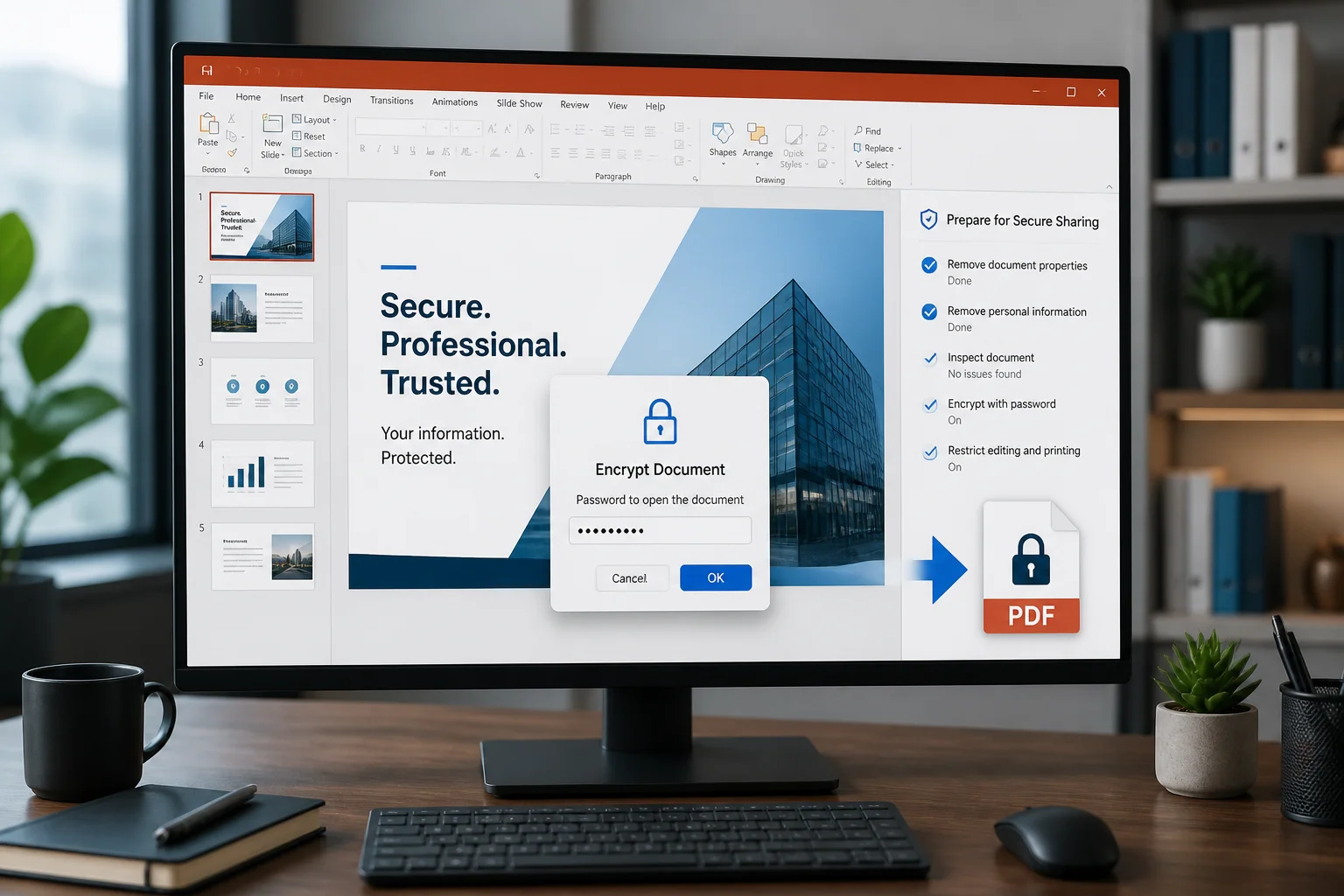
Exporting a PowerPoint presentation to PDF can make it easier to share, print, and view, but it does not automatically protect the information inside it. Hidden slides, speaker notes, comments, metadata, copied text, and editable source files can still create privacy or security problems.
To protect a PowerPoint before PDF sharing, review the presentation, remove anything that should not leave your computer, export a clean copy, and apply PDF restrictions when necessary. Then open the finished PDF and test what a recipient can see, copy, print, or edit.
1. Decide what protection the PDF actually needs
Not every presentation needs the same level of protection. Start by deciding what you are trying to prevent:
- Accidental disclosure: hidden slides, notes, comments, or personal information appearing in the file.
- Unwanted changes: recipients editing the presentation content or altering pages.
- Easy copying: text, images, or tables being copied from the PDF.
- Unauthorized opening: someone viewing the document without a password.
- Uncontrolled printing: recipients producing paper copies when you want a digital-only document.
These controls are different. A password that limits editing may not prevent someone from opening the file. A restriction on copying may not stop screenshots or photographs. Use the lightest protection that suits the situation so legitimate recipients can still use the document.
2. Clean the PowerPoint before exporting
The safest PDF export begins with a clean source presentation. Make a duplicate of the original file first, then work from that copy. This preserves an editable master while giving you a version prepared for distribution.
Check every slide, including hidden slides
Review the slide thumbnail pane from beginning to end. Look for draft slides, backup slides, internal instructions, confidential pricing, private contact details, and material intended only for the presenter. Hidden slides may not appear during a normal slideshow, but they can remain in the PowerPoint file and may be included if you export the entire presentation.
If a hidden slide is not part of the shared version, delete it from the distribution copy rather than relying only on its hidden status. When exporting, select only the slide range you intend to send if your workflow allows it.
Remove speaker notes and comments
Speaker notes can contain talking points, reminders, internal explanations, or information that was never meant for an audience. Comments may reveal review discussions, names, or unresolved issues.
Open the notes area and inspect notes on each slide. Also review the Comments pane and remove comments from the copy you will export. Do not assume that notes or comments are harmless simply because they are not visible in the main slide design.
Inspect objects outside the visible slide area
Designers often place spare images, draft text, or alternate layouts outside the slide boundaries. These objects may not appear in the presentation, but they can remain in the source file and may be exposed if someone receives the original PowerPoint.
For PDF sharing, the main concern is usually the visible page, but removing unnecessary objects also makes the distribution copy safer if it is accidentally shared in its original format later.
3. Remove sensitive information and document metadata
Presentations can contain more information than the visible slide text. Before exporting, check for:
- author and organization names;
- file properties and document titles;
- revision history or tracked changes;
- comments and reviewer names;
- linked files, embedded documents, or external media;
- personal email addresses, phone numbers, and file paths;
- confidential filenames shown in screenshots.
PowerPoint includes an inspection tool in many desktop versions under the file information or inspection options. The exact menu wording varies by version, so look for a document inspector or privacy-checking feature. Run it on the copy you plan to export, review the findings, and remove information that should not be distributed.
Also inspect screenshots and images manually. A slide can expose sensitive data in a spreadsheet, browser window, email message, or desktop notification captured inside an image.
4. Use PowerPoint’s protection features carefully
PowerPoint can help protect the editable source file, but source-file protection and PDF protection are not the same thing.
Protect the original presentation from accidental changes
Use a read-only recommendation, file password, or other presentation-level protection when you need to preserve the original PowerPoint. These options are useful for controlling access to the editable file, but they do not replace securing the exported PDF.
Keep the master presentation in a controlled location and share only the PDF when recipients do not need to edit slides. Sending both files gives recipients an editable version that may contain notes, hidden slides, and design elements you intended to keep private.
Do not rely on “mark as final”
A final-status label can discourage casual edits, but it is not a strong security barrier. Someone who receives the file may still be able to modify it. Treat this feature as a workflow reminder, not as encryption or access control.
5. Export a clean copy to PDF
When the presentation is ready, export the distribution copy to PDF using PowerPoint’s export or save-as option. Before confirming the export, review settings that affect what is included:
- Range: export all slides only if every slide belongs in the shared document.
- Notes and handouts: choose standard slide pages if notes or handout layouts should remain private.
- Hidden slides: verify whether the export includes them and exclude them when necessary.
- Quality: choose a suitable output quality for the purpose. A print-ready file may be larger than a screen-only copy.
- Accessibility: preserve useful reading order, selectable text, and alternative text where available.
For a separate explanation of conversion workflows, see how to convert PowerPoint to PDF without PowerPoint or the guide to converting PPTX to PDF online.
6. Add password protection to the PDF when needed

If the file contains confidential business, academic, financial, or personal information, consider applying protection to the PDF after export. PDF applications commonly offer two separate password concepts:
- Open password: required before a person can view the document.
- Permissions password: controls actions such as editing, printing, commenting, or copying.
An open password provides stronger access control because the recipient cannot view the pages without it. Send the password through a different channel from the file, such as a phone call or separate message. Do not place the password in the same email as the attachment.
Permission restrictions can reduce casual editing or copying, but they should not be treated as absolute prevention. PDF tools differ in how they enforce permissions, and recipients may still capture visible content by other means. For highly sensitive material, limit the recipient list and share only the pages they need.
7. Choose the right balance between security and usability
| Sharing situation | Practical protection | Important caveat |
|---|---|---|
| Public presentation or class handout | Remove private material and export a clean PDF | Anyone who receives it may redistribute it |
| Client review | Clean the file and restrict editing if appropriate | Recipients may still copy visible content |
| Confidential proposal | Use an open password and send it separately | Password sharing must be handled securely |
| Print-only distribution | Consider limiting editing and printing according to the purpose | Restrictions are not a substitute for trusted recipients |
| Material with personal data | Remove or permanently redact the data before export | Covering text with a shape is not reliable redaction |
8. Redact information instead of covering it
If a phone number, account detail, student record, or other sensitive text must not be shared, remove it from the PowerPoint before export. Do not simply place a black rectangle over the text and assume it is gone. Depending on how the file is exported, the underlying text may remain selectable, searchable, or recoverable.
For an already-created PDF, use a genuine redaction feature that removes the underlying content, then apply the redaction and save a new copy. Afterward, search the document for the removed word or number and try selecting the affected area. A redacted document should also be checked visually at different zoom levels.
9. Verify the final PDF before sending it
Never assume that a successful export produced a safe sharing file. Open the final PDF in a viewer and perform a short quality and privacy check:
- Confirm that the page count matches the intended slide range.
- Check that no hidden, draft, or internal slides are included.
- Look for notes, comments, presenter reminders, and review marks.
- Search for names, contact details, confidential terms, and other sensitive data.
- Try selecting and copying text to understand what remains extractable.
- Check links, images, charts, fonts, and slide breaks.
- Review document properties and remove unnecessary metadata if your PDF tool allows it.
- Test the password or permission settings in a separate viewer or private window.
- Print one page if printing quality or print restrictions matter.
Keep the final PDF separate from the editable master and give it a clear filename that does not reveal confidential information. Before attaching it to an email, confirm that you selected the protected PDF rather than the original PPTX.
10. Share the PDF safely
Protection can be weakened by the way a file is shared. Use a trusted destination, limit access to the intended recipients, and avoid posting confidential PDFs in public channels. If the document is especially sensitive, use an access-controlled file-sharing service rather than an open download link.
Tell recipients what they are allowed to do with the file. For example, explain whether it is for personal review, internal use, or printing. Clear instructions do not create technical security, but they reduce accidental redistribution.
If you convert a presentation using an online service, review that service’s privacy information before uploading confidential material. The privacy policy can help you understand the stated handling practices of the site you choose.
Common mistakes to avoid
- Sharing the PPTX along with the PDF: the editable source may expose notes, hidden slides, and design assets.
- Assuming a PDF is automatically secure: PDF is a format, not a guarantee of confidentiality.
- Using only a visible cover-up: a shape over sensitive text may not remove the underlying data.
- Using the same password everywhere: a compromised password can expose multiple documents.
- Sending the password in the same message: this defeats much of the benefit of password protection.
- Skipping the final review: export settings can include pages or content you did not expect.
- Overcompressing the file: low quality can make small text, charts, or scanned evidence difficult to read.
Final checklist
Before sharing a protected PowerPoint PDF, confirm that:
- the distribution copy contains only the intended slides;
- notes, comments, hidden slides, and draft content have been removed;
- personal details and metadata have been reviewed;
- sensitive information has been deleted or properly redacted;
- the PDF opens correctly and preserves the required quality;
- passwords and permissions match the actual sharing risk;
- the password is sent separately, when one is used;
- you tested the final PDF rather than the original PowerPoint.
The most reliable way to protect a PowerPoint before PDF sharing is to combine source-file cleanup with appropriate PDF controls and a final recipient-style review. No single setting prevents every form of copying, so focus first on removing information that should never leave the original file.
Related: PowerPoint PDF vs Images: Which Is Better for Sharing and Printing?
Related: How to Share a PowerPoint PDF Securely: Passwords, Permissions, and Redaction