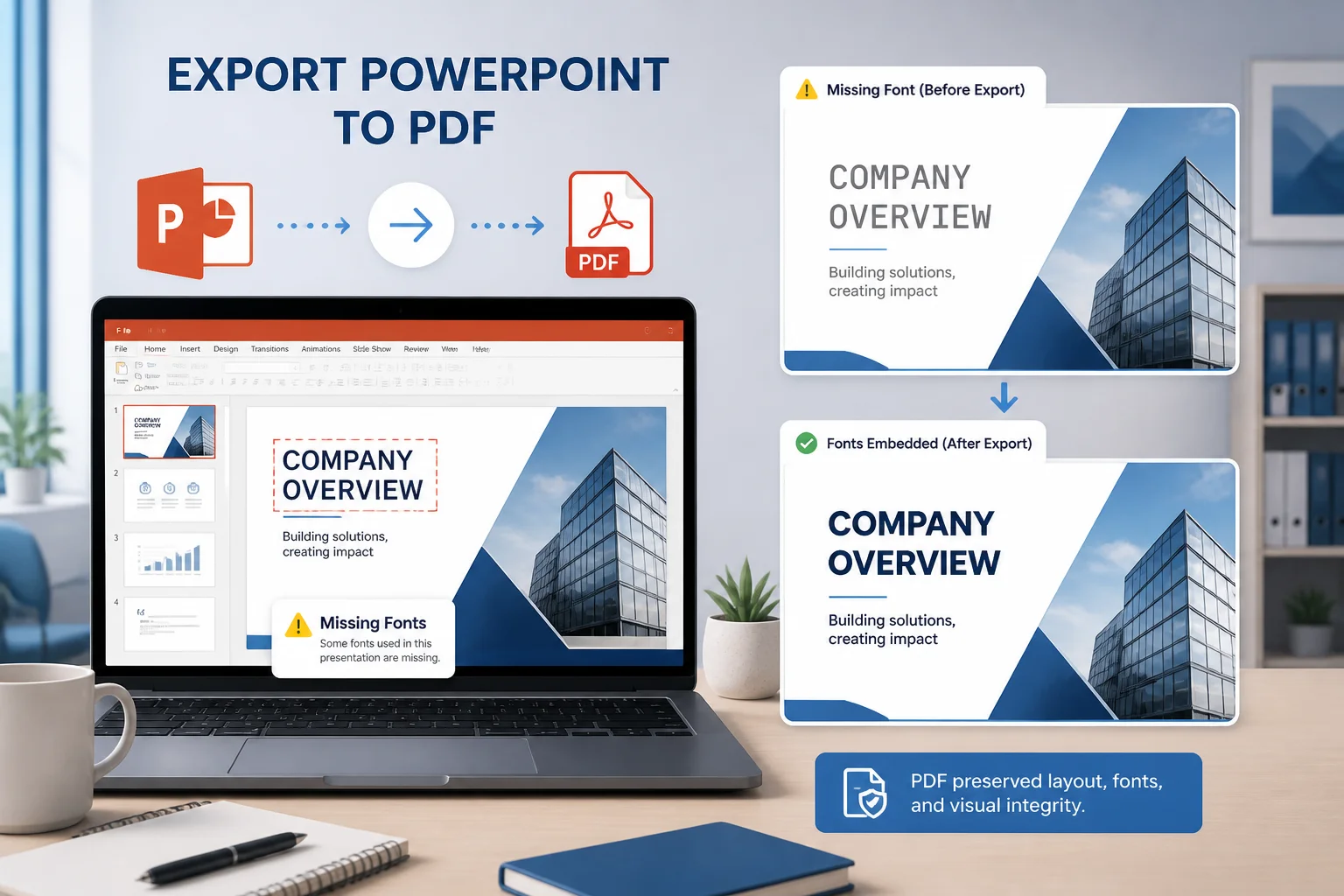
PowerPoint fonts can be missing in a PDF because the typeface is unavailable, not embedded correctly, restricted by its license, or replaced during export. When that happens, the PDF may use a different font, change line breaks, move text, or display empty characters.
The most reliable solution is to use fonts that are installed and permitted for embedding, turn on font embedding in PowerPoint when appropriate, check the exported PDF, and replace problematic fonts before conversion. If the presentation must look identical on another computer, inspect the PDF itself rather than assuming the export preserved every font.
Why PowerPoint fonts go missing in a PDF
PowerPoint does not always carry every font into the exported file. A presentation may look correct on the computer where it was created because the required fonts are installed there. During PDF export, however, PowerPoint or the conversion software may substitute a different typeface.
The font is not installed on the computer doing the conversion
If a presentation was created on one computer and converted on another, the second computer may not have the same fonts. PowerPoint then replaces unavailable fonts before or during export. This is common when a file uses a corporate font, a downloaded display font, or a typeface that came with a specific design application.
The font cannot be embedded
Some fonts include licensing restrictions that prevent embedding in documents. Even when a font is installed, PowerPoint may be unable to include it in the presentation or PDF. The result can be font substitution, missing symbols, or a warning during export.
The font is embedded only partially
Font embedding can use different levels of permission. A font may allow characters to be viewed but not edited, or it may permit only a limited subset of characters to be included. This can matter when slides contain accented letters, non-Latin scripts, mathematical symbols, or unusual punctuation.
The PDF converter handles fonts differently
PowerPoint’s built-in export, a desktop PDF printer, and an online conversion service may use different rendering systems. One method may preserve a font while another substitutes it. This is especially noticeable with decorative fonts, variable fonts, older typefaces, or fonts used inside charts and diagrams.
The text is not ordinary PowerPoint text
Text inside charts, SmartArt, equations, grouped objects, WordArt, and imported graphics may follow different conversion rules from text in a normal text box. A font can appear correctly in the main slide content but change inside a chart or an equation.
How to fix missing fonts before exporting
Start by identifying which font is causing the problem. Compare the PowerPoint file with the exported PDF, paying attention to changed letter shapes, line wrapping, symbols, and text that has moved. Then work through these fixes.
1. Check the presentation for unavailable fonts
Open the presentation on the computer that will perform the conversion. PowerPoint may display a missing-font notification, or you may see a substitute font in the file. Review the presentation’s font usage and check slide titles, body text, charts, notes, and diagrams.
If a font is unavailable, install the properly licensed version or replace it with a font already available on the conversion computer. Reopen PowerPoint after installing a font so the application can detect it.
2. Replace risky fonts throughout the presentation
Replacing a problematic typeface is often more dependable than trying to preserve it. Use PowerPoint’s font replacement function to change every occurrence at once rather than editing individual text boxes. Choose a widely available font with similar proportions and weight.
After replacing the font, review the slides for:
- New line breaks in titles and paragraphs
- Text overflowing outside placeholders
- Changed bullet indentation
- Different spacing in tables and charts
- Symbols or accented characters that no longer display correctly
Do not choose a replacement based only on appearance. A font with a similar style but much wider characters can alter the entire slide layout.
3. Embed fonts in the PowerPoint file when possible
PowerPoint includes an option to embed fonts in a presentation. In many desktop versions, open the PowerPoint options, find the save settings, and enable the option to embed fonts in the file. The exact menu names can vary by version and operating system.
Embedding can help when the presentation is opened or converted on another computer, but it is not a universal fix. The font must allow embedding, and some conversion workflows may not preserve embedded fonts. If the option is unavailable or the exported PDF still changes the typeface, replace the font or use another export method.
4. Use standard fonts for important documents
For presentations that will be printed, submitted, or shared widely, choose fonts that are commonly available and designed for document use. This reduces the chance of substitution across computers and conversion tools.
Standard fonts are particularly useful for:
- School and university submissions
- Business proposals and reports
- Documents converted by someone else
- Presentations that must be printed on unfamiliar equipment
- Files containing many pages of body text
You can still use a distinctive font for a logo or decorative heading, but consider converting that element into an image only when necessary and when the loss of editable text is acceptable.
How to export PowerPoint to PDF without font changes

- Save a backup copy of the original presentation.
- Open the file on the computer that will create the PDF.
- Confirm that all required fonts are installed and available.
- Replace fonts that are missing, restricted, or unreliable.
- Enable font embedding if the font license and PowerPoint version support it.
- Export using PowerPoint’s PDF or export command rather than relying on an unknown print driver.
- Open the resulting PDF in a PDF reader and inspect every slide.
If the PDF will be submitted or printed, also check page size, orientation, slide margins, and image quality. Font substitution can cause content to move even when the slide dimensions remain correct.
How to check whether fonts are embedded in the PDF
A PDF reader or preflight tool may show the fonts used by the document. Look for a document properties or font information panel, then check whether each font is listed as embedded or embedded as a subset.
A subset font contains only the characters used in the PDF. That is normally sufficient for viewing and printing. It may not be suitable if someone needs to edit the PDF text or reuse the font data in another document.
Do not rely only on the font name shown in the PDF. A substituted font can have a similar name or appearance. Compare the PDF with the original slides, including text width, symbols, bold and italic styles, and characters from other languages.
What to do when only some characters are missing
If ordinary letters appear but symbols, accents, or non-English characters disappear, the issue may be font coverage rather than general font embedding. The selected typeface may not contain those characters, or the conversion process may not preserve them correctly.
Try these steps:
- Use a font that supports the required language or symbol set.
- Check whether the characters are actually part of the text and not unsupported glyphs.
- Replace unusual symbols with standard Unicode characters where possible.
- Review equations and special objects separately from normal text.
- Export again and inspect the PDF at high zoom.
For a critical document, copy a small problem slide into a separate test presentation. This makes it easier to determine whether the problem comes from the font, the object type, or the full presentation.
Why the layout changes even when the font seems correct
Sometimes the PDF appears to use the same font, but text still moves. This can happen because the PDF renderer calculates character widths, kerning, line spacing, or placeholder dimensions differently. Small differences can push one word onto a new line and shift every object below it.
To reduce layout changes:
- Leave extra space around text boxes instead of fitting text tightly.
- Avoid long paragraphs inside narrow placeholders.
- Check titles that sit close to the edge of a slide.
- Use consistent font sizes and paragraph spacing.
- Inspect slides with tables, columns, and charts especially carefully.
For a fixed-layout PDF, visual inspection is essential. A file can technically contain an embedded font and still require minor layout adjustments.
Can converting PPTX to PDF online fix missing fonts?
An online converter can be useful when PowerPoint is not installed, but the result depends on how the service processes fonts and presentation objects. If the original font is unavailable to the converter or cannot be embedded, the service may substitute another font just as desktop software does.
Before using any conversion method, simplify the presentation where possible and keep a copy of the original. After conversion, compare the PDF with the PPTX rather than assuming the result is identical. For general guidance, see how to convert PPTX to PDF online or how to convert PowerPoint to PDF without PowerPoint.
Should you convert text to images?
Converting a title or decorative text to an image can preserve its appearance when font substitution is unavoidable. However, this should be a last resort for small visual elements, not the default solution for an entire presentation.
Image-based text is harder to search, select, edit, translate, or read with assistive technology. It can also become blurry when enlarged. Keep ordinary document text as text whenever possible, and use images only for branding or decorative elements whose exact appearance is more important than editability.
Quick checklist before sending the PDF
- Open the PDF on a different computer or device.
- Check every slide for changed fonts and line wrapping.
- Zoom in on small text, symbols, equations, and chart labels.
- Confirm that bold, italic, and special characters display correctly.
- Check that no text is clipped or hidden behind another object.
- Review the PDF’s font information if the document is important.
- Print a test page when physical output matters.
Frequently asked questions
Why does PowerPoint use a different font in the PDF?
The original font may be missing, restricted from embedding, unsupported by the export method, or unavailable on the computer creating the PDF. PowerPoint then substitutes a font it can use.
Does embedding fonts always solve the problem?
No. Embedding depends on the font’s licensing permissions and the conversion workflow. It also may not resolve problems in charts, equations, imported graphics, or objects that use fonts differently from ordinary text boxes.
Why are only symbols or accented letters missing?
The font may not contain those characters, or the export process may not preserve the required glyphs. A typeface with broader language and symbol support is usually a better choice.
Can I fix the PDF after exporting it?
Sometimes, but editing a PDF is less reliable than fixing the PowerPoint file and exporting again. If the font has already been substituted, changing the PDF may not restore the original layout. Correct the PPTX first whenever possible.
Final takeaway
PowerPoint PDF missing fonts are usually caused by unavailable fonts, embedding restrictions, incomplete font support, or differences between export tools. Check the fonts on the conversion computer, replace unreliable typefaces, enable embedding when supported, and inspect the final PDF on another device. These steps give you a much better chance of preserving the original slide design when sharing, printing, or submitting the presentation.