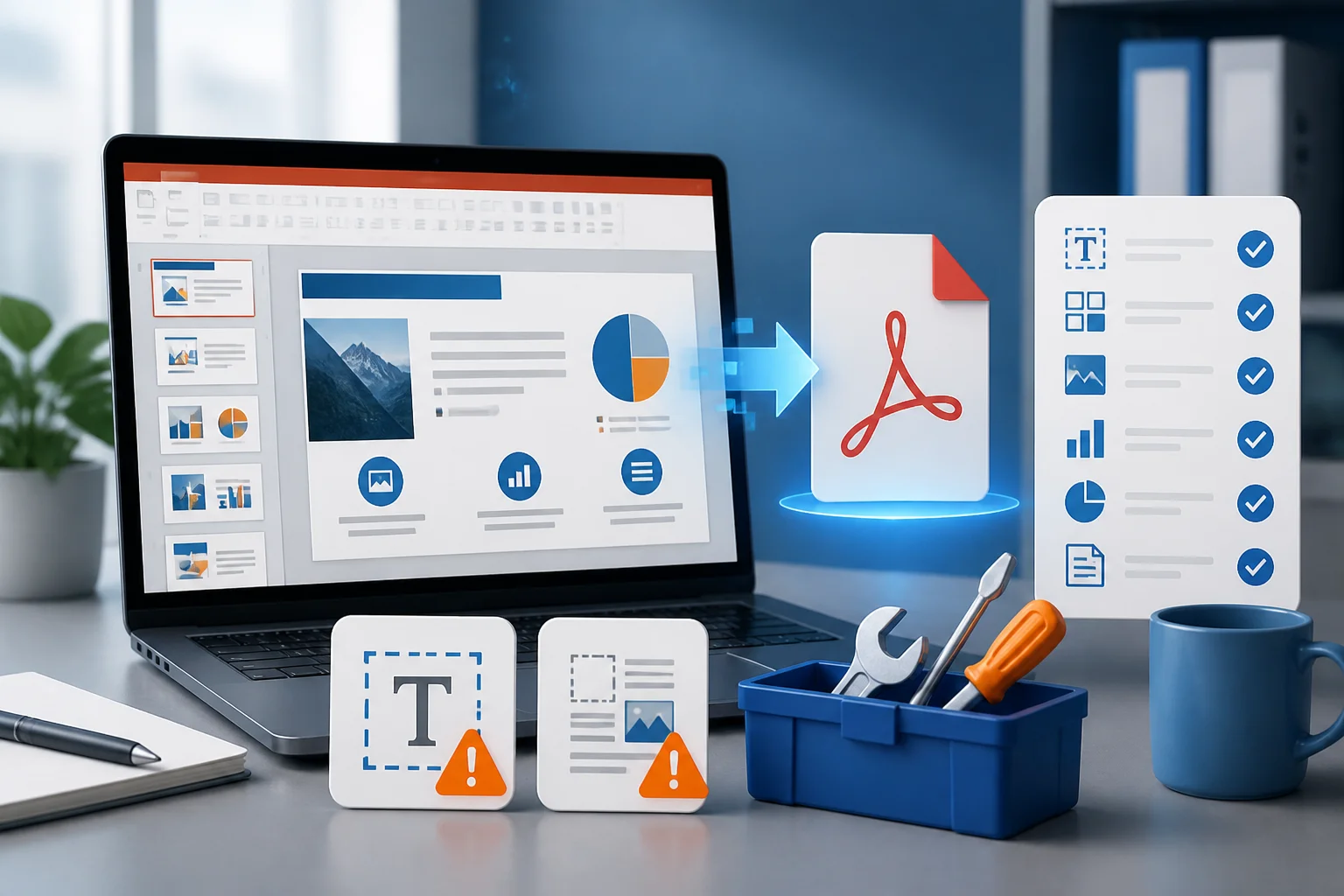
When PowerPoint to PDF is not working, the problem is usually caused by one of a few things: a damaged presentation, unsupported media or fonts, restricted file permissions, an unusually large file, or an export setting that does not match the presentation. The quickest solution is to save a fresh copy, remove or isolate problematic content, and try a different export method.
Start with the basic fixes below, then use the symptom-based sections to find the solution that matches your problem.
Quick fixes when PowerPoint will not export to PDF
- Save the presentation as a new file. Use Save As and give the copy a short name, such as presentation-fixed.pptx. Save it to a local folder rather than a removable drive or synced folder.
- Close other applications. This can release locked files, free memory, and prevent conflicts with cloud-storage or PDF software.
- Restart PowerPoint and your computer. Temporary application or printer-driver errors can prevent PDF creation.
- Check the file path and name. Use a simple folder and avoid unusual symbols, very long paths, or characters that may cause compatibility problems.
- Try exporting a small range of slides. If a three-slide PDF works but the full presentation does not, one or more slides probably contains problematic content.
- Try another conversion method. You can use PowerPoint’s built-in export options, print to a PDF printer, or use an online converter when appropriate. See this guide to converting PowerPoint to PDF without PowerPoint.
PowerPoint says it cannot save or create the PDF
If PowerPoint displays an error while saving the PDF, first determine whether the issue affects one presentation or every presentation. Create a blank presentation with one text box and try exporting it.
- If the blank file exports successfully: the original presentation probably contains damaged or unsupported content.
- If no file exports: the problem may involve PowerPoint, permissions, available storage, the PDF printer, or the operating system.
Check folder permissions and storage
Try saving to your Documents or Desktop folder. If the export works there, the original folder may be read-only, restricted, unavailable, or controlled by a synchronization service. Also check that the drive has enough free space.
Use a new presentation as a repair test
Create a blank presentation and copy slides from the original into it in small groups. Export after each group. When the error returns, the last group contains the likely cause. Copy individual objects or recreate the affected slide instead of copying everything at once.
Only some slides export, or the PDF is incomplete
A failed slide may contain a corrupted image, embedded object, video, chart, font, or animation effect. PDF files do not preserve every PowerPoint behavior: animations, transitions, audio, and video cannot play as they do in a slideshow.
Find the problem slide
- Export the first half of the presentation.
- Export the second half.
- Identify which half fails, then divide that group again.
- Repeat until you locate the slide causing the failure.
On the problem slide, remove large images, copied objects from other applications, embedded files, or unusual fonts one at a time. Replace them with simpler versions and test the export again.
Rebuild rather than duplicate a damaged slide
If a slide continues to fail, create a new blank slide and copy only the text and essential images. Recreating the layout is often faster than trying to repair a damaged object hidden inside the original slide.
Fonts are missing or the text layout changes
Font problems are among the most common reasons a PDF looks different from the PowerPoint file. If the recipient does not have a font installed, or if the font cannot be embedded, text may wrap differently, move outside a text box, or be replaced by another typeface.
Fix font-related PDF problems
- Replace unusual or unavailable fonts with commonly supported fonts.
- Check for text boxes that are already close to their boundaries.
- Reduce text slightly or enlarge the text box to allow for different line wrapping.
- Use PowerPoint’s font replacement options to find and replace a problematic typeface throughout the presentation.
- Export again after installing or changing the required font.
Before sending the PDF, inspect every page rather than checking only the first few slides. Pay special attention to titles, footers, tables, and text placed near the edge of a slide.
Images look blurry, stretched, or missing
Images can change appearance during export because of compression, scaling, transparency, or a damaged source file. A picture that looks acceptable on screen may appear soft when printed or enlarged.
Try these image fixes
- Replace the image with a clean copy in a common format such as PNG or JPEG.
- Insert the image again instead of copying it from another presentation or application.
- Avoid enlarging a small image beyond its original quality.
- Check whether a transparent image has a background that disappears in the PDF.
- Keep important text out of screenshots and low-resolution graphics.
If the PDF is intended for printing, review it at a larger zoom level and print one test page. A file can look fine at normal screen size but reveal resolution problems on paper.
The PDF has blank pages or unexpected pages
Blank or extra pages can result from hidden slides, print settings, notes pages, handout layouts, or objects positioned outside the slide area.
Check export and print settings
- Confirm that you are exporting slides rather than notes pages or handouts.
- Check whether hidden slides are included.
- When printing to PDF, select the correct page layout and slide range.
- Look for blank slides in the slide thumbnail pane.
- Remove stray objects far outside the visible slide area.
If you are using the print dialog instead of PowerPoint’s export command, review the preview carefully. The preview usually reveals whether the wrong layout or page range is selected.
The PDF formatting is different from the presentation

PowerPoint and PDF use different rendering systems. Small changes can occur with fonts, line spacing, shadows, transparency, gradients, SmartArt, charts, and overlapping objects.
Improve layout consistency
- Use standard fonts and avoid relying on a font that may not be available on another device.
- Keep text inside generous margins.
- Convert complicated decorative effects into a flattened image when exact appearance matters.
- Check charts and SmartArt after export instead of assuming they will render identically.
- Use the PDF preview and compare it with the original slide by slide.
For a presentation that must look exactly the same everywhere, simplify complex effects and test the final PDF on another device before sharing it.
The PDF is too large to email or upload
Large presentations often contain high-resolution photographs, videos, audio, embedded files, or duplicate media. Even when video and audio are not playable in a PDF, they can contribute to the size of the source presentation or complicate export.
Reduce the file size
- Compress pictures in the PowerPoint file.
- Crop images before inserting them when possible.
- Remove unused media and hidden content.
- Replace oversized images with appropriately sized versions.
- Export again after saving a cleaned copy.
Do not reduce image quality blindly if the PDF will be printed. Keep the original presentation and create a separate optimized copy for email or online sharing.
PowerPoint exports the PDF, but it will not open
If the export appears to finish but the PDF cannot be opened, the file may be incomplete, locked, or damaged during saving.
- Delete the failed PDF and export again with a different filename.
- Save the PDF to a local folder.
- Check whether the file size is zero or unusually small.
- Open it with another PDF reader to rule out an application-specific issue.
- Export a short slide range to determine whether the original presentation is the cause.
If short exports work but the complete file does not, isolate and repair the problematic slide or reduce the presentation’s media and image content.
Printing the PDF produces the wrong result
A PDF may be correct on screen but print incorrectly because of page scaling, paper-size settings, margins, or printer-driver options.
Check these print settings
- Choose the intended paper size, such as A4 or Letter.
- Use “Actual size” when the document must retain its dimensions, or “Fit” when content must stay inside the printable area.
- Confirm the PDF page orientation.
- Check whether the printer is set to grayscale, draft mode, or a different color profile.
- Print one test page before printing the entire document.
If the presentation uses a custom slide size, decide whether the PDF should preserve that size or be adapted to standard paper. These choices can change margins and scaling.
When an online PPTX-to-PDF converter is useful
An online converter can be useful when PowerPoint is unavailable, the desktop export is failing, or you need a straightforward way to create a PDF from a PPTX file. Before uploading a presentation, consider whether it contains confidential information and review the service’s policies.
You can compare methods in this guide to converting PPTX to PDF online. If privacy or organizational rules prohibit uploading the file, use a local conversion method instead.
How to prevent PowerPoint-to-PDF problems next time
- Save a clean working copy before making major edits.
- Use common fonts and check text wrapping early.
- Compress or resize oversized images before inserting them.
- Avoid placing important content close to slide edges.
- Export a test PDF before the final deadline.
- Open the final PDF on another device and inspect every page.
- Keep the original PPTX so you can correct the source rather than editing the PDF.
Final troubleshooting checklist
If PowerPoint to PDF is still not working, follow this order:
- Save a new local copy with a short filename.
- Test a blank presentation.
- Export a small range of slides.
- Remove or replace the content on the failing slide.
- Check fonts, images, hidden slides, and print settings.
- Try PowerPoint’s other export or print-to-PDF method.
- Use an online converter only when it fits your file’s privacy requirements.
For more conversion options, see the site’s PPT to PDF converter guide or the broader tools page.
Related: How to Fix PDF Text That Cannot Be Copied Correctly From PowerPoint