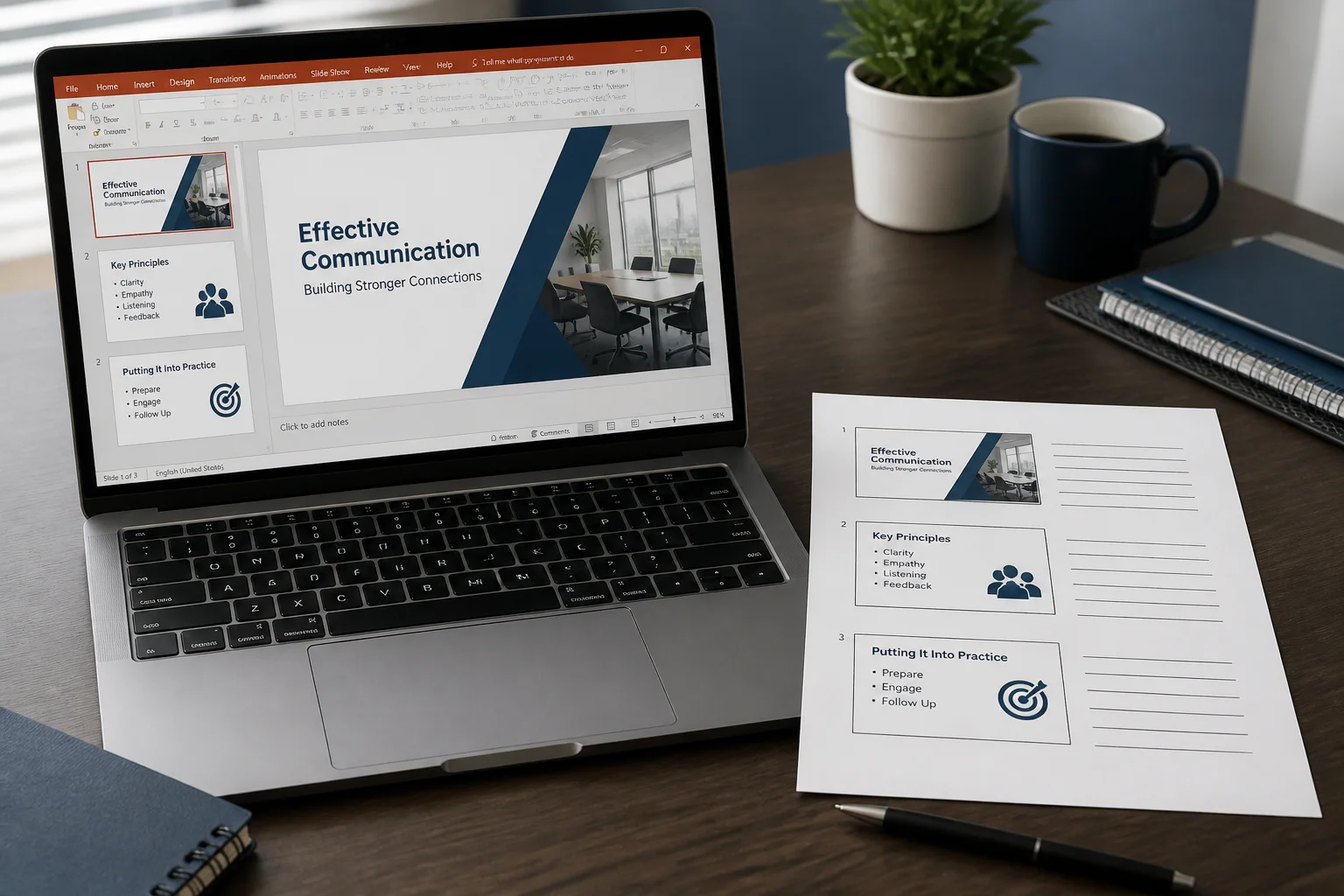
Exporting PowerPoint slides as a PDF handout is useful when people need to follow a presentation, take notes, review slides offline, or print a compact course or meeting packet. The important step is not simply choosing “Save as PDF.” You must first select a handout layout, decide whether to include speaker notes or blank lines, and check how the pages will look when printed.
This guide explains how to create a PowerPoint handouts PDF on Windows and Mac, how to choose between slides-per-page options, and what to do when the handout formatting does not look right.
Quick answer: export PowerPoint handouts as a PDF
- Open the presentation in PowerPoint.
- Choose File > Print.
- Under the layout or settings menu, select a handout option such as 3 Slides or 6 Slides Horizontal.
- Select Microsoft Print to PDF on Windows or Save as PDF from the Mac print dialog.
- Choose a file name and location, then save the PDF.
- Open the PDF and check page breaks, slide readability, notes, and margins before sharing or printing.
For most note-taking situations, 3 Slides is the best starting point because it places lines beside each slide. If the document is mainly for reference, a layout with 4, 6, or 9 slides per page may create a shorter file.
Choose the right PowerPoint handout layout
PowerPoint offers several handout formats. The best choice depends on whether readers need room to write or simply need a compact copy of the presentation.
| Layout | Best for | Main trade-off |
|---|---|---|
| 1 slide per page | Detailed review, accessibility, or large print | Uses more pages and is less compact |
| 2 slides per page | Readable reference sheets | Provides less writing space than a traditional handout |
| 3 slides per page | Class notes, workshops, and meetings | Slide thumbnails are smaller |
| 4 or 6 slides per page | Compact review copies | Small text may be difficult to read |
| 9 slides per page | Quick visual overviews | Usually unsuitable for detailed reading or note-taking |
Before exporting, consider the audience’s actual use. A student who will write notes needs more white space. A manager reviewing a deck on screen may prefer several slides per page. If the presentation contains charts, screenshots, or small labels, avoid squeezing too many slides onto one page.
How to export PowerPoint handouts as a PDF on Windows

Use PowerPoint’s Print menu
- Open the PPT or PPTX file in PowerPoint.
- Select File, then Print.
- Choose the printer named Microsoft Print to PDF.
- Open the print layout menu, which may initially show Full Page Slides.
- Select the handout layout you want, such as 3 Slides, 6 Slides Horizontal, or 9 Slides.
- Set the orientation, color option, and page range if needed.
- Click Print.
- Enter a file name, select a folder, and save the PDF.
The wording and location of these controls can vary slightly between PowerPoint versions. Look for the setting that changes the page from a single full-size slide to a handout arrangement.
Set useful print options
PowerPoint’s print panel may include options such as color, grayscale, pure black and white, page range, and whether to print hidden slides. Review these settings before creating the file:
- Color: Use this when slide diagrams, highlighting, or branding depends on color.
- Grayscale: Useful for economical printing, but check that light text and subtle lines remain visible.
- Pure black and white: Suitable for simple text documents, but it can remove important visual distinctions.
- All slides: Select this for a complete handout.
- Custom range: Use this when you need only selected sections.
- Hidden slides: Confirm whether hidden slides should be excluded or included.
How to save handouts as a PDF on Mac
On Mac, PowerPoint usually creates the handout through the system print dialog.
- Open the presentation in PowerPoint.
- Choose File > Print.
- Open the layout menu that may be labeled Full Page Slides or a similar option.
- Select the handout arrangement, such as 3, 6, or 9 slides per page.
- Adjust the page range, color settings, and orientation if available.
- Click the PDF button near the bottom of the print window.
- Select Save as PDF.
- Name the file and choose where to save it.
If the Mac print window shows only full-page slides, check the PowerPoint-specific settings before opening the system PDF menu. The handout layout must be selected before saving the output as a PDF.
How to include speaker notes in a PowerPoint PDF
A handout and a notes page are different PowerPoint print layouts. A handout places multiple slide thumbnails on each page. A notes page normally places one slide above its speaker notes, making it more suitable for presenter preparation than audience note-taking.
To export notes pages
- Open File > Print.
- Open the layout menu.
- Select Notes Pages instead of a multi-slide handout.
- Choose the required slides and color settings.
- Print to PDF or use the system’s PDF save option.
Notes pages include the notes written in PowerPoint’s speaker notes area. They do not automatically include every comment, hidden editing instruction, or presenter-only detail elsewhere in the file. Read the resulting PDF carefully, especially if it will be distributed to an audience.
Can you add blank lines for audience notes?
The standard 3 Slides handout layout usually provides lines beside each slide. Other layouts may not include writing space. If you need a custom design, use PowerPoint’s handout master:
- Open the View tab.
- Choose Handout Master.
- Adjust the slide placeholders, header, footer, date, and page number.
- Change the number of slides per page if the available options meet your needs.
- Close the master view and export the handout through File > Print.
The Handout Master can control the general appearance of printed handouts, but it does not turn every print layout into a completely custom page-design tool. For a highly designed worksheet, create a separate document in Word, Google Docs, or a page-layout application and insert selected slide images or text.
How to export a PowerPoint handout when PowerPoint is unavailable
If you do not have PowerPoint installed, an online PPTX-to-PDF converter can be an alternative for converting the presentation file. However, many simple converters focus on converting each slide into a full PDF page rather than producing PowerPoint’s multi-slide handout layout.
That distinction matters: a regular slide-to-PDF conversion may preserve one slide per page, while a true handout requires several slides, notes, or writing lines on each page. If you need a specific handout arrangement, check the conversion workflow before relying on it.
For general background, see how to convert PowerPoint to PDF without PowerPoint. You can also review the site’s guide to converting PPTX to PDF online if your main requirement is a standard PDF version of the slides.
Common problems with PowerPoint handouts PDFs
The PDF contains one slide per page
This usually happens when Full Page Slides remains selected in the print layout menu. Return to the print settings and choose a handout option. Converting the file through a basic slide-to-PDF workflow may also produce full-page slides rather than handouts.
Text is too small
Reduce the number of slides per page. Move from 9 slides to 6, from 6 to 3, or from 3 to 2 or 1. Also check the original slides for crowded text. A PDF cannot make a dense slide comfortable to read simply by changing the file format.
Slides are cut off at the edges
Check the paper size, orientation, printer margins, and scaling options. A handout designed for one paper size may not fit another without adjustment. If you are preparing a file for professional printing, inspect the PDF at 100% size and confirm that no important content sits too close to the edge.
Notes or comments appear unexpectedly
Confirm whether you selected Notes Pages, comments, or another presentation view. Before sharing the PDF, search through the pages for speaker notes, review comments, hidden slides, or other presenter-only material.
Fonts or spacing look different
PDF export can reveal font-substitution or layout issues, particularly when the original presentation uses fonts that are unavailable on the computer creating the PDF. Review the exported file on another device and check headings, bullet points, tables, and text inside shapes.
How to check a handouts PDF before sharing it
Do not assume that a successful export means the handout is ready. Use this short quality check:
- Open the PDF and confirm that the page count is reasonable.
- Check that every required slide is present and in the correct order.
- Zoom in on small text, charts, diagrams, and screenshots.
- Look for clipped objects, missing fonts, blank pages, and uneven margins.
- Confirm whether hidden slides should be included.
- Check that speaker notes and comments are not exposed unintentionally.
- Print one test page if the PDF will be distributed on paper.
- Use a clear file name, such as project-review-handout.pdf.
Handout PDF or regular slide PDF?
Choose a handout PDF when readers need several slides on each page, space for notes, or a printable meeting or classroom packet. Choose a regular slide PDF when each slide needs to remain large and readable, especially for diagrams, detailed tables, or presentation archival.
If the recipient will view the file on a phone or small screen, a one-slide-per-page PDF may be easier to navigate. If the recipient will print and annotate it, a 3-slide handout often offers a better balance between slide visibility and writing space.
Final recommendation
To make a PowerPoint handouts PDF, use the presentation’s File > Print workflow rather than immediately choosing a standard PDF export. Select the appropriate handout layout, decide whether notes or writing lines are needed, save through the PDF printer or save-to-PDF option, and inspect the final pages before sharing.
If you only need a conventional PDF version of the slides, the PPT to PDF converter guide may be more relevant. For other presentation conversions, you can also explore the available PowerPoint and PDF tools.
Related: How to Choose Between Standard, Minimum, and High-Quality PowerPoint PDF Export
Related: How to Create a PDF Version of PowerPoint With a Separate Appendix
Related: PowerPoint PDF Export vs Print to PDF: Which Preserves More Features?