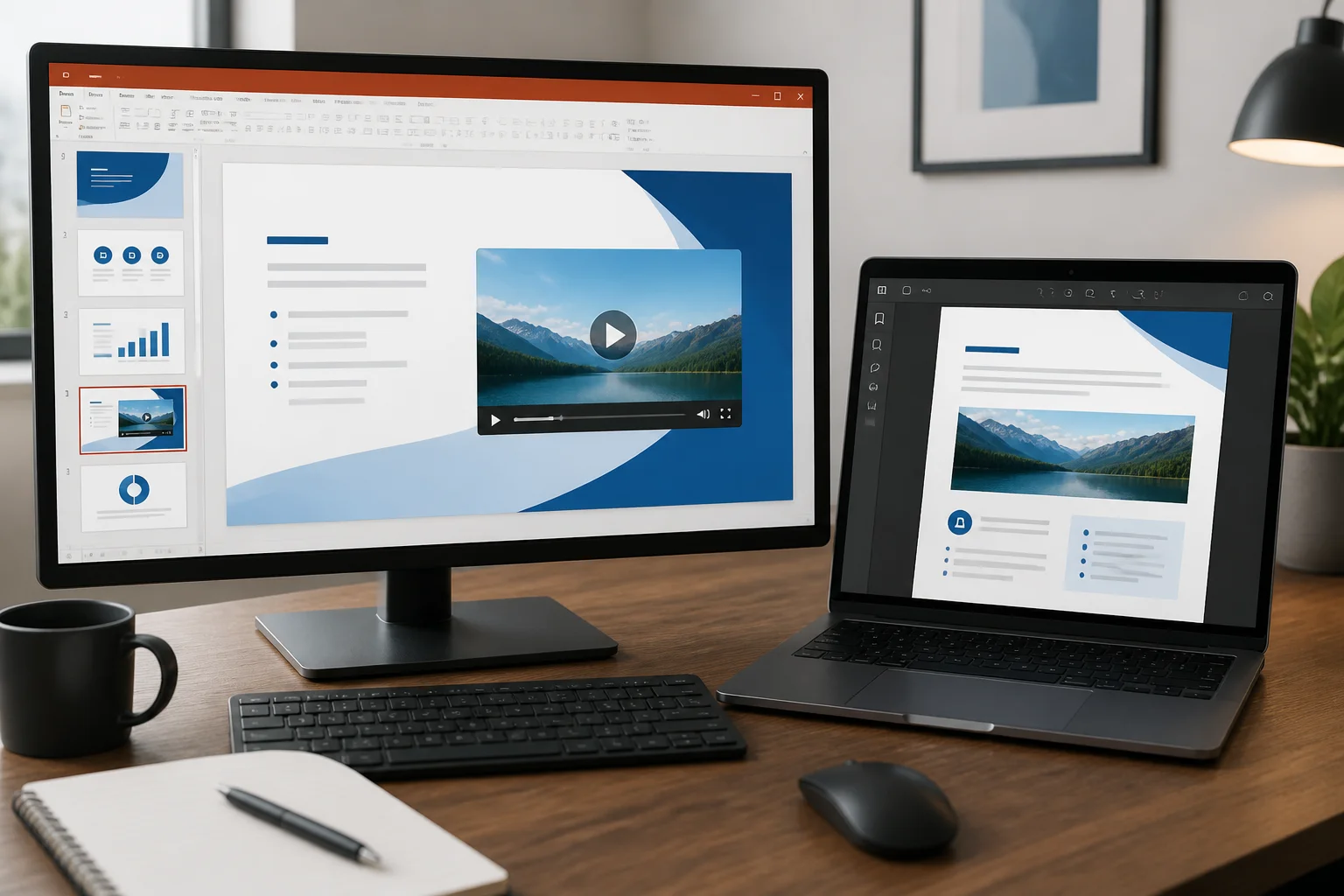
When you convert a PowerPoint presentation with embedded video to PDF, the video usually does not remain playable. The PDF normally contains a static image of the video frame or a video placeholder on the slide, while the original media stays inside the PPTX file.
If your goal is printing, emailing, submitting, or archiving the slide content, PDF can still be the right format. If recipients must watch the video, however, you should share the original PowerPoint, export the video separately, or provide a link to the video alongside the PDF.
What happens to an embedded video in a PDF?
A PowerPoint video is an interactive media object. It may include a poster frame, playback controls, timing settings, captions, and links to a local or online media file. PDF conversion focuses primarily on the visual appearance of each slide, so these interactive playback features are commonly removed or flattened.
After conversion, you may see one of the following results:
- A still image showing the video’s poster frame.
- A blank or dark rectangle where the video appeared.
- A video thumbnail or placeholder without playback.
- A clickable link, but only if the presentation contains a separate hyperlink and the converter preserves it.
- A conversion warning or an imperfect visual result.
Do not assume that a PDF containing a video thumbnail also contains the video file. Open the finished PDF in the application your audience will use and test the object directly.
Decide what the PDF needs to accomplish
The best workflow depends on whether the video itself is essential. Ask these questions before converting:
- Does the reader only need the slide text and images?
- Does the video demonstrate information that cannot be understood from a still frame?
- Will the PDF be printed?
- Must the recipient watch the video without opening PowerPoint?
- Is the video stored locally, linked online, or embedded in the presentation?
For a handout, classroom submission, meeting record, or print-ready document, a static PDF may be sufficient. For training, demonstrations, product walkthroughs, or lessons where motion and sound carry the meaning, use a PDF as a companion document rather than as the only file.
Best method for converting a PowerPoint with video to PDF
1. Save a backup of the original presentation
Keep the original PPTX before making changes. This preserves the embedded media, animations, speaker notes, transitions, and editable slide content if you need to revise or share the presentation later.
2. Review every video slide
Look at the first visible frame of each video. The frame may be a useful thumbnail, a black screen, or an uninformative moment. If the PDF will stand alone, replace a poor poster frame with a clear still image or a short description of what the video demonstrates.
3. Add a clear video label
Place text near the video such as “Video demonstration: open the accompanying MP4” or “Scan the link to watch.” A reader should understand that the PDF does not contain ordinary slide content only and should know where to find the playable media.
4. Add a reliable link when appropriate
If the video is hosted online, add a hyperlink to the slide or to a dedicated resource page. Use descriptive link text rather than displaying a long URL. Test the link in the exported PDF, because some conversion workflows preserve hyperlinks while others may alter or remove them.
5. Export or convert the presentation
Use PowerPoint’s PDF export, a desktop office application, or an online PPTX-to-PDF conversion workflow. The exact menu names vary, but the objective is the same: create a static document that represents the slides as accurately as possible.
6. Test the finished PDF
Open the PDF in a standard reader and check the video slides, links, captions, fonts, images, page order, and layout. If a video was important, confirm that its title, poster frame, description, and accompanying link are still visible.
How to preserve the meaning of a video in a static PDF

A video often communicates more than its thumbnail. It may show a process, a changing chart, a software action, a physical movement, or spoken instructions. You can make the PDF useful by adding static alternatives before conversion.
Use a representative still image
Choose a frame that identifies the subject clearly. A title card, opening frame, or labeled screenshot is generally more useful than a random frame from the middle of the clip.
Add a short summary
Write one or two sentences explaining what the viewer would learn from the video. For example, describe the demonstrated procedure, the result, or the key decision the video supports. This helps readers who receive only the PDF.
Include a transcript or captions
If spoken narration contains essential information, add a transcript, key quotations, or a concise list of takeaways to the slide or an appendix. This also improves accessibility and makes the document easier to search.
Use a sequence of screenshots
For a software tutorial or physical demonstration, several labeled screenshots can communicate the main steps more effectively than one thumbnail. Keep the sequence selective so that the PDF remains readable and does not become a collection of tiny images.
Provide a QR code or written link
A QR code can help readers move from a printed PDF to the video, but it should not be the only option. Include a readable short link or descriptive instructions as well, since QR codes may be difficult to scan from a screen or inaccessible to some users.
Why PowerPoint videos sometimes disappear or look wrong
There are several reasons a video may not appear as expected after conversion:
- The media is linked rather than embedded. A linked file may not be available to the converter or may be stored at a location the conversion process cannot access.
- The poster frame is empty. The converter may capture the visible frame at the time of export, which can produce a blank rectangle.
- The video uses unsupported media behavior. Playback controls, triggers, animations, and timing settings are not always represented in a static PDF.
- The slide uses an online video. A web player may depend on an internet connection, browser permissions, or platform-specific behavior that PDF does not reproduce.
- The PDF is being viewed in a different application. Even when a PDF contains an interactive media element, support varies between readers and devices.
- Compression changes the appearance. Export settings may reduce image quality or make a video poster frame look blurry.
These issues do not necessarily mean that the original presentation is damaged. Compare the exported PDF with the PPTX and inspect the media object in PowerPoint before troubleshooting further.
Should you convert the video to images first?
Converting selected moments from a video into still images can be useful when the PDF is intended for printing or formal review. It gives you control over exactly what appears on the page and avoids relying on an automatically captured frame.
This approach works well for:
- Step-by-step demonstrations.
- Before-and-after comparisons.
- Charts or diagrams shown briefly in a recording.
- Evidence or documentation that must be readable on paper.
It is less suitable when timing, sound, or continuous movement is the main point. In those cases, keep the video available separately and use the PDF to explain how to access it.
What format should you share if video playback matters?
| Goal | Recommended approach | Important caveat |
|---|---|---|
| Print or submit slide content | PDF with a poster frame, summary, and captions | The video itself will usually not play. |
| Let recipients watch the original presentation | Share the PPTX with its media or provide the original presentation separately | Recipients may need compatible presentation software and access to linked media. |
| Share a finished presentation with playback | Export or record the presentation as a video when appropriate | Interactive elements and links may work differently in the recording. |
| Provide both documentation and playback | Share a PDF plus the video file or a tested video link | Keep the files clearly named and explain which one to open. |
A PDF is strongest as a stable, portable representation of slide content. It is not normally a replacement for a media-rich presentation.
How to troubleshoot a PowerPoint video not playing in a PDF
- Check whether the PDF is expected to support playback. Many exports intentionally create static pages only.
- Open the original PPTX. Confirm that the video plays there and that the media is embedded or available at its linked location.
- Inspect the exported page. Look for a poster frame, hyperlink, caption, or instruction that identifies the video.
- Test the PDF in another reader. This can reveal whether the problem is reader-specific, although a different reader cannot restore media that was never exported.
- Re-export after improving the slide. Add a still image, description, transcript, or link before creating a new PDF.
- Share the video separately. If playback is essential, do not depend on the PDF alone.
Privacy and file-sharing considerations
If the presentation contains confidential material, review where the video is stored and who can access it before uploading or sharing files. A link may expose the media to people who have access to the PDF, while a separately shared video may need its own permissions. Check the relevant service terms and privacy information before using an online workflow; you can also review the privacy policy for this site.
A practical workflow for a reliable result
For most users, the simplest dependable process is:
- Keep an untouched copy of the PPTX.
- Identify slides where video carries essential information.
- Replace unhelpful poster frames with clear images.
- Add a summary, transcript, or selected screenshots.
- Insert a tested link or instructions for watching the video separately.
- Convert the revised presentation to PDF.
- Open and review the PDF on the device or reader your audience is likely to use.
- Share the PDF together with the original video or presentation whenever playback is required.
If you need to convert several presentations or want a browser-based starting point, you can use the site’s PPT to PDF converter. For image-focused handouts, a PPTX-to-JPG conversion may also be useful, although it likewise produces static images rather than playable video.
Bottom line
When handling PowerPoint video to PDF conversion, expect the slides to become static pages. The embedded video will usually not remain playable, so prepare the document accordingly: use a meaningful poster frame, add a description or transcript, include a tested link, and share the video or original PPTX separately when motion and sound matter.
Related: How to Preserve PowerPoint Slide Size and Orientation When Converting to PDF
Related: How to Convert a PowerPoint Presentation With Videos Into a Useful Static PDF