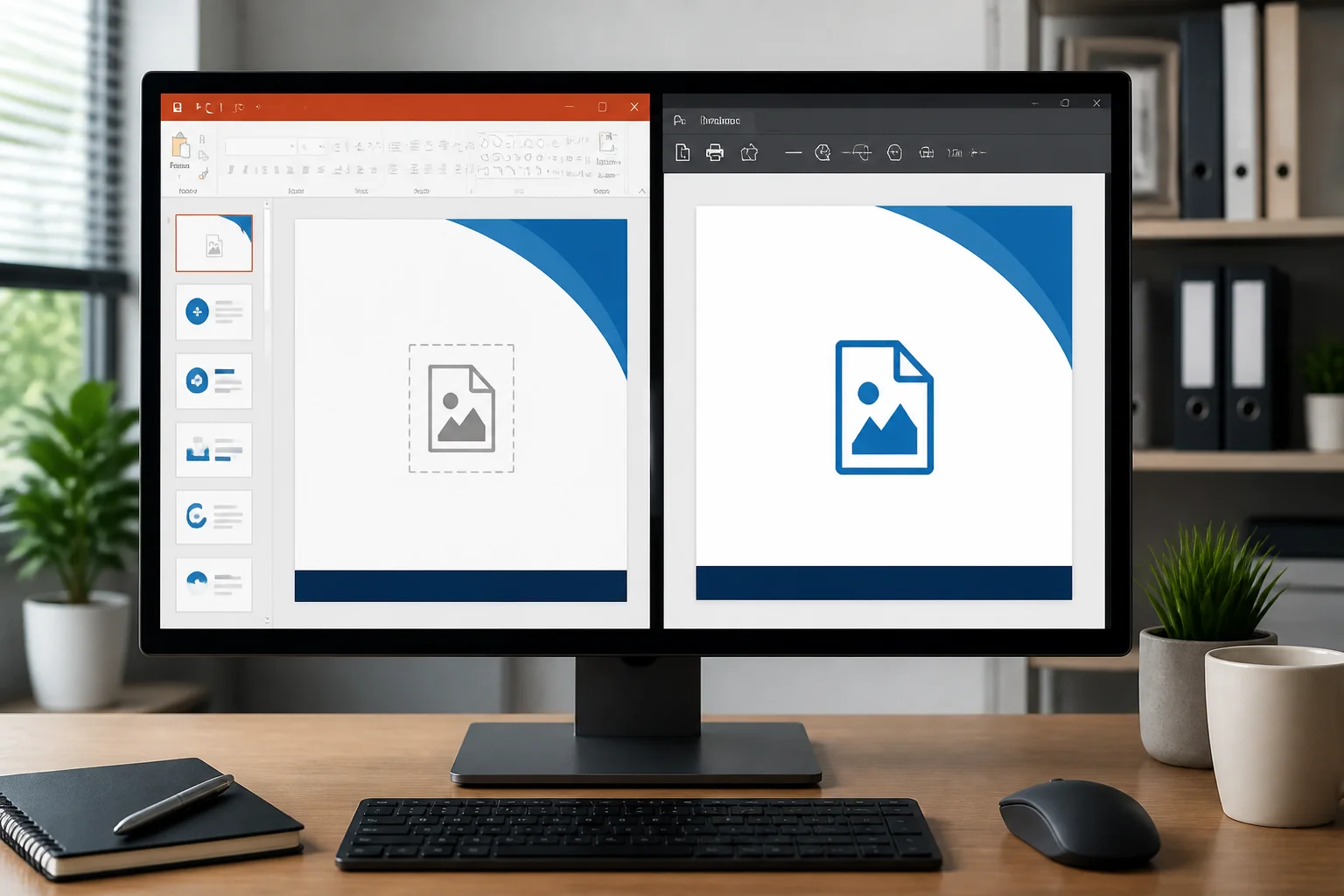
When a PowerPoint icon or SVG is visible on the slide but missing from the exported PDF, the problem is usually caused by the graphic, an unsupported visual effect, a layering issue, or the conversion method. Start by testing the original SVG, removing effects such as transparency or soft edges, and exporting with PowerPoint’s built-in PDF option. If that fails, replace the SVG with a high-quality PNG or convert the slide another way.
This guide explains how to diagnose the problem without rebuilding the entire presentation.
Why a PowerPoint SVG can disappear in a PDF

SVG files are scalable vector graphics. PowerPoint can insert and display them, but PDF export still has to translate the SVG’s paths, colors, transparency, masks, and other properties into PDF content. Some combinations do not survive the conversion correctly.
Common causes include:
- The SVG contains filters, masks, clipping paths, gradients, or transparency effects that the exporter handles poorly.
- The icon is positioned behind a filled shape or outside the slide area.
- The graphic is grouped with another object that causes a rendering problem.
- The SVG uses unusual colors, embedded styles, or unsupported formatting.
- The presentation was converted by an application or online service with different SVG support.
- A font-based icon was used instead of a real image, and the required font is unavailable during conversion.
- The exported PDF is correct, but a particular PDF viewer is not rendering the object properly.
Use this quick test first
- Open the presentation in the desktop version of PowerPoint if possible.
- Duplicate the affected slide so you can test without changing the original.
- Delete the SVG and insert it again from the original source.
- Export only the test slide as a PDF.
- Open the PDF in a different viewer, such as a browser and a dedicated PDF application.
If the newly inserted graphic appears, the original object may be damaged or contain formatting that PowerPoint cannot export reliably. If it still disappears, continue with the fixes below.
Fix 1: Reinsert the SVG instead of copying it from another slide
Copying an icon from a presentation, web page, document, or design application can preserve hidden formatting or object relationships. Reinserting the original file creates a cleaner object.
- Save the original SVG file to your computer.
- In PowerPoint, remove the missing icon from the test slide.
- Choose Insert, then Pictures, and select the SVG file.
- Resize it using a corner handle while holding the appropriate modifier key for proportional scaling if needed.
- Export the slide to PDF and check the result.
Do not rename an unrelated image file to use an .svg extension. The file must be a genuine, valid SVG.
Fix 2: Remove effects that commonly fail during PDF export
An SVG may look simple but contain effects that are difficult to translate into PDF. Select the icon and temporarily remove effects such as:
- Transparency
- Soft edges
- Glow
- Reflection
- 3-D formatting
- Complex shadows
- Gradient fills or gradient transparency
Also check the SVG’s own appearance. If it was created with masks, filters, embedded raster images, or layered clipping paths, export a simplified version from the original design application if one is available.
A plain, single-color SVG with uncomplicated paths is more likely to export consistently than an SVG containing several filters and transparency layers.
Fix 3: Check the Selection Pane and object order
An icon can appear to be missing when it is actually hidden behind another object. This often happens after rearranging slide elements or applying a theme.
- Open the affected slide.
- Go to Home, Arrange, and open the Selection Pane.
- Look for the SVG or icon in the object list.
- Use the eye controls to confirm that it is visible.
- Move the icon above background shapes and other objects.
Check whether a full-slide rectangle, white shape, image, or chart is covering the icon. You can also select the icon and use Bring to Front as a temporary test.
Fix 4: Make sure the icon is inside the slide boundaries
Objects placed partly or completely outside the slide may be visible in PowerPoint’s editing view but excluded from the PDF. This can happen after changing the slide size or moving content between presentations.
Move the SVG well inside the slide, away from the edges, and export again. If it is supposed to touch the edge, move it inward temporarily. If it appears after doing this, adjust its final position carefully and check the document’s slide dimensions.
Fix 5: Ungroup or simplify the graphic
Some icons are not single SVG objects. They may be grouped with text, shapes, masks, or other imported elements. Grouped content can export incorrectly when one component uses unsupported formatting.
Make a copy of the slide, then try these tests:
- Ungroup the icon and export again.
- Delete decorative parts one at a time to identify the failing element.
- Regroup only the simple paths that are necessary.
- Paste the simplified result as a new object.
Keep the original slide unchanged until you know which version exports correctly. Ungrouping can alter how an icon is edited, so it is best used on a duplicate.
Fix 6: Convert the SVG to a PNG when reliable appearance matters most
Replacing the SVG with a PNG is often the fastest workaround. A PNG will not scale as freely as a vector graphic, but it can avoid SVG-specific export problems.
For a good result:
- Use a large source image rather than a small screenshot.
- Export the icon with a transparent background if the slide requires one.
- Use a resolution appropriate for the final slide size.
- Do not enlarge a low-resolution PNG substantially after inserting it.
- Check the image against both a light and dark background if transparency is used.
If the icon is simple and small, a carefully prepared PNG may look indistinguishable from the original in the final PDF. For a presentation that will be printed at a large size, keep a high-resolution source or use a simplified vector version instead.
Fix 7: Check whether the “icon” is actually a font character
Some presentations use icon fonts rather than SVG files. The symbol may look like an image, but it depends on a particular font being installed and embedded during export.
If a font-based icon disappears or changes shape:
- Select the object and inspect its font name.
- Confirm that the font is installed on the computer creating the PDF.
- Replace the character with a standard shape, a real SVG, or a PNG.
- Export again and compare the PDF.
Converting text to outlines can sometimes preserve its appearance, but the option and result depend on the software used to create the artwork. A real image file is usually easier to control in a presentation intended for sharing.
Fix 8: Export with PowerPoint’s built-in PDF command
If you are using a third-party converter, test the file with PowerPoint’s own PDF export first. Different conversion engines interpret SVG features differently, so this comparison helps identify where the problem occurs.
- Open the presentation in PowerPoint.
- Choose File, then Export or Save As.
- Select PDF as the output format.
- Choose a quality setting suitable for your purpose, such as standard quality for printing or sharing.
- Export a test copy and inspect the missing icon.
If the icon appears in PowerPoint’s PDF but not in another converter’s output, the conversion engine is likely the difference. If it disappears in both, simplify or replace the object before converting.
If PowerPoint is not available, you can also review guides for converting PowerPoint to PDF without PowerPoint or converting PPTX to PDF online.
Fix 9: Test the presentation in a new blank file
A damaged presentation theme, slide master, or imported object can affect export. To isolate the problem, create a new blank presentation and copy the affected slide’s content into it.
- Create a new presentation using a basic blank theme.
- Insert the original SVG again.
- Add only the necessary text and background elements.
- Export the new file to PDF.
If the icon works in the new presentation, the original file may contain a problematic master, theme, layout, or object. Rebuilding the affected slide in the clean file may be quicker than repairing hidden formatting throughout the original deck.
Fix 10: Check the PDF itself before changing the PowerPoint file again
Before making more edits, determine whether the problem is in the PDF or only in the application displaying it.
- Open the PDF in a web browser.
- Open it in a dedicated PDF reader.
- Zoom in and out to see whether the icon appears at a different rendering scale.
- Print a test page if the final purpose is printing.
- Ask the recipient to check the file on another device if the issue occurs only for them.
Some display problems are caused by a viewer’s rendering behavior rather than by missing PDF content. If the graphic prints correctly and appears in another viewer, the presentation may not need to be rebuilt.
What to do when only some icons are missing
When a few icons export correctly and others do not, compare the objects rather than changing the whole presentation. Look for differences in:
- Source file and SVG structure
- Transparency and effects
- Grouping
- Color and gradient use
- Position on the slide
- Whether the object is an SVG, PNG, shape, or font character
Replace one failing icon with a copy of a working icon, then change its appearance. This can reveal whether the issue is tied to the file itself or to the way the object is positioned and formatted.
How to prevent missing SVGs in future presentations
- Keep the original SVG files in the project folder.
- Prefer simple SVGs without unnecessary filters or masks.
- Test a PDF export before sending the completed presentation.
- Use PNG replacements for graphics that repeatedly fail to export.
- Check icons after changing slide size, theme, or master layouts.
- Do not rely on fonts for important symbols unless the font is available wherever the file will be converted.
- Keep an unmodified copy of the presentation before troubleshooting.
Best troubleshooting order
For the fastest diagnosis, use this order:
- Open the exported PDF in another viewer.
- Reinsert the original SVG.
- Check the Selection Pane and object order.
- Move the icon inside the slide boundaries.
- Remove transparency, filters, and other effects.
- Ungroup or simplify the graphic.
- Export with PowerPoint’s built-in PDF command.
- Replace the SVG with a high-quality PNG.
- Test the slide in a new presentation.
Most cases of PowerPoint SVG missing in PDF can be resolved without changing the entire deck. Start with the least destructive tests, preserve the original file, and verify the final PDF in more than one viewer before sharing or printing.