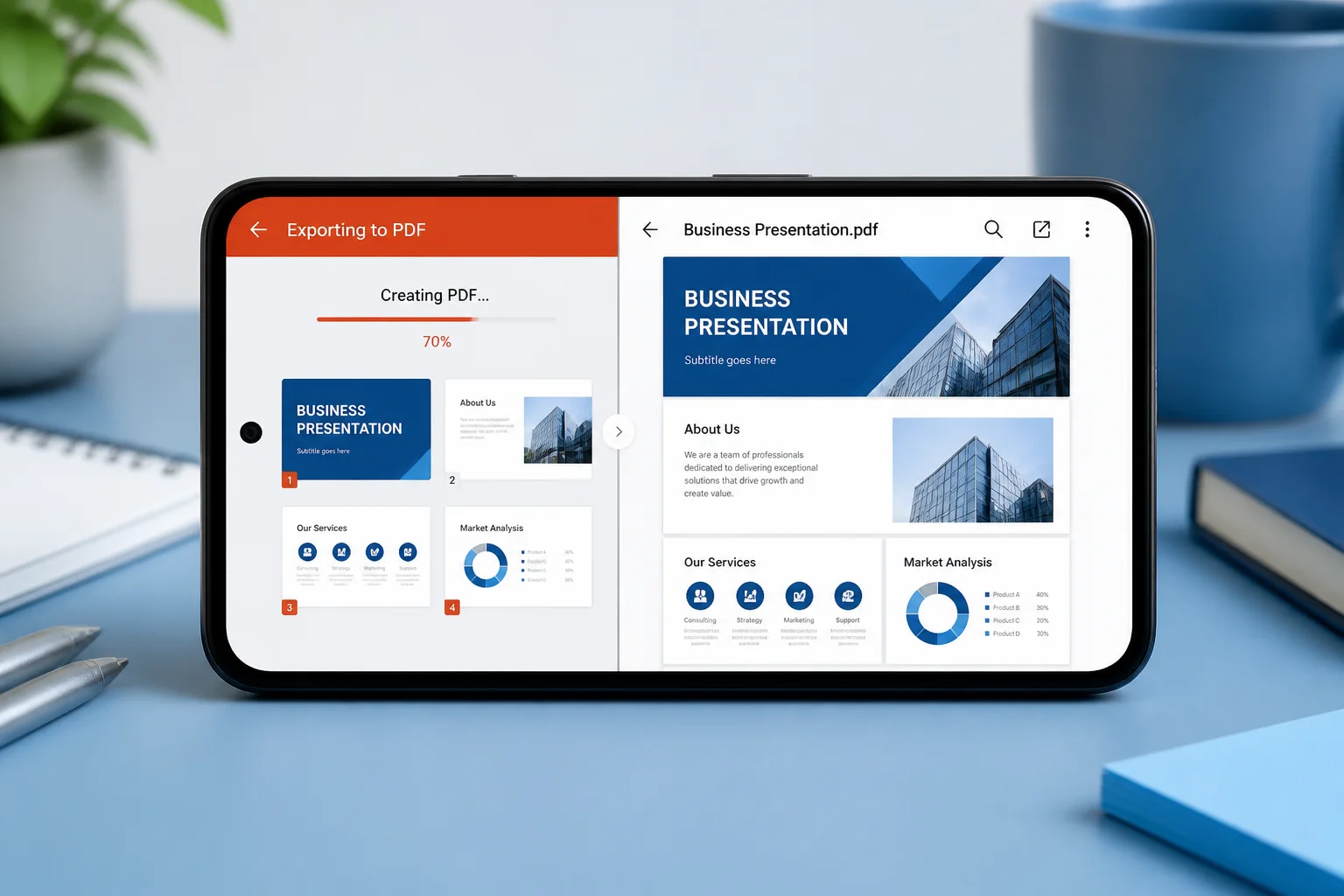
To convert a PPTX to PDF on Android, you can use the Microsoft PowerPoint app, Google Slides, or an online PPTX-to-PDF converter in your mobile browser. The best method depends on whether you need to preserve the presentation exactly, avoid installing an app, or work without access to PowerPoint.
Before converting, save the presentation locally or make sure it is available in a cloud service such as OneDrive or Google Drive. Then use one of the methods below and open the resulting PDF to check that the slides, images, fonts, and page layout look correct.
Method 1: Convert PPTX to PDF with Microsoft PowerPoint on Android
Microsoft PowerPoint for Android is usually the most direct option when the presentation contains PowerPoint-specific formatting, animations, charts, or speaker notes. The exact button names can vary slightly by app version and account setup, but the process is generally similar.
- Install and open the Microsoft PowerPoint app on your Android phone.
- Open the PPTX file from your device, OneDrive, or another available location.
- Tap the three-dot menu or the file menu.
- Choose an option such as Share, Send a copy, Export, or Save as.
- Select PDF as the output format.
- Choose where to save or send the PDF, such as Downloads, Google Drive, email, or a messaging app.
- Open the exported PDF and review every slide before sharing it.
Some versions of PowerPoint may place PDF export under the sharing or file menu rather than showing a separate export button. If you cannot find the option, update the app if an update is available, then check the file menu again.
When PowerPoint is the best choice
- The presentation uses custom fonts, charts, SmartArt, or complex layouts.
- You need the closest match to the original PowerPoint appearance.
- The file is already stored in OneDrive or opens normally in PowerPoint.
- You want to inspect the slides in the same application before exporting.
Method 2: Convert a PPTX file to PDF with Google Slides
Google Slides can open many PowerPoint presentations and export them as PDF files. This is useful when your PPTX is stored in Google Drive or when you do not want to use Microsoft PowerPoint.
- Open the Google Slides app or visit Google Drive in your Android browser.
- Find the PPTX file and open it with Google Slides.
- Tap the three-dot menu.
- Choose Share and export or a similarly named option.
- Select Save as or Export, then choose PDF document.
- Save the PDF to your phone or send it to another app.
- Open the PDF and compare it with the original slides.
Google Slides may replace unavailable fonts or alter certain PowerPoint features when it imports the file. Check text wrapping, line spacing, images, charts, and slide backgrounds carefully. If the layout changes, export the file from PowerPoint itself or use another conversion method.
Method 3: Use an online PPTX-to-PDF converter in your Android browser

An online converter can be convenient when you do not have PowerPoint installed or want to avoid opening a large presentation in a mobile app. You can use a browser-based service such as the PPT to PDF Converter if it meets your needs.
- Open Chrome or another browser on your Android phone.
- Visit the converter page.
- Tap the upload button and choose the PPTX file from your device, Downloads folder, or cloud storage.
- Start the conversion.
- Download the resulting PDF when it is ready.
- Open the downloaded file and verify the conversion.
This approach is often useful for a quick one-time conversion. For more background on browser-based conversion, see how to convert PPTX to PDF online for free.
Before uploading a presentation containing confidential information, review the service’s terms and privacy information. You can also read the site’s Privacy Policy before using an online tool.
Which Android method should you choose?
| Method | Best for | Possible concern |
|---|---|---|
| Microsoft PowerPoint | Preserving PowerPoint formatting | Requires the app and may require account access for some actions |
| Google Slides | Files stored in Google Drive | Some fonts or PowerPoint features may change |
| Online converter | Fast conversion without installing an app | Requires uploading the file and an internet connection |
How to find the converted PDF on Android
After exporting, Android may save the file in one of several locations:
- Downloads: Check the Files app or your phone’s file manager.
- Documents: Some apps use a Documents folder for exported files.
- Google Drive or OneDrive: The PDF may remain in cloud storage rather than being downloaded.
- Recent files: Open the file manager and sort by recent items.
If you cannot locate the PDF, use the file manager’s search function and search for the presentation name or the .pdf file extension. When saving, give the PDF a clear name, such as project-presentation-final.pdf.
How to preserve slide quality during conversion
A PDF normally shows one page for each presentation slide, but conversion can still change the appearance. Use these checks to catch problems before you send the file.
Check fonts and text wrapping
Missing fonts can cause a different typeface, altered line breaks, or text that runs outside a text box. Review slides with large headings, tables, captions, and small text. If the presentation uses unusual fonts, exporting directly from PowerPoint may produce a closer result than importing it into another app.
Check images and charts
Look for blurry images, missing pictures, cropped graphics, and charts that no longer fit their containers. Zoom into image-heavy slides in the PDF, especially if the file will be printed.
Check slide size and orientation
Most presentations use a widescreen layout, while some use a standard or custom size. Make sure the PDF has not added unexpected white space or cropped the edges. This matters when the PDF will be printed or displayed on a projector.
Check links and interactive content
Animations, transitions, embedded videos, and other interactive effects generally do not behave in a static PDF as they do in a slideshow. If the presentation depends on a video or animation, tell the recipient that the PDF is a fixed version of the slides or share the original PPTX as well.
Can you convert PPTX to PDF on Android without PowerPoint?
Yes. You can use Google Slides or an online converter instead of Microsoft PowerPoint. Google Slides is practical for presentations already stored in Google Drive, while an online converter can be faster for a one-time task. For more alternatives, read how to convert PowerPoint to PDF without PowerPoint.
Keep in mind that opening a PPTX in a different application can change unsupported elements. Always inspect the PDF rather than assuming that a successful download means the layout is identical.
How to convert only selected PowerPoint slides to PDF
Some Android apps provide a page or slide-range setting during export, while others export the entire presentation. If you need only a few slides, first check whether the export dialog includes a range option. If it does not, make a copy of the presentation, remove the unwanted slides, and export the copy. Keep the original file unchanged.
Common problems when converting PPTX to PDF on Android
The PPTX file will not open
The file may be incomplete, damaged, or still downloading. Confirm that it opens on another device or in its original application. Download it again if necessary, then retry the conversion.
The upload does not start
Check your internet connection, browser permissions, and available storage. If the file is in cloud storage, download a local copy first and upload that copy from the Files app.
The PDF has missing fonts or shifted text
Try exporting from Microsoft PowerPoint, particularly when the original presentation uses custom fonts. If the issue remains, replace unusual fonts in a copy of the PPTX and export again.
The PDF is too large to send
Remove unnecessary high-resolution images from a copy of the presentation or use a PDF compression tool after conversion. Review the compressed PDF afterward because aggressive compression can reduce image clarity.
The PDF looks different when printed
Open the print preview and check paper size, orientation, scaling, and margins. A slide that looks correct on a phone may still be cropped if the printer uses a different page format.
Final checklist before sharing the PDF
- Open the PDF on your Android phone.
- Scroll through every page.
- Check titles, body text, tables, charts, and images.
- Confirm that the slide order is correct.
- Check links if the presentation contains them.
- Review the first and last pages especially carefully.
- Rename the file clearly before sending it.
- Keep the original PPTX in case edits are needed later.
Conclusion
The simplest way to convert PPTX to PDF on Android is to export the file from Microsoft PowerPoint when preserving the original layout is most important. Google Slides is a useful alternative for files in Google Drive, and an online converter can help when you need a quick browser-based solution.
Whichever method you choose, open the finished PDF before sharing it. A short quality check can reveal font substitutions, cropped images, changed spacing, or missing presentation features while you still have time to correct them.