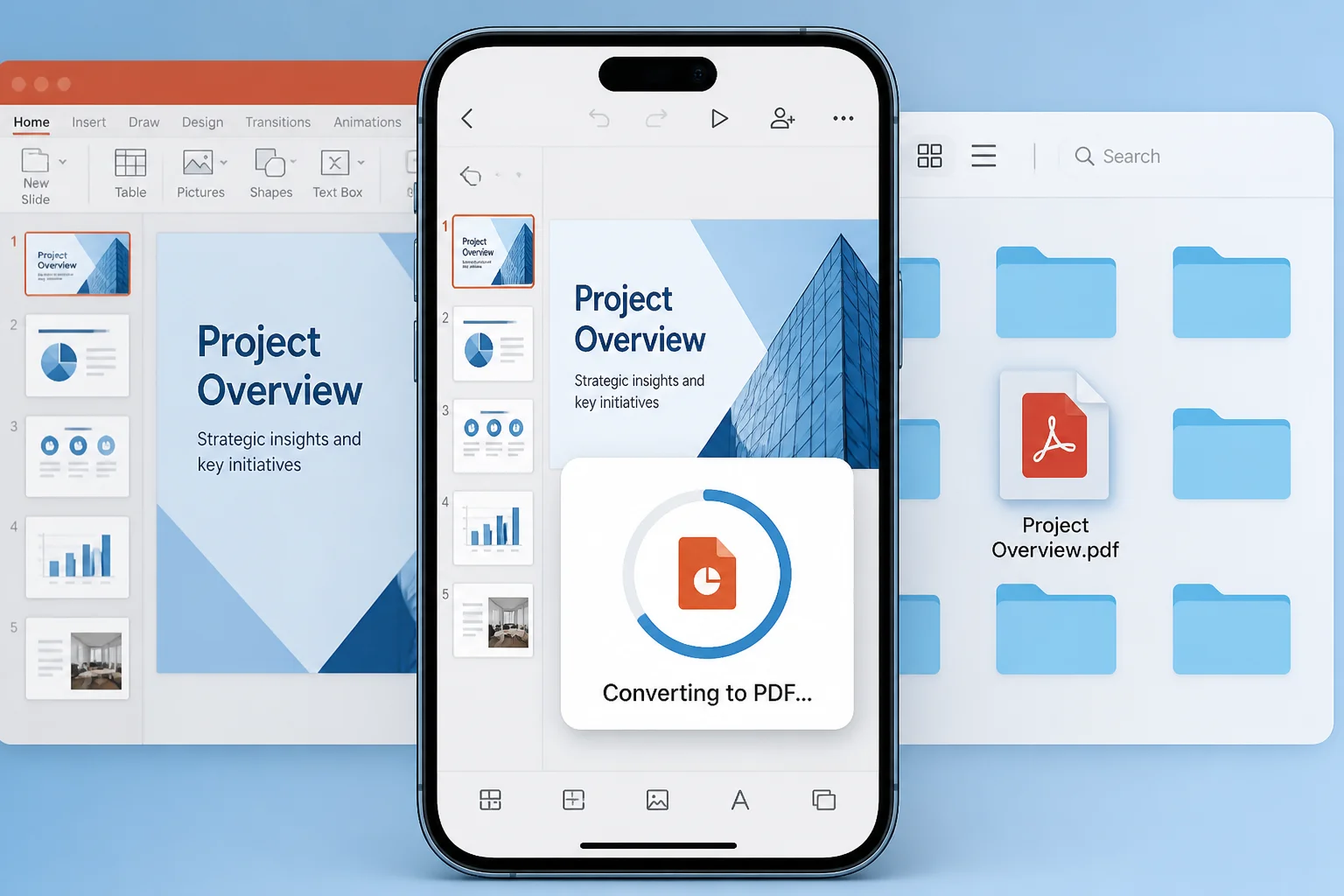
Need to convert a PPTX to PDF on your iPhone? You can usually do it with the Microsoft PowerPoint app, an online converter in Safari, or an iPhone sharing and printing workflow. The best method depends on whether you need the original slide layout preserved, whether you can install an app, and whether the presentation contains sensitive information.
For most people, the simplest approach is to open the presentation in the PowerPoint app and use its sharing or export option. If you do not have PowerPoint installed, an online PPTX-to-PDF converter opened in Safari is a practical alternative.
Method 1: Convert PPTX to PDF with the PowerPoint app
If Microsoft PowerPoint is installed on your iPhone, start here. This method is convenient when the file is already stored in OneDrive, iCloud Drive, Files, email, or a messaging app.
- Install and open the Microsoft PowerPoint app on your iPhone.
- Open the PPTX presentation. If it is in another app, use the Share button and choose PowerPoint, or save the file to the Files app first.
- Tap the three-dot menu or the Share button, depending on the version of the app.
- Look for an option such as Export, Send a Copy, or Share.
- Select PDF as the file format.
- Choose Save to Files to store the PDF on your iPhone, or select another app to send it.
- Choose a folder, rename the file if necessary, and tap Save.
Menu names can vary between PowerPoint versions and account types. If you do not see Export immediately, open the sharing menu and look for a file-format selector or an option to send the presentation as a PDF.
When this method is best
- You want to preserve the presentation’s slide structure and page order.
- You need to convert a file that is already open in PowerPoint.
- You want to review the presentation before exporting it.
Method 2: Use an online PPTX-to-PDF converter in Safari
An online converter can be useful when you do not have PowerPoint on your iPhone. The process is generally similar across websites, although button names and supported file types may differ.
- Open Safari on your iPhone.
- Visit a PPTX-to-PDF conversion website, such as the PPT to PDF Converter.
- Tap the upload or file-selection button.
- Choose Browse, then select the PPTX file from the Files app. If the presentation is in Mail or Messages, save it to Files first.
- Start the conversion and wait for the process to finish.
- Download the resulting PDF.
- Tap the download icon in Safari, open the file, and use the Share button to save it to Files, send it by email, or open it in another app.
Before uploading a presentation, consider whether it contains confidential business information, personal data, student records, or unpublished material. For sensitive files, check the converter’s policies and use an offline method when appropriate. You can also review the site’s Privacy Policy before using an online service.
Save the converted PDF where you can find it
After downloading, the PDF may be in Safari’s Downloads folder rather than the same folder as the original PPTX. To locate it, open the Files app and check Browse > Downloads, usually under iCloud Drive or On My iPhone. You can move the file to a project folder and rename it from there.
Method 3: Use the iPhone Print preview to create a PDF
Some iPhone apps can create a PDF through the standard print interface, even when they do not show a direct Export to PDF option. This is useful for presentations opened in apps that provide printing.
- Open the PPTX file in an app that supports printing, such as PowerPoint or a compatible document app.
- Open the Share or More menu and tap Print.
- In the print preview, use two fingers to spread outward on the preview page.
- The preview should open as a PDF document.
- Tap the Share button, then choose Save to Files or another destination.
This workaround is not available in every app. It may also produce a PDF based on the app’s print layout, so check the result carefully before sending it.
Method 4: Convert a PPTX file from the Files app
The Files app is mainly for storing and organizing documents, but the conversion options depend on the app associated with the file. If your iPhone offers an Open In, Share, or Quick Actions option for the PPTX, use it to open the file in PowerPoint or another compatible converter.
- Open Files and find the PPTX presentation.
- Touch and hold the file.
- Tap Share or Open With.
- Select PowerPoint or a compatible conversion service.
- Export or convert the file as a PDF, then save the new document back to Files.
If Files does not show a PDF conversion option, that does not necessarily mean the file is damaged. The app may simply need another application to handle the conversion.
How to check the PDF before sharing it

A successful conversion is more than producing a file with a PDF extension. Open the PDF and review the pages before submitting, printing, or sending it.
- Check every slide: Make sure no slide is missing or out of order.
- Review text: Look for cut-off headings, overlapping text, and unexpected line breaks.
- Inspect images: Confirm that photos, diagrams, and screenshots are visible and positioned correctly.
- Check fonts: Substituted fonts can change spacing and cause text to move.
- Review animations: A PDF is static, so animated builds and transitions will not work. Content shown only after an animation may need special attention.
- Test links: If the presentation includes hyperlinks, tap them in the PDF viewer to confirm they work as expected.
- Check notes and handouts: Decide whether you need slides only, speaker notes, or multiple slides per page. Export settings may control this.
How to preserve the presentation’s layout
PowerPoint presentations can look different on an iPhone because of missing fonts, unsupported effects, or differences between desktop and mobile apps. To reduce layout problems, open the PPTX in PowerPoint before converting it and inspect slides in the normal editing view.
Pay particular attention to slides containing:
- Custom or unusual fonts
- Embedded videos and audio
- Complex charts or SmartArt
- Transparent shapes and layered objects
- Text placed close to the edge of the slide
- Tables copied from other applications
If the PDF will be printed, confirm the intended paper size and orientation. A presentation designed for widescreen display may leave large margins or scale differently when printed on standard paper.
What happens to PowerPoint features after conversion?
A PDF preserves the visual appearance of slides, but it does not preserve every PowerPoint function.
- Animations and transitions: These become static pages.
- Editable objects: Text boxes, shapes, and charts generally become part of the PDF page and are no longer edited like PowerPoint objects.
- Video and audio: They may not play in a standard PDF viewer.
- Speaker notes: They are included only if the export settings support a notes layout.
- Hyperlinks: They may remain clickable, but you should test them.
If recipients need to edit the slides or play embedded media, send the original PPTX as well as the PDF when appropriate.
Common problems when converting PPTX to PDF on iPhone
The PPTX file will not open
Check that the file finished downloading and has a .pptx extension. Save it to Files, then open it from PowerPoint or another compatible app. If the file came from an email or messaging app, download it again in case the transfer was incomplete.
The converted PDF cannot be found
Open Files and check Downloads, Recent, iCloud Drive, and On My iPhone. You can also return to the app or Safari download list and use Share to save another copy to a known folder.
The PDF looks different from the PPTX
Look for missing fonts, changed slide dimensions, unsupported effects, or objects positioned beyond the slide boundary. Compare the PDF with the original presentation one slide at a time. If the file is important, try converting it from the original desktop PowerPoint installation or another conversion method.
The conversion is slow or fails
Check your internet connection if you are using an online converter. Large presentations, embedded media, and complex graphics can require more processing. Close unnecessary apps, retry with a fresh upload, or use PowerPoint’s own export option.
The PDF is too large to send
Use the Share menu to send a link through a cloud-storage service, or reduce the size of large images in the original presentation before converting it. Avoid repeatedly converting the same file through multiple services, since that can make troubleshooting harder.
Which iPhone method should you choose?
| Method | Best for | Important consideration |
|---|---|---|
| PowerPoint app | Reliable export from an opened presentation | Requires the app and may show different menus by version |
| Online converter | People without PowerPoint installed | Review privacy terms before uploading sensitive files |
| Print preview | Apps that offer printing but not direct PDF export | Output may follow print-layout settings |
| Files with Open With | Presentations already stored on the iPhone | Files may need a compatible app to perform the conversion |
Final tips for converting PowerPoint on iPhone
- Keep the original PPTX until you have checked the PDF.
- Use a clear filename, such as Project-Presentation-Final.pdf.
- Open the finished PDF before sending it to confirm that it is complete.
- For an alternative browser-based workflow, see this guide to converting PPTX to PDF online for free.
- If you need to work without PowerPoint, read the guide on converting PowerPoint to PDF without PowerPoint.
In most cases, the PowerPoint app is the quickest way to convert a PPTX to PDF on an iPhone. If you do not have the app, Safari and an online converter can complete the job, while the print-preview method provides another fallback. Whichever option you use, review the finished pages before sharing or printing.