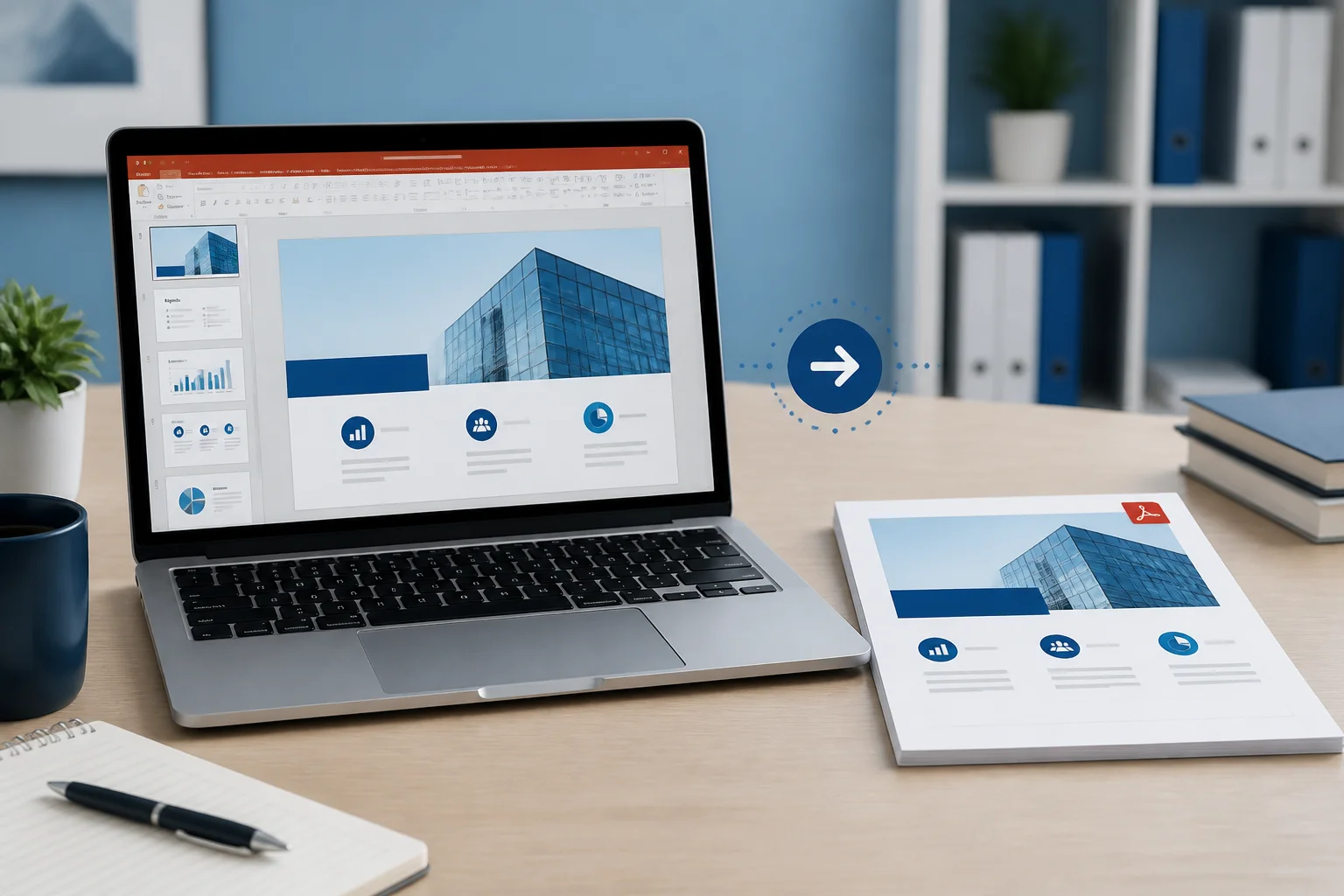
If you need to save a PowerPoint as a PDF on Mac, the simplest method is to use PowerPoint’s built-in export option. Open the presentation, choose File > Export, select PDF as the file format, choose a location, and save the file.
You can also use File > Save As or the macOS print dialog if Export is not available in your version of PowerPoint. The best method depends on whether you want a standard slide PDF, speaker notes, handouts, or a quick copy for sharing.
How to save a PowerPoint as PDF on Mac using Export

PowerPoint’s Export command is usually the most reliable choice because it is designed to convert the presentation into a PDF while retaining the slide layout.
- Open your presentation in Microsoft PowerPoint for Mac.
- Review the slides and save the original presentation first with File > Save.
- Choose File > Export from the menu bar.
- In the format or file-type menu, select PDF.
- Enter a file name and choose where to save the PDF.
- Choose any available quality or range settings that match your needs.
- Select Export or Save.
PowerPoint will create a PDF copy of the presentation. Your original PPTX file remains available for editing, while the PDF can be opened on devices that do not have PowerPoint.
Choose the right PDF settings before exporting
The exact options can vary by PowerPoint version, but several decisions are important when exporting.
Choose the slides to include
If you need the entire presentation, use the default option for all slides. To create a smaller or more focused document, export only a selected slide range if PowerPoint provides that option.
For example, you might export slides 1–5 for a preview, or exclude draft slides before sending the final PDF to a client or teacher. Check the slide range carefully before saving.
Select standard or high-quality output
Some versions of PowerPoint provide a choice between standard quality and a smaller file size. Use the higher-quality option when the PDF will be printed or contains detailed charts, screenshots, or diagrams.
A smaller file can be more convenient for email or online uploads, but image-heavy slides may look less sharp. If quality matters, open the finished PDF and inspect a few slides at a high zoom level before sharing it.
Decide whether you need notes or handouts
A normal PDF export generally creates one page per presentation slide. If you need speaker notes, multiple slides per page, or a handout layout, use PowerPoint’s print settings instead of a standard export.
Alternative method: use Save As
Depending on your version of PowerPoint, you may be able to create a PDF through Save As.
- Open the presentation in PowerPoint.
- Choose File > Save As.
- Choose a folder and enter a file name.
- Open the File Format or Format menu.
- Select PDF.
- Click Save.
This produces the same type of shareable PDF in many PowerPoint versions. If PDF is not listed under Save As, use File > Export or the print method below.
How to print a PowerPoint to PDF on Mac
The macOS print dialog is useful when you want speaker notes, handouts, or a custom page layout. It can also serve as a fallback if your PowerPoint menus look different.
- Open the presentation in PowerPoint.
- Choose File > Print, or press Command + P.
- Choose the slides or slide range you want to include.
- Open the layout or print-options area and select the desired output, such as full-page slides, notes pages, or handouts.
- Click the PDF button or PDF menu near the bottom of the print window.
- Choose Save as PDF.
- Enter a file name, select a destination, and click Save.
Print-to-PDF follows the print layout. That makes it useful for classroom handouts or presentations that need several slides on each page, but it may not provide the same export controls as PowerPoint’s dedicated PDF option.
How to preserve PowerPoint formatting in the PDF
Most conversion problems are caused by fonts, media, slide size, or objects that extend beyond the slide. Use this checklist before exporting:
- Check fonts: Use fonts that are installed on the Mac and avoid unusual fonts if the PDF will be shared widely.
- Review text boxes: Look for clipped text, unexpected line breaks, and text that runs outside the slide.
- Inspect images: Make sure photos, screenshots, and logos are sharp enough for the intended use.
- Check slide size: Confirm that the presentation uses the correct widescreen or standard format before exporting.
- Review charts and diagrams: Zoom in on detailed graphics after conversion to confirm that labels remain readable.
- Remove hidden or draft slides: Make sure slides you do not want to share are excluded or deleted.
- Check animations: A PDF displays a static version of each slide, so animations, transitions, and video playback will not work as they do in PowerPoint.
- Review hyperlinks: Test important links in the final PDF if the presentation relies on clickable websites or documents.
Why does the PDF look different from the PowerPoint?
A PDF is a fixed-layout document, while PowerPoint is designed for editing and presenting. The conversion can therefore reveal differences that are less noticeable in Slide Show view.
Common causes include missing fonts, substituted fonts, objects positioned close to the edge, low-resolution source images, and content that depends on animation. Different export or print settings can also change the page layout.
To troubleshoot, compare the original and PDF side by side. Start with the affected slide, check its fonts and object alignment, then export again. If only a few slides are affected, correcting those slides is usually faster than changing the entire presentation.
How to save only selected PowerPoint slides as a PDF
There are two practical approaches:
- Use an export range: In the export or print settings, enter the slides you need, such as 2–4 or 1, 3, and 7 if supported.
- Create a copy first: Duplicate the presentation, remove unwanted slides from the copy, and export the remaining slides.
Creating a copy is helpful when you need to preserve the original deck exactly as it is. It also reduces the chance of accidentally deleting slides from the editable presentation.
How to create a PDF with speaker notes or handouts
If the PDF is for teaching, presenting, or reviewing, a standard one-slide-per-page PDF may not be enough. Use the print dialog:
- Open File > Print in PowerPoint.
- Find the layout, print layout, or publishing options.
- Choose Notes Pages for a slide with its speaker notes, or select a handout option with multiple slides per page.
- Use the macOS Save as PDF command.
Before saving, check the print preview. Notes and handouts can become difficult to read if too many slides are placed on one page.
What if PowerPoint is not installed on the Mac?
If you do not have PowerPoint, you can use another presentation application or an online conversion workflow. The suitable choice depends on whether you need to preserve the original layout, work offline, or avoid installing software.
For a broader comparison of available approaches, read how to convert PowerPoint to PDF without PowerPoint. If you prefer a browser-based process, you can also review this guide to converting PPTX to PDF online.
When using any online service, review the provider’s terms and privacy information before uploading a presentation, especially if it contains confidential business, student, client, or personal information. You can find the site’s Privacy Policy here.
Can I save a PowerPoint as PDF from Keynote?
Keynote can open some PowerPoint files and export presentations to PDF, but the result should be checked carefully. Fonts, charts, transitions, embedded content, and layout details may change when a presentation moves between applications.
If you use Keynote, open the PPTX, inspect each important slide, and use its PDF export command. Keep the original PPTX file as a backup so you can return to PowerPoint if the layout does not convert correctly.
What happens to animations, videos, and audio?
PDF files are static documents. PowerPoint animations become fixed slide content, and embedded videos or audio generally do not behave like they do during a PowerPoint presentation.
If interactive playback is essential, share the original presentation or a suitable presentation link in addition to the PDF. Use the PDF for a stable reading, printing, or reference copy.
How to check the PDF before sharing it
Do not assume the export is correct simply because the file was created. Perform a quick review:
- Open the PDF in Preview or another PDF reader.
- Scroll through every page to confirm the slide order.
- Check the first and last pages carefully.
- Zoom in on small text, charts, and screenshots.
- Confirm that hyperlinks, if important, work as expected.
- Print one representative page if the document will be printed.
- Check the file name and destination before sending it.
If you need to compare another conversion workflow, you can review the site’s PPT to PDF converter guide. For image-based slide sharing, see the guide to a PPTX to JPG converter.
PowerPoint to PDF on Mac: which method should you use?
| Method | Best for | Main consideration |
|---|---|---|
| File > Export | A standard, shareable slide PDF | Review quality and slide range settings |
| File > Save As | A quick PDF copy in supported versions | The PDF option may vary by version |
| Print > Save as PDF | Notes pages, handouts, and custom layouts | Print settings control the result |
| Online converter | Working without PowerPoint | Check privacy information before uploading files |
Frequently asked questions
Can I save a PowerPoint as PDF without changing the original?
Yes. Exporting or saving a PDF creates a separate file. The original PPTX remains editable unless you deliberately overwrite or delete it.
Does saving as PDF reduce quality?
It can, depending on the export or print settings and the source content. Use a higher-quality option for print work and inspect images, text, and charts in the finished PDF.
Can I convert a PPTX file to PDF on Mac for free?
PowerPoint’s built-in export or print-to-PDF options can create a PDF if PowerPoint is available on your Mac. Other approaches may be available when it is not installed; compare the workflow and privacy terms before choosing an online service.
Why is my PDF larger than expected?
Large images, screenshots, embedded media, and high-quality export settings can increase the file size. If the PDF is too large to share, try a lower-size export option or reduce oversized images in the original presentation, then export again.
Final recommendation
For most Mac users, use File > Export > PDF to save a standard PowerPoint presentation. Use Print > Save as PDF when you need notes, handouts, or a custom page layout. Whichever method you choose, open the finished PDF and check fonts, images, slide order, links, and print appearance before sharing it.