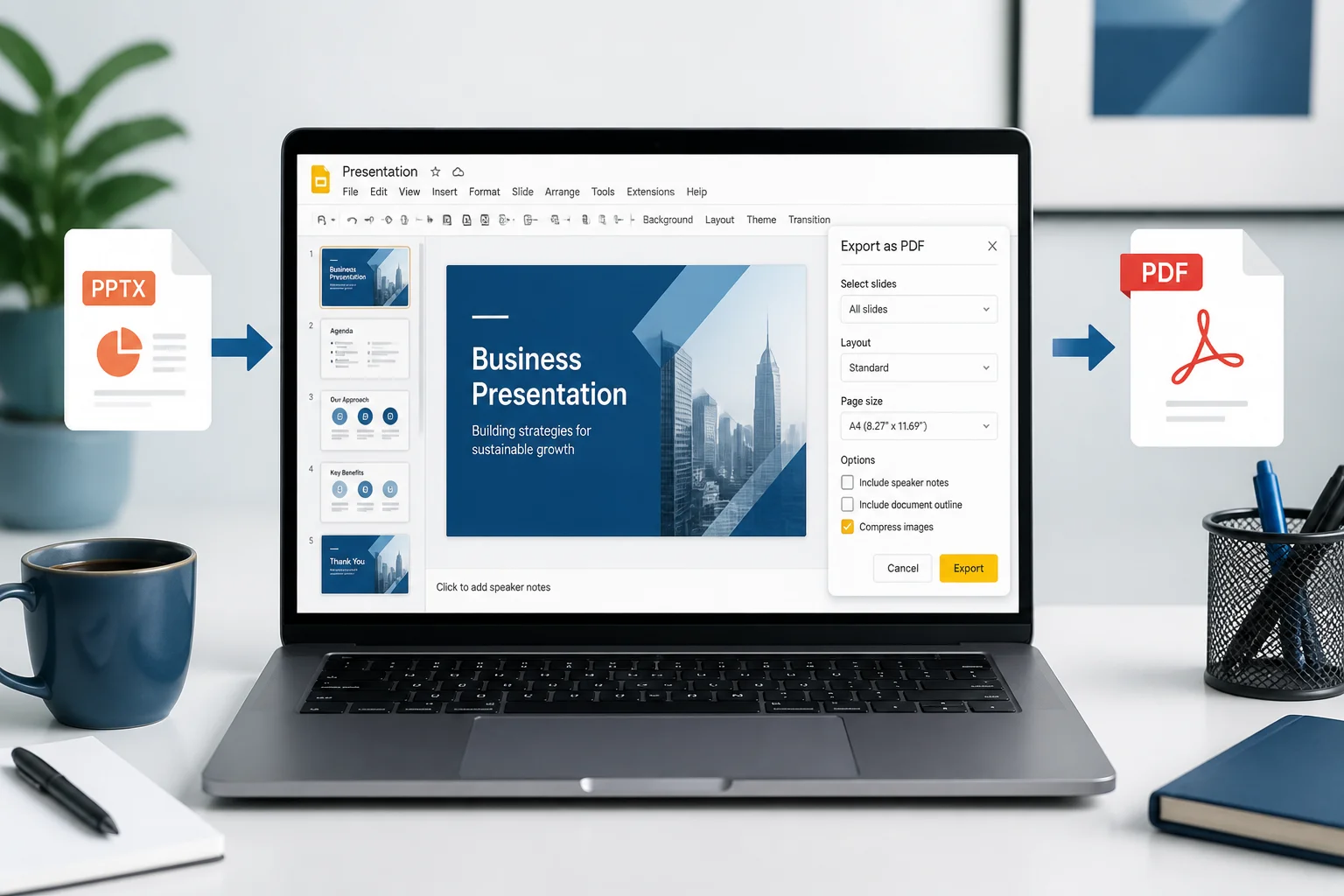
Google Slides can open many PowerPoint presentations and export them as PDF files, making it a useful option when PowerPoint is not installed or when you want to review a presentation in a browser. The basic process is simple: upload the PPTX file to Google Drive, open it with Google Slides, check the imported slides, and download the presentation as a PDF.
Before converting, remember that Google Slides may interpret some PowerPoint features differently. Custom fonts, animations, transitions, charts, SmartArt, embedded media, and complex layouts can change during import. A quick review before downloading helps prevent surprises in the final PDF.
How to convert PowerPoint to PDF in Google Slides

- Sign in to Google Drive. Open Google Drive in your browser and sign in to the Google account you want to use.
- Upload the PowerPoint file. Select New, choose File upload, and select the PPT or PPTX presentation from your computer.
- Open the file with Google Slides. After the upload finishes, right-click the presentation in Google Drive, choose Open with, and select Google Slides.
- Check the imported presentation. Review the slides for changed fonts, shifted objects, missing images, altered colors, and incorrect slide sizes.
- Download it as a PDF. In Google Slides, select File, choose Download, and then select PDF Document (.pdf).
- Open and verify the PDF. Check the downloaded file page by page, especially if it will be printed, submitted, or shared with other people.
The PDF normally contains one page for each presentation slide. Speaker notes, animations, and transitions are not preserved as moving or interactive elements in a standard PDF.
Detailed steps for importing a PowerPoint file
1. Upload the PPTX file to Google Drive
Go to Google Drive and click New in the upper-left area. Select File upload, then browse to the PowerPoint file on your computer. You can also drag the file into an open Google Drive folder in many desktop browsers.
Wait until the upload is complete before opening the file. If you open it too quickly, Google Drive may still be processing the presentation, particularly when it contains many images or other large elements.
2. Open the presentation in Google Slides
Find the uploaded file in Drive, right-click it, and select Open with > Google Slides. Google Slides creates an editable version of the presentation in its own format while leaving the original uploaded PowerPoint file in Drive.
This distinction is useful: the original file remains available if you need to compare the imported version with the PowerPoint source. If the presentation looks incorrect after conversion, you can return to the original file and try a different workflow.
3. Review every slide before exporting
Do not download the PDF immediately after opening the presentation. Scroll through the slide thumbnails and inspect the main content area. Look for:
- Text that wraps onto an extra line or runs outside a text box
- Fonts replaced with similar but different fonts
- Images or logos that have moved or disappeared
- Charts, diagrams, and tables that no longer align correctly
- Changed background colors, borders, or transparency
- Different slide dimensions or unexpected blank space
- Videos, audio, animations, and transitions that will not function in a PDF
Pay particular attention to title slides, slides with dense text, and slides containing objects positioned close to the page edge. These areas are more likely to reveal import or export problems.
How to download the Google Slides presentation as a PDF
Once the presentation looks correct, open the File menu in Google Slides. Select Download, then choose PDF Document (.pdf). Your browser will download the converted file, usually to its default Downloads folder unless you have selected a different location.
Open the PDF in a PDF viewer rather than relying only on the preview in Google Slides. Move through the pages and check that text, images, page order, and margins appear as expected. If the file is for printing, also inspect the paper orientation and whether any important content is too close to the edges.
Can you convert a PowerPoint file to PDF without editing it?
Yes, but opening a PowerPoint file in Google Slides can still cause small changes because the presentation must be interpreted by a different application. A simple presentation with standard fonts and basic shapes is more likely to transfer cleanly than one using specialized fonts, advanced PowerPoint objects, or embedded content.
If you need the closest possible match to the original PowerPoint design, compare the exported PDF with the presentation as it appears in PowerPoint. If exact visual preservation is important, exporting directly from PowerPoint may be preferable when that software is available. For other browser-based options, see this guide to converting PowerPoint to PDF without PowerPoint.
How to preserve formatting during the conversion
Use common fonts
Font substitution is one of the most noticeable causes of layout changes. If you are preparing the presentation before uploading it, use fonts that are available in Google Slides or replace unusual fonts after import. A changed font can alter line breaks, text height, and the position of nearby objects.
Check slide size and orientation
Presentation files can use different aspect ratios, such as widescreen or standard. Confirm that the imported presentation has the intended proportions. If the dimensions change, objects may appear stretched, compressed, or surrounded by unexpected margins in the PDF.
Inspect images and transparency
Images with transparency, unusual color profiles, or effects may not look exactly the same after import. Zoom in on logos, screenshots, and images placed over colored backgrounds. If an image is essential, compare it with the original PowerPoint file before exporting.
Review charts, tables, and diagrams
Charts and complex diagrams can be affected more than ordinary text and shapes. Check labels, legends, data points, arrows, and alignment. A chart that appears acceptable at a quick glance may still have an overlapping label or missing element when viewed in the PDF.
Remember that animations become static
A PDF represents the visible slide content as static pages. It does not preserve PowerPoint animations, transitions, or interactive playback. If an animation reveals content in stages, make sure the exported slide shows the version you want readers to see.
How to convert only selected PowerPoint slides
Google Slides’ normal PDF download exports the presentation currently open, generally including all slides. If you need only certain pages, one practical method is to create a copy of the presentation and remove the slides you do not want before downloading it.
- Make a copy of the imported Google Slides presentation.
- Delete the slides that should not appear in the PDF.
- Download the remaining presentation as a PDF.
- Open the file and confirm the page order before sharing it.
Keep the original imported presentation unchanged if you may need the complete slide deck later.
What to do if the PDF looks different from the PowerPoint file
Formatting differences usually begin during the import into Google Slides rather than during the final PDF download. If the PDF contains a problem, return to the Google Slides version and identify the first point at which the layout changed.
- Text is cut off: Reduce the font size slightly, enlarge the text box, or use a more widely available font.
- Objects have shifted: Reposition or realign the objects in Google Slides, then export again.
- A font looks different: Replace it with a suitable font available in Google Slides and check every affected slide.
- Images are missing: Reinsert the image and confirm that it is visible before downloading.
- A chart or diagram is incorrect: Rebuild the affected element using standard shapes and text, or export from the original application if accuracy is essential.
- The page has unexpected margins: Check the slide dimensions and compare the PDF page shape with the original presentation.
- Animations do not appear as expected: Remember that the PDF contains a static result, not the animation sequence.
For a simpler alternative, you can use a dedicated PPT to PDF converter when you want to convert the file without opening it in an online presentation editor. Review the converter’s own instructions and privacy information before uploading a file.
Google Slides versus a dedicated PPTX-to-PDF converter
| Option | Best for | What to consider |
|---|---|---|
| Google Slides | Users who want to inspect or edit the presentation in a browser before exporting | Some fonts, layouts, charts, and PowerPoint-specific features may change during import |
| PowerPoint | Users who need to preserve a presentation’s original PowerPoint layout as closely as possible | PowerPoint must be available on the device |
| Online PPTX-to-PDF converter | Users who want a direct conversion workflow | Check the service’s instructions and policies before uploading sensitive files |
If you do not have PowerPoint, you can also compare other workflows in the guide to converting PPTX to PDF online. Choose the method that fits the presentation’s complexity and your need to edit it before export.
Frequently asked questions
Can Google Slides open PPTX files?
Yes. You can upload a PPTX file to Google Drive and open it with Google Slides. The presentation is converted into an editable Google Slides version for review and editing.
Does converting PowerPoint to PDF in Google Slides reduce quality?
The result depends on the content and how it is imported. Standard text and images may look fine, but complex objects, fonts, transparency effects, and charts can change. Always inspect the exported PDF at normal size and, when necessary, at higher zoom.
Can I convert a PowerPoint presentation to PDF on a phone?
The Google Drive and Google Slides mobile apps may offer similar file-opening and sharing workflows, but the exact menu labels can vary by device and app version. For a presentation with detailed formatting, a desktop browser is generally easier for reviewing every slide before export.
Will speaker notes be included in the PDF?
A standard PDF download normally produces the slide pages rather than an editable presentation with PowerPoint-style notes. If you need notes or handouts, check the available print or download settings in Google Slides and verify the resulting PDF before sharing it.
Is the original PowerPoint file changed?
Uploading the file to Google Drive does not require you to overwrite the original file. Google Slides creates an editable version for its workflow, while the uploaded source remains available in Drive. Keep both files until you have confirmed that the PDF is correct.
Final checklist before sharing the PDF
- Open the PDF in a separate PDF viewer.
- Check every page for missing or shifted content.
- Confirm the slide order and page count.
- Inspect fonts, headings, tables, charts, and images.
- Make sure no confidential speaker notes or hidden content should be removed.
- Print a test page if the PDF will be printed.
- Rename the file clearly before sending or submitting it.
Google Slides is a convenient way to turn a PowerPoint presentation into a PDF when you need a browser-based workflow. Upload the PPTX file, review the imported slides carefully, download it as a PDF, and verify the finished document. If the import changes important formatting, try exporting from PowerPoint or use a direct PPTX-to-PDF conversion tool instead.
Related: How to Convert a PowerPoint With Mixed Slide Sizes to PDF Without Unexpected Scaling
Related: How to Remove Hidden Slides, Off-Slide Objects, and Unwanted Content Before PDF Export
Related: How to Convert PowerPoint Slides Into a PDF With a Clickable Table of Contents