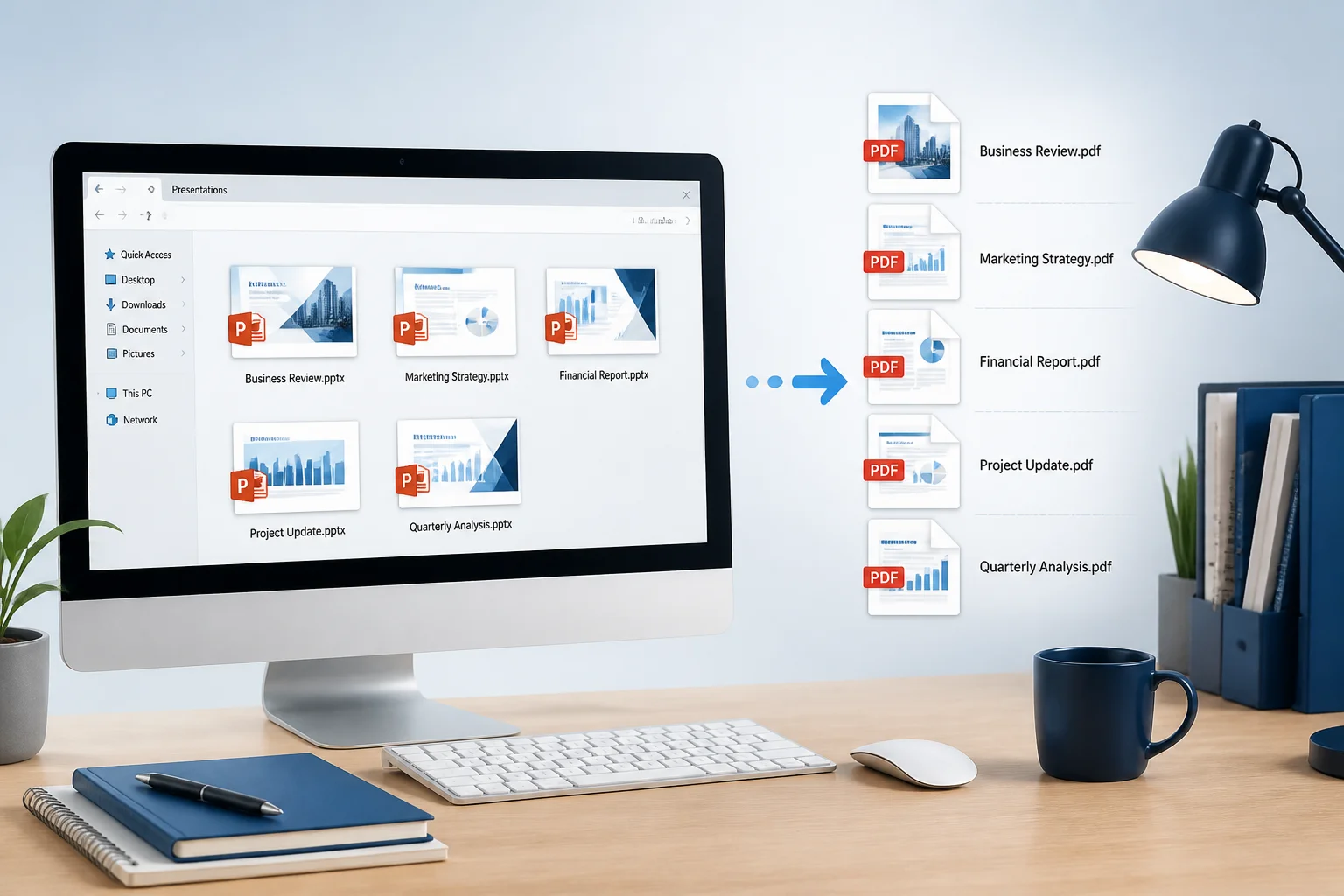
Converting one PowerPoint presentation to PDF is straightforward. Converting a folder of presentations can be less convenient, especially when you need consistent file names, correct slide order, preserved formatting, and a reliable way to check the results.
The best method depends on your goal: do you want one PDF for each PowerPoint file, or do you want to combine several presentations into a single PDF? The steps below cover both situations, including desktop workflows, online conversion, and common problems that appear after export.
Choose between separate PDFs and one combined PDF
Before converting anything, decide what the final files should look like.
- Separate PDFs: Each PPTX becomes its own PDF. This is useful for submitting several assignments, sending individual presentations to different people, or archiving files separately.
- One combined PDF: Multiple presentations are converted and then assembled into a single document. This works well for a training pack, meeting materials, a portfolio, or a complete lesson handout.
These are different tasks. A batch conversion creates several PDF files; it does not necessarily merge them. If you need one document, plan an additional merge step after conversion and confirm that the files are arranged in the intended order.
Method 1: Batch convert with PowerPoint on Windows
If Microsoft PowerPoint is installed, a presentation can be exported to PDF from the desktop application. PowerPoint does not provide the same simple one-click batch workflow in every version, but you can process multiple files efficiently with a repeatable routine or automation.
Use a repeatable export routine
- Place the PPTX files you want to convert in one folder.
- Rename the files with a consistent numbering system if order matters, such as 01-introduction.pptx, 02-results.pptx, and 03-appendix.pptx.
- Open the first presentation in PowerPoint.
- Select File, then Export or Save As, and choose PDF.
- Select the output folder and save the PDF using the same base name as the presentation.
- Repeat the process for the remaining files.
This approach is slower than a dedicated batch tool, but it gives you a chance to inspect each presentation before export. That is valuable when the files use different fonts, embedded media, animations, or unusual page sizes.
Automate carefully when many files are involved
For a large folder, an organization may use PowerPoint automation or a desktop document-conversion utility. Automation can save time, but it should be tested on copies of the files first. A script or batch process may fail on password-protected presentations, missing fonts, damaged files, or presentations that require user interaction.
Keep the source PPTX files unchanged, export to a separate output folder, and review the first few PDFs before processing the entire collection. If the presentations are important, do not assume that a successful file conversion means every slide rendered correctly.
Method 2: Batch convert PPTX files with an online converter
An online PPTX-to-PDF converter can be convenient when you do not have PowerPoint installed or when you only need to convert a manageable group of files. The exact number of files supported, file-size rules, and download workflow vary by service, so check the tool’s instructions before uploading.
- Gather the presentations in a temporary folder.
- Remove files you do not need to convert.
- Open the online PPTX-to-PDF tool.
- Upload the selected PowerPoint files, if multiple-file upload is available.
- Start the conversion and wait for the processing to finish.
- Download the resulting PDFs and compare them with the original presentations.
If the tool accepts only one presentation at a time, you can still use it as a repeatable workflow: convert each file, preserve the original file name, and save every result in the same output folder. For background on converting without the desktop application, see how to convert PowerPoint to PDF without PowerPoint.
Only upload files you are authorized to process, particularly when presentations contain confidential business, student, client, or personal information. Review the service’s policies before using an online workflow; you can also read the Privacy Policy for this site.
Method 3: Convert a folder of files with desktop PDF software
Some desktop PDF applications and document-management tools can convert multiple Office files in one operation. The labels differ, but the workflow usually follows this pattern:
- Open the application’s batch, create-PDF, or file-conversion feature.
- Add the PPTX files or select the source folder.
- Choose PDF as the output format.
- Select an output folder and naming option.
- Start the conversion.
- Open several output files for visual inspection.
A desktop tool may be preferable when files should remain on your computer, when you have a large collection, or when you need repeatable conversion settings. However, conversion quality depends on the application’s PowerPoint support. Test presentations containing charts, SmartArt, custom fonts, video placeholders, or speaker notes before relying on the workflow.
How to merge the converted PDFs into one file

After batch conversion, you may have a set of PDFs that need to become one document. Use a PDF merge feature in a trusted desktop application or an appropriate online service.
- Sort the PDF files into the intended order.
- Rename them with leading numbers if necessary, such as 01.pdf, 02.pdf, and 03.pdf.
- Add the files to the PDF merge tool.
- Arrange them manually if the tool does not use your file names.
- Merge and save the combined PDF with a clear name.
- Check the beginning, middle, and end of the final document.
Do not confuse merging with converting. A merged PDF combines already-created PDFs; it does not fix a layout problem that was introduced when a PPTX was exported.
How to preserve slide formatting during batch conversion
PowerPoint presentations can look different after conversion because PDF export has to render fonts, images, shapes, charts, and page dimensions as fixed pages. Use these checks before starting a large batch:
- Install or embed required fonts: A missing font may be replaced, changing line breaks and text positioning.
- Check slide size: Widescreen and standard presentations have different proportions. Confirm that the PDF pages match the source layout.
- Review images: Look for stretched, missing, or unexpectedly blurry graphics.
- Inspect charts and SmartArt: These elements can shift or render differently in some conversion environments.
- Check transparency and overlays: Semi-transparent shapes and layered objects deserve special attention.
- Decide how to handle notes and hidden slides: Export settings may include or exclude them depending on the selected options.
- Watch for animations and transitions: A PDF contains static pages, so animated effects and video do not behave as they do in a slideshow.
For presentations with complex design elements, convert a single sample first. If the sample looks correct, continue with the rest of the batch using the same settings.
How to keep file names and order organized
Organization is easy to overlook when several files are downloaded at once. A simple naming convention prevents confusion:
- Use the same base name for each output: sales-review.pptx becomes sales-review.pdf.
- Add a project or date identifier when files from different collections could be mixed.
- Use leading numbers when order matters: 01-cover.pdf, 02-agenda.pdf, and 03-report.pdf.
- Save PDFs in a separate folder so the source PPTX files remain easy to find.
- Do not overwrite the originals unless you have a separate backup.
If you plan to merge the files, sort the converted PDFs before opening the merge tool. Some applications use upload order, while others sort alphabetically.
Quality-control checklist for a batch of PDFs
A quick review can catch problems before you send or print the files. For each PDF, check:
- Every expected slide is present.
- Slides appear in the right order.
- Text is not cut off or replaced by empty boxes.
- Fonts, line breaks, and bullet points look correct.
- Images and charts are visible at normal zoom.
- Page orientation and proportions are correct.
- Links work if the presentation contained important hyperlinks.
- The file opens in a second PDF viewer if compatibility is important.
For a combined PDF, also verify the transition between presentations. Check that the first page of each section is present and that bookmarks, page numbers, or other navigation elements have not become misleading.
What to do when a file will not convert
One problematic presentation does not necessarily mean the whole batch has failed. Try these steps:
- Open the PPTX in PowerPoint or another presentation editor to confirm that it is not damaged.
- Save a new copy in PPTX format and try again.
- Remove or replace unusually large, corrupted, or unsupported media objects.
- Check whether the file is password-protected or restricted.
- Install missing fonts or replace fonts that are unavailable on the conversion computer.
- Convert the problem file separately so it does not interrupt the rest of the batch.
If you need a different static format for individual slides, a PPTX-to-JPG converter may be useful for image-based sharing, although JPG files are not a substitute for a searchable, selectable PDF when document quality matters.
Which batch-conversion method should you use?
| Situation | Practical choice | Main consideration |
|---|---|---|
| You have PowerPoint and only a few files | Export each file from PowerPoint | Review formatting while you work |
| You do not have PowerPoint | Use an online converter or compatible desktop application | Check file-handling policies and supported inputs |
| You convert folders regularly | Use a tested desktop batch workflow | Keep naming, output, and quality checks consistent |
| You need one final document | Convert first, then merge the PDFs | Arrange and verify the page order |
Final recommendation
To batch convert PPTX to PDF reliably, separate the job into three stages: prepare and name the source files, convert them using a method suited to your software and privacy needs, then inspect the output before sharing. If you need one document, merge the finished PDFs only after each individual file has passed a quick quality check.
For a single presentation or a smaller conversion task, you can also use the site’s PPT to PDF converter or read the guide to converting PPTX to PDF online for free.