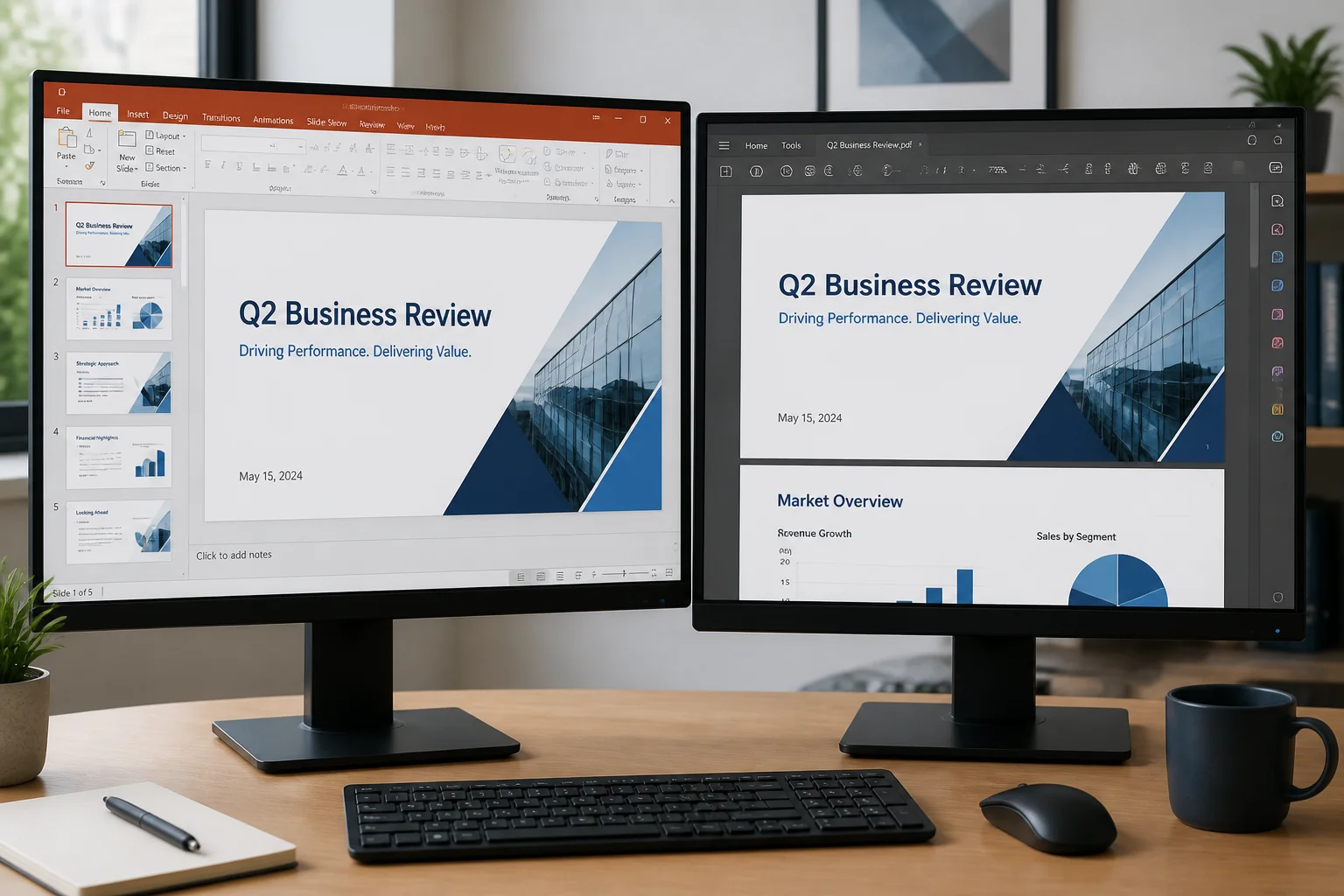
PowerPoint formatting changes in PDF files when the conversion process cannot reproduce one or more elements of the original presentation exactly. The most common causes are missing fonts, different page dimensions, unsupported effects, image compression, text reflow, and differences between PowerPoint’s own export and third-party converters.
A PDF is designed to preserve a page’s appearance, but it is not simply a renamed PPTX file. During export, PowerPoint or another converter must turn editable slides into fixed pages. That process can change how fonts, shapes, images, transparency, and layouts are rendered.
The good news is that most problems are predictable. Checking fonts, slide size, images, and export settings before conversion usually prevents the most noticeable differences.
What changes when a PowerPoint presentation becomes a PDF?
A PPTX file contains editable objects such as text boxes, charts, SmartArt, animations, transitions, media, and layered shapes. A PDF contains fixed pages. The converter has to calculate the final position and appearance of those objects.
Some PowerPoint features have no direct PDF equivalent. Animations and transitions are removed, videos usually become still content or disappear from the intended presentation experience, and interactive elements may no longer behave as they did in PowerPoint. Other changes are less obvious, such as a line wrapping differently or an image moving by a few pixels.
Formatting may also vary depending on whether you use PowerPoint’s built-in export, a desktop office suite, or an online converter. Different conversion engines can interpret the same PPTX file in slightly different ways.
The most common reasons PowerPoint formatting changes in PDF

1. Fonts are missing or substituted
Font substitution is one of the most frequent reasons for PowerPoint formatting changes in PDF files. If the original font is unavailable to the conversion software, it may replace it with another font. Even fonts with similar letter shapes can have different character widths, x-heights, spacing, and line metrics.
That can cause text to wrap onto a new line, push content outside a text box, change the height of a paragraph, or make a title appear misaligned. A presentation that looked correct on the computer where it was created may change when opened or converted elsewhere.
How to reduce the problem:
- Use widely available fonts when possible.
- Check the presentation for missing-font warnings before exporting.
- Avoid placing text very close to the edge of a text box.
- Leave extra space around headings and paragraphs that may wrap.
- Embed fonts in the presentation if your PowerPoint version and font license allow it.
Font embedding is not always possible. Some fonts restrict embedding, and an embedded font may not be handled identically by every converter. For important documents, open the exported PDF and inspect every slide rather than assuming the font was preserved.
2. Slide size and page orientation do not match
PowerPoint slides can use widescreen, standard, custom, portrait, or other dimensions. A PDF page has its own width and height. If the converter does not preserve the slide dimensions, it may scale or reposition the content.
This is especially noticeable when a widescreen presentation is treated as a standard page. Objects may look smaller, margins may change, or content may be placed in a way that feels different from the original slide. A portrait presentation can also be affected if the output is forced into a landscape page.
Before exporting, open the presentation’s slide-size settings and confirm the intended dimensions and orientation. Then check the converter’s output options for settings such as fit to page, scale, margins, or paper size. If you need a PDF for printing, decide whether the priority is preserving the original slide proportions or fitting a particular paper format.
3. Text boxes are too small or text reflows
PowerPoint text boxes can use different fitting behaviors, including shrinking text, resizing the box, or allowing text to overflow. During conversion, a small difference in font metrics or rendering can make a text box behave differently.
Long headings, bullet lists, captions, and table cells are particularly vulnerable. A line break may move, a bullet may become misaligned, or the final line may be clipped.
To prevent this, keep important text away from the boundaries of its text box. Check slides at normal viewing size and at a larger zoom level before exporting. If a paragraph must fit a precise area, use deliberate line breaks and give the box enough height instead of relying entirely on automatic fitting.
4. Images are compressed, moved, or rendered differently
Images may look softer in a PDF if the export process compresses them. This can affect screenshots, scanned documents, logos, diagrams, and small text inside an image. A high-resolution image can also appear different if it is cropped, rotated, or scaled using a different rendering method.
Image transparency and background removal can create additional problems. A transparent PNG may show a different edge against the PDF background, while a partially transparent image can appear darker or lighter after flattening.
Use the original image at an appropriate resolution, avoid repeatedly saving and recompressing it, and review the PDF at 100% zoom. If image quality matters, choose a high-quality export setting when available. However, remember that a larger or sharper image does not fix a misplaced crop or an incorrect aspect ratio.
5. Transparency, shadows, gradients, and effects are flattened
PowerPoint supports layered visual effects such as transparency, soft edges, shadows, reflections, glows, and gradients. A PDF export may flatten these effects into a static appearance. Most simple effects survive well, but complex combinations can render differently.
Problems may appear as unexpected boxes around transparent objects, darker shadows, banding in gradients, or changes in the order of layered objects. These issues are more likely when several semi-transparent shapes overlap.
If a slide depends on a complex visual effect, make a test export before finishing the entire document. Simplifying overlapping layers, reducing transparency, or replacing a complicated effect with a flattened image can make the appearance more consistent.
6. Charts, SmartArt, equations, and special objects are converted differently
Charts and SmartArt are built from editable PowerPoint components. During PDF conversion, they may be rendered as fixed graphics. Labels can shift, small text can become less readable, or a chart may use a slightly different font or spacing.
Equations and objects created with add-ins can also be sensitive to the conversion method. If the required component is unavailable, the object may appear incorrectly or fail to display.
Inspect slides containing charts, diagrams, equations, grouped objects, and imported files with particular care. If an object is critical and does not convert reliably, consider replacing it with a carefully prepared image after keeping an editable copy of the original presentation.
7. Animations, transitions, audio, and video do not translate to static PDF pages
A PDF represents pages, not a sequence of animated events. PowerPoint animations and transitions are therefore not preserved as interactive presentation behavior. A slide may show only the final state, the initial state, or an unexpected arrangement depending on how the content was built and exported.
Audio and video also require a different format or presentation method. If the PDF is intended for printing, handouts, or static sharing, replace instructions that depend on motion or sound with visible text or still images.
8. Different converters use different rendering engines
PowerPoint’s own PDF export is not identical to every online or desktop conversion tool. A third-party converter may use a different office engine, font library, image processor, or compatibility layer.
This does not automatically make one method better for every file. A simple presentation may convert correctly almost anywhere, while a deck with custom fonts, embedded objects, and complex effects may expose differences quickly.
If appearance is critical, compare the exported PDF with the original presentation and use the conversion method that gives the most faithful result for that file. You can learn more about alternatives in how to convert PowerPoint to PDF without PowerPoint.
How to fix a PowerPoint PDF that looks different
- Identify the exact changed element. Check whether the problem affects fonts, spacing, images, colors, page size, or a special object.
- Check the original slide. Make sure the issue is not already present in PowerPoint, especially when text is clipped or objects overlap.
- Confirm fonts. Replace unavailable fonts, embed them where appropriate, or redesign the affected text box with more space.
- Verify slide dimensions. Match the presentation’s slide size, orientation, and intended PDF page settings.
- Review export quality settings. Choose a high-quality or print-oriented option when image clarity is important, while recognizing that higher quality may increase file size.
- Simplify problem objects. Test charts, transparency, SmartArt, grouped shapes, equations, and imported graphics separately.
- Export again and compare. Review the PDF page by page, including slides with small text and fine alignment.
Do not overwrite the original PPTX while troubleshooting. Keep an editable version, a test export, and the final PDF as separate files so you can return to the source if a change creates a new problem.
How to preserve PowerPoint formatting before converting
- Design with safe margins. Keep text and important graphics away from the slide edges.
- Use consistent fonts. Avoid mixing many uncommon fonts or relying on fonts that may not exist on the conversion device.
- Use stable layouts. Slide Master layouts and aligned guides can reduce accidental differences between slides.
- Group related objects carefully. Grouping can help maintain alignment, but test grouped objects that contain transparency or unusual effects.
- Keep editable content simple where possible. A clean combination of text, standard shapes, and common image formats is generally easier to render consistently.
- Check the PDF, not just the preview. A conversion preview may not reveal every font, image, or page-size issue.
Why does the PDF look fine on screen but print incorrectly?
Screen display and printing use different rendering conditions. A PDF may appear correct on a monitor but print with clipped edges, unexpected scaling, or small text if the printer settings do not match the PDF page size.
Before printing, check the paper size, orientation, scaling option, and whether the printer is set to fit or shrink the page. If the PDF is intended as a handout, review the final print layout rather than judging only the full-slide view on screen.
Should you convert PPTX to PDF online or from PowerPoint?
The best choice depends on the file and the tools available. PowerPoint’s own export may be a practical first option when you have access to the desktop application and need to preserve PowerPoint-specific elements. An online converter can be useful when PowerPoint is unavailable; see this guide to converting PPTX to PDF online.
Whichever method you choose, inspect the result. Conversion is not complete when the file downloads; it is complete when the PDF displays and prints as intended. For a straightforward workflow, the site’s PPT to PDF converter may also be a relevant starting point.
Final checklist before sharing the PDF
- Are all fonts displayed correctly?
- Do headings, bullets, and captions remain inside their text boxes?
- Are slide dimensions and orientation correct?
- Do images retain the required sharpness and crop?
- Are charts, equations, SmartArt, and grouped objects intact?
- Have animations and media been replaced with suitable static content?
- Does the PDF look correct at normal zoom and when printed?
- Is the file being shared in the intended page order?
PowerPoint formatting changes in PDF files because editable slide content must be rendered into fixed pages, and not every font, effect, object, or media feature has a perfect PDF equivalent. By using compatible fonts, matching page dimensions, allowing safe spacing, simplifying complex effects, and checking the exported file carefully, you can prevent most layout and quality problems before sharing or printing.
Related: How to Compare Two Versions of a PowerPoint PDF for Content and Layout Changes
1 thought on “Why Does PowerPoint Formatting Change After Converting to PDF?”