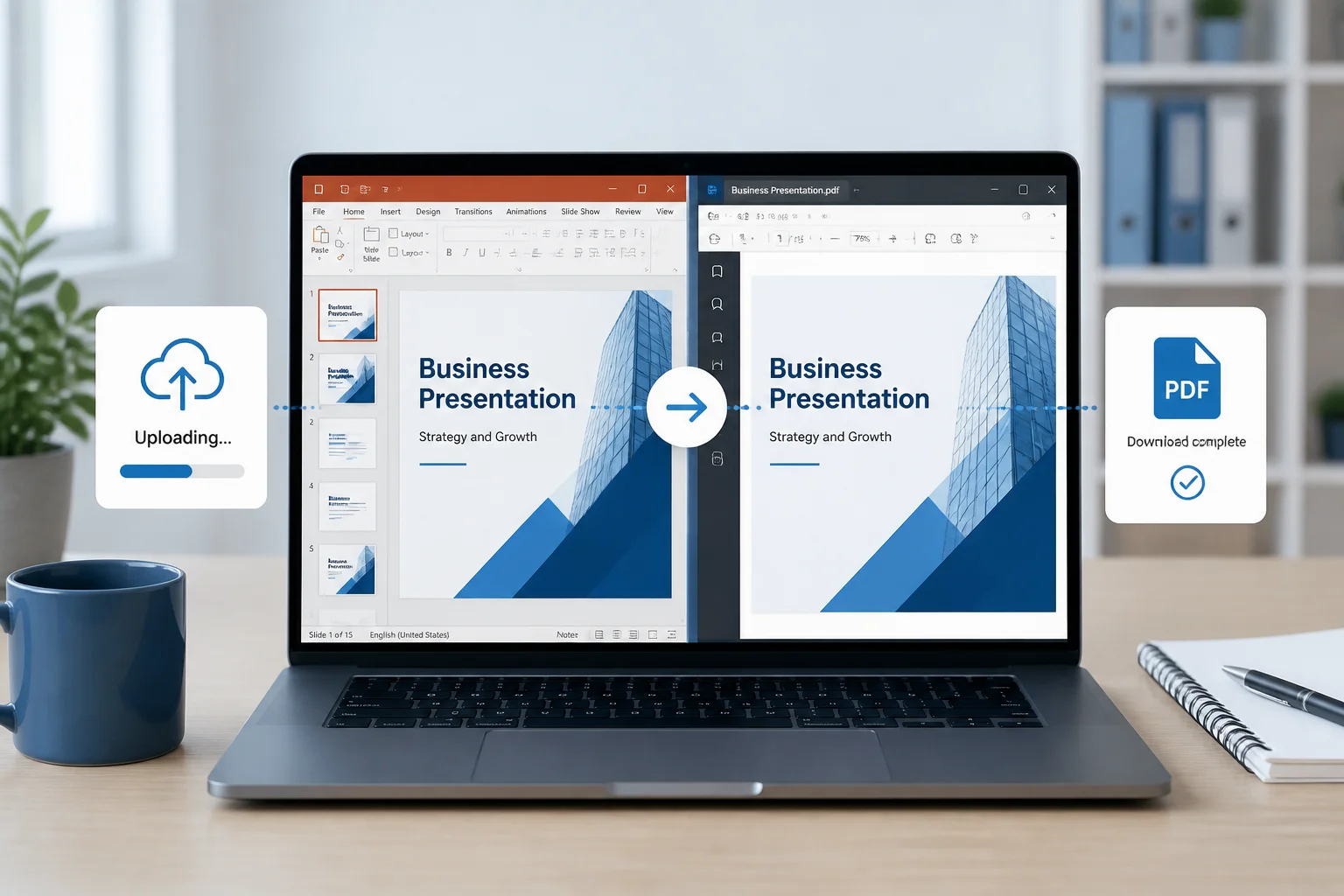
Converting a PowerPoint presentation to PDF online is useful when you need a file that is easier to share, print, upload, or open on different devices. A PDF usually preserves the presentation’s slide layout while preventing accidental edits to the original content.
The basic process is simple: choose a trustworthy online converter, upload your PPT or PPTX file, start the conversion, and download the resulting PDF. Before sharing it, open the PDF and check the slides, fonts, images, links, and page order.
How to convert PowerPoint to PDF online

- Prepare your presentation. Save the latest version of the file and check that all slides are complete. Remove private notes or hidden slides if they should not appear in the final document.
- Open an online PowerPoint-to-PDF converter. Use a conversion page that clearly explains its process and terms. You can start with the PPTX to PDF website.
- Upload your PowerPoint file. Select the PPT or PPTX presentation from your computer, phone, or tablet. Follow the page instructions if you are asked to choose or confirm a file.
- Start the conversion. Select the conversion option and wait for the file to finish processing. Avoid closing the page while the conversion is in progress.
- Download the PDF. Save the converted file to a location you can find easily, such as your Downloads folder or a project folder.
- Review the result. Open the PDF and move through every page. Check the slide order, text, images, charts, colors, spacing, and page orientation before sending it to someone else.
If you need a more specific free-conversion walkthrough, see how to convert PPTX to PDF online for free.
Why convert a PowerPoint presentation to PDF?
PowerPoint files are designed for editing and presenting, while PDFs are generally better suited to distribution. Converting a presentation can help when you need to:
- Submit slides to a school, university, client, or workplace portal.
- Share a presentation without asking the recipient to use PowerPoint.
- Print slides with a consistent page layout.
- Keep a read-only copy of a completed presentation.
- Attach slides to an email while reducing dependence on presentation software.
- Archive a final version of a presentation for later reference.
A PDF is not always identical to a live slideshow. Animations, transitions, embedded media, and presenter interactions may not carry over as playable elements. If the recipient needs the presentation experience rather than static pages, share the original PowerPoint file or a separate video when appropriate.
What to check before uploading a PowerPoint file
Save the correct version
Open the presentation in PowerPoint or another compatible editor and make sure you are working with the final file. If several versions exist, use a clear filename such as project-presentation-final.pptx. This reduces the chance of converting an outdated draft.
Remove content that should stay private
Look for speaker notes, hidden slides, comments, personal information, and confidential material. Also check whether the file contains linked content or embedded objects that should not be distributed.
Check fonts and layout
Unusual fonts can create layout changes if they are unavailable to the conversion system. Review title wrapping, text boxes, tables, and charts. If a slide is already crowded in PowerPoint, the PDF may make the problem more noticeable.
Confirm the slide size and orientation
Most modern presentations use a widescreen layout, but older files may use a different aspect ratio. Make sure the chosen slide dimensions are suitable for the intended use, especially if the PDF will be printed or inserted into another document.
How to verify the converted PDF
Do not assume that a successful download means the document is ready to send. A quick review can catch problems before your audience sees them.
- Page count: Confirm that the PDF contains the expected number of slides.
- Order: Make sure the pages follow the original presentation sequence.
- Text: Look for missing characters, unexpected line breaks, cropped titles, or overlapping text.
- Images: Check that photographs, logos, diagrams, and screenshots appear in the correct position and remain clear enough for their purpose.
- Charts and tables: Zoom in to confirm that labels, legends, and small values are readable.
- Links: If the presentation contains hyperlinks, test important links in the PDF viewer you plan to use.
- Colors: Compare important colors with the original, particularly for charts, branding, and accessibility.
- Printing: If the PDF will be printed, preview several pages and confirm that content is not cut off at the edges.
Online conversion versus converting in PowerPoint
Online conversion is convenient when you do not have PowerPoint installed or need a quick result from a browser. It can also be practical when working from a shared computer or mobile device.
Desktop conversion may be preferable when the presentation contains sensitive information, complex effects, unusual fonts, or content that must be checked closely before export. In PowerPoint, the usual workflow is to open the file, choose the export or save-as option, select PDF, review the available settings, and save the document.
| Situation | Approach to consider |
|---|---|
| You need a quick PDF and have no presentation software available | Use an online converter |
| The file contains confidential business, personal, or academic information | Review the service’s privacy information and consider local conversion |
| You need detailed export settings | Use PowerPoint or another desktop presentation application |
| You want to convert several files from different devices | Compare the online workflow with the tools available on your device |
Before uploading sensitive material to any online service, read its privacy information and decide whether online processing is appropriate. The Privacy Policy provides information about the site’s stated privacy practices.
Common problems when converting PPT or PPTX to PDF
The upload does not start
Check that you selected the intended file and that your internet connection is working. If the browser appears stuck, refresh the page and try again. You can also try a different modern browser or rename the file using simple letters and numbers.
The PDF has missing or changed fonts
This usually relates to fonts that are not available during conversion or to text effects that do not translate cleanly. Replace unusual fonts with widely available alternatives, simplify decorative text, and convert the file again.
Images look blurry
Review the original presentation first. If an image is already low resolution, conversion cannot restore its missing detail. Replace it with a higher-quality source when possible, then export the presentation again.
Slides are cropped or have unexpected white space
Compare the presentation’s slide dimensions with the PDF page settings. Cropping can also result from oversized objects or content positioned outside the slide boundaries. Move important elements inside the slide and check the result again.
Animations and videos do not work
A PDF normally represents slides as static pages. Animations, transitions, and embedded videos may not remain interactive after conversion. If motion or playback is essential, provide the original presentation or another suitable format in addition to the PDF.
Speaker notes are missing
A standard slide PDF commonly contains the visible slide content rather than the presenter’s notes. If your audience needs notes, check the export settings available in your presentation software or create a separate notes document.
Tips for a cleaner, more useful PDF
- Use a descriptive filename. Include the project name, version, or date if that helps recipients identify the document.
- Keep the original file. A PDF is convenient for sharing, but the PPTX remains useful when you need to make edits.
- Check accessibility. Use readable text, sufficient color contrast, meaningful link labels, and clear slide structure in the original presentation.
- Consider the reader’s purpose. A presentation for on-screen viewing may need different choices from one intended for printing.
- Use the right page arrangement. If the recipient needs room for handwritten notes, a handout-style export may be more useful than one slide per page, if your software supports that option.
- Do not overwrite the source accidentally. Save the PDF as a separate file so the editable presentation remains available.
Can you convert PPTX to PDF without PowerPoint?
Yes. An online converter can be useful when PowerPoint is unavailable, the file is on a device without presentation software, or you simply want a browser-based workflow. The steps are the same: upload the presentation, run the conversion, download the PDF, and inspect the result.
For more alternatives and practical considerations, read how to convert PowerPoint to PDF without PowerPoint.
What is the difference between PPT and PPTX?
PPT is the older PowerPoint presentation format, while PPTX is the newer XML-based format used by modern versions of PowerPoint. Both may be suitable for PDF conversion, but the available workflow depends on the converter and the file itself. If you are unsure which format you have, check the filename extension after the period.
Frequently asked questions
Will converting PowerPoint to PDF change the original file?
The conversion creates a separate PDF file. Keep the original PPT or PPTX file so you can edit the presentation later.
Can I convert a PowerPoint file on a phone?
If the online converter works in your mobile browser, you can generally follow the same upload and download process on a phone or tablet. After downloading, open the PDF and check that it is saved where you expect.
Does a PDF preserve PowerPoint animations?
No. A PDF is primarily a static document, so animations and transitions generally do not function as they do in a slideshow.
Why should I open the PDF after downloading it?
Reviewing the result helps identify font substitutions, cropped content, missing images, incorrect page order, or other changes before you share or print the file.
Can I turn the PDF back into an editable PowerPoint file?
Some tools can attempt PDF-to-PowerPoint conversion, but the result may require editing. Converting the original PPTX is usually the better option when you need an editable presentation.
Final checklist
Before sending your converted presentation, confirm that you have:
- Uploaded the latest version of the PowerPoint file.
- Removed private notes, comments, or hidden slides that should not be shared.
- Downloaded the correct PDF.
- Checked every page for text, images, charts, and layout problems.
- Tested important links and reviewed print appearance if needed.
- Kept the original PPT or PPTX file for future edits.
For another conversion option, you can also visit the site’s PPT to PDF converter. With a quick review after conversion, turning a PowerPoint presentation into a shareable PDF can be a straightforward and reliable part of your workflow.
Related: How to Check a PowerPoint PDF Before You Send It: A Practical Quality-Control Guide
Related: How to Convert PowerPoint to PDF With Accessible Text, Reading Order, and Alt Text
Related: How to Convert PowerPoint Slides to a PDF With Bleed, Crop Marks, and Safe Margins
1 thought on “How to Convert PowerPoint to PDF Online: Step-by-Step Guide”