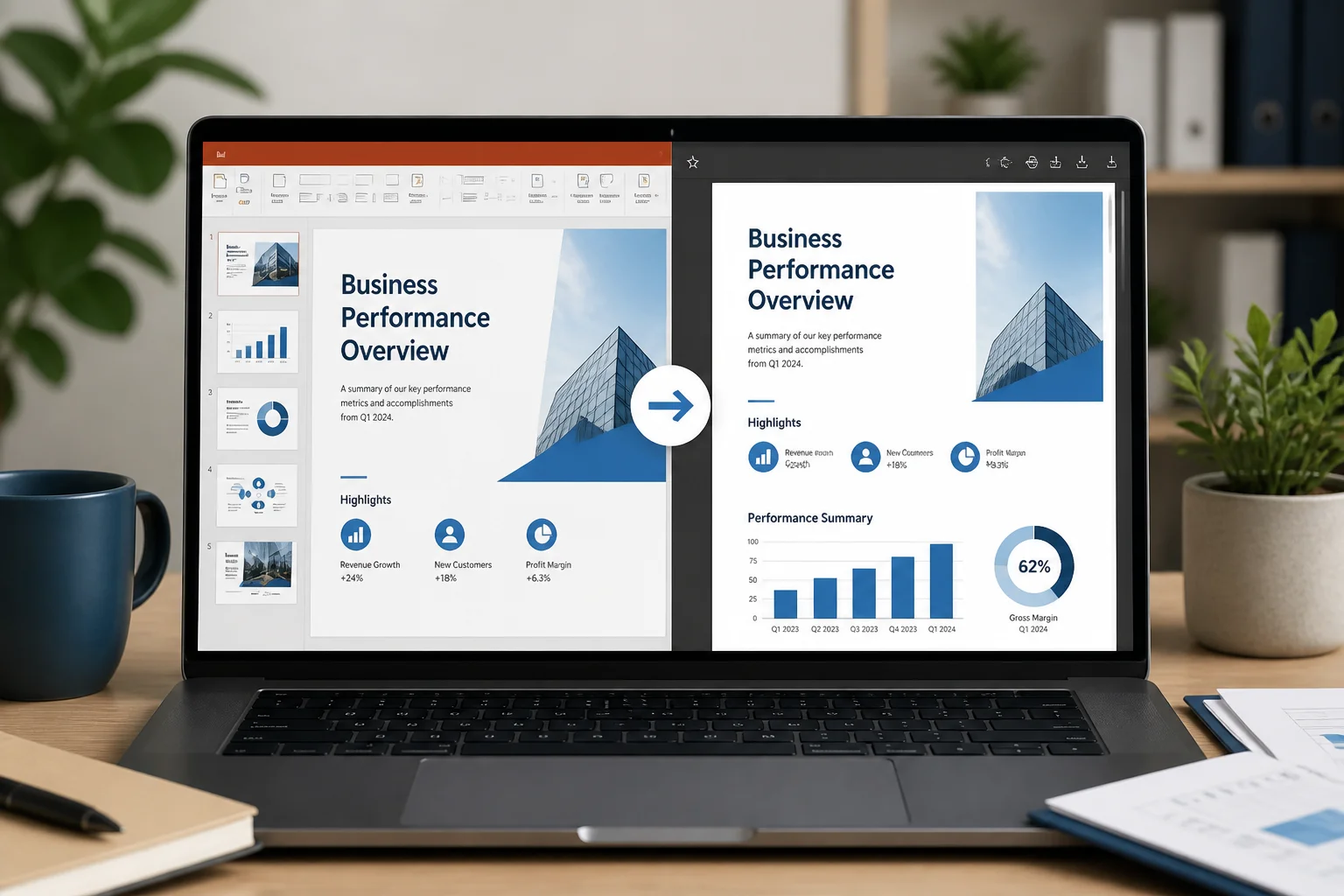
To convert PPTX to PDF without losing formatting, check the presentation before export, use a PDF export method that preserves the original slide layout, and inspect the finished PDF on another device or PDF viewer. The most common problems come from missing fonts, unsupported effects, incorrect slide size, compressed images, and export settings that do not match the intended use.
For important presentations, do not treat conversion as a single click. Use this workflow:
- Save a backup copy of the original PPTX.
- Check fonts, slide size, images, and objects before exporting.
- Export or convert the file to PDF using a reliable method.
- Open the PDF and compare every slide with the PowerPoint version.
- Check printing, links, page order, and image quality before sharing.
Why PowerPoint formatting can change in a PDF
A PPTX file is an editable presentation. It may contain fonts, animations, transitions, embedded media, charts, layered objects, and effects that depend on the presentation software and operating system. A PDF is a fixed-layout document designed to display and print pages consistently.
Most visual differences happen for one of these reasons:
- A font used in the presentation is missing or substituted.
- A text box changes size because the font metrics are different.
- Images are compressed during export.
- Transparent objects, shadows, gradients, or 3D effects render differently.
- The PDF uses a different page or slide size than expected.
- Animations, videos, and transitions cannot behave like they do in slideshow mode.
- Notes, hidden slides, or handout settings are included unintentionally.
Understanding these limitations helps you decide what to check before you convert. A PDF can preserve the appearance of a slide, but it cannot preserve every interactive feature of a presentation.
Prepare the PPTX file before conversion
Use fonts that can be shared or embedded
Fonts are one of the most common causes of shifted text and broken layouts. If the recipient’s computer does not have a particular font, the presentation may display differently before conversion. Some conversion methods may also substitute fonts during export.
Before converting, review the presentation for unusual or custom fonts. If possible, replace them with fonts that are available on the computers used to create, review, or export the file. Also check headings, captions, tables, and text inside diagrams because a single substituted font can cause text to wrap onto a new line.
Look carefully at slides with:
- Large titles close to the edge of a text box
- Small labels inside charts or diagrams
- Text aligned beside images
- Multilingual text or special symbols
- Tables with narrow columns
Confirm the slide size and orientation
Make sure the presentation uses the intended aspect ratio, such as widescreen or standard. A mismatch can create unexpected margins, scaling, or cropping when the slides become PDF pages.
Also check whether any slides use a different orientation or unusual custom dimensions. If the presentation is intended for printing, consider the paper size and margins before export. A layout that looks correct on a screen may be too close to the edge for a printer.
Check images and screenshots
Low-resolution images may look acceptable in PowerPoint but become noticeably soft when enlarged or printed. Conversion cannot restore detail that is not present in the original image.
Review photographs, screenshots, logos, and scanned pages at their intended display size. If an image looks blurry in the PPTX, replace it with a higher-quality source before creating the PDF. Avoid repeatedly copying and resizing the same compressed image, since that can reduce quality further.
Inspect overlapping objects and transparent elements
Layered shapes, semi-transparent fills, shadows, glow effects, and gradient overlays may render differently in different export workflows. Pay special attention to objects that overlap text or images.
If a slide contains a complex visual effect, make a test PDF first. If the result is incorrect, simplify the effect, flatten the design into a high-quality image where appropriate, or adjust the object order and transparency settings before exporting the complete presentation.
How to export a PPTX to PDF while preserving the layout

Method 1: Export from PowerPoint
If PowerPoint is available, its built-in PDF export is usually the most direct way to keep the presentation’s slide dimensions and layout. The exact menu names can vary by version, but the process generally follows these steps:
- Open the original PPTX file.
- Save a separate copy so the source remains unchanged.
- Choose the export or save-as option for PDF.
- Select the option that exports the slides rather than notes or handouts, unless you specifically need those formats.
- Choose the intended quality setting. Use a higher-quality or standard option for printing and detailed graphics; use a smaller-file option when screen sharing or emailing is the priority.
- Export the file to PDF.
After export, open the PDF and compare it with the PPTX in slide-sorter view or a similar overview. Then inspect individual slides at normal and enlarged zoom levels.
Method 2: Use an online PPTX-to-PDF converter
An online converter can be useful when PowerPoint is not installed or when you need a quick way to create a PDF. You can use the PPT to PDF converter when it suits your workflow.
Before uploading a presentation, consider whether it contains confidential information, personal data, client material, or unpublished work. Review the provider’s policies and your organization’s rules. The site’s Privacy Policy is available for this purpose.
Once the conversion is complete, download the PDF and check it rather than assuming the result is identical to the source. Online conversion can be convenient, but the final review remains your responsibility.
Method 3: Convert without PowerPoint
If you do not have PowerPoint, you can use a compatible office application or an online service. The important point is to verify the result using the same presentation features that matter in your file.
For a more detailed workflow, see how to convert PowerPoint to PDF without PowerPoint. If you need a browser-based process, the guide on converting PPTX to PDF online may also be useful.
Check the PDF after conversion
A successful download does not necessarily mean the formatting is correct. Use this post-conversion checklist:
| What to check | What to look for |
|---|---|
| Fonts | Missing characters, substituted typefaces, changed line breaks, or clipped text |
| Layout | Objects moving, overlapping, being cropped, or changing alignment |
| Images | Blurred photos, missing graphics, visible compression, or incorrect colors |
| Slide size | Unexpected borders, stretched content, or incorrect orientation |
| Charts and tables | Unreadable labels, altered spacing, or missing elements |
| Links | Hyperlinks opening correctly if the presentation depends on them |
| Page order | Slides appearing in the intended sequence, with no unwanted hidden slides |
| Printing | Readable text, suitable margins, and no important content cut off |
Check the PDF in more than one viewer if the document is important. A display problem can sometimes be caused by the viewer rather than by the PDF itself. Printing one or two representative pages is also useful when the final document will be distributed on paper.
How to fix common PPTX-to-PDF formatting problems
Text is moved, cut off, or wrapped differently
Start by checking the font and the size of the text box. Replace unusual fonts, give text boxes more room, and avoid placing text exactly against an object or page edge. Shortening a heading by a few words can also prevent unexpected wrapping.
Images look blurry
Use a higher-resolution original image and avoid enlarging a small image beyond its useful size. When exporting, choose a quality setting appropriate for the document’s purpose. A PDF intended for printing needs more image detail than one intended only for quick screen viewing.
Slides have unexpected white borders
White borders usually indicate a difference between the slide’s aspect ratio and the PDF page or print area. Confirm the slide dimensions and export settings. If the PDF will be printed, remember that many printers cannot print all the way to the paper edge.
Animations and videos are missing
PDF is a static format in ordinary presentation workflows. It can show the final visible state of a slide, but it does not reproduce slide transitions, timed animations, or embedded video in the same way as a slideshow.
If motion is essential, share the original presentation or create a video version separately. If the PDF is only a handout, make sure each slide communicates its information without relying on animation.
Colors look different
Colors can vary between monitors, applications, printers, and export settings. Check important brand colors, dark backgrounds, subtle gradients, and light text on colored backgrounds. For printed documents, test a page on the intended printer when color accuracy matters.
Settings to choose for sharing versus printing
The best PDF settings depend on how the file will be used:
- For email or online sharing: prioritize readable text, acceptable image quality, and a manageable file size.
- For classroom or meeting handouts: check margins, page size, notes, and whether multiple slides per page are actually wanted.
- For professional printing: use suitable image quality, confirm paper dimensions, and inspect elements near the page edges.
- For archiving: preserve the complete slide sequence and verify that important text, links, and graphics remain readable.
Do not assume that the smallest PDF is the best PDF. Excessive compression can make screenshots, small text, and detailed charts difficult to read.
Should you convert slides to images first?
Converting slides to JPG or another image format before placing them in a PDF can make the appearance more predictable because each slide becomes a flattened picture. However, this approach has trade-offs: text may no longer be selectable, hyperlinks may stop working, and image compression can reduce clarity.
Use slide images when visual consistency is more important than searchable text or interactive elements. If you need this type of workflow, the PPTX to JPG converter provides a separate route for converting presentation slides to images.
Final checklist before sharing the PDF
- Open the PDF from the location where it was saved.
- Compare the first, middle, and last slides with the PPTX.
- Review slides containing custom fonts, charts, tables, screenshots, and transparent objects.
- Confirm that no slides are missing or out of order.
- Check hyperlinks if recipients need to follow them.
- Zoom in on small text and detailed graphics.
- Print a sample page if the document will be printed.
- Rename the final file clearly and keep the original PPTX separately.
The safest way to convert PPTX to PDF without losing formatting is to prepare the presentation carefully, export with the intended quality and page settings, and inspect the finished file before distributing it. For simple presentations, the process is usually quick; for designs with custom fonts, complex effects, or print requirements, the final visual check is the step that prevents most unpleasant surprises.