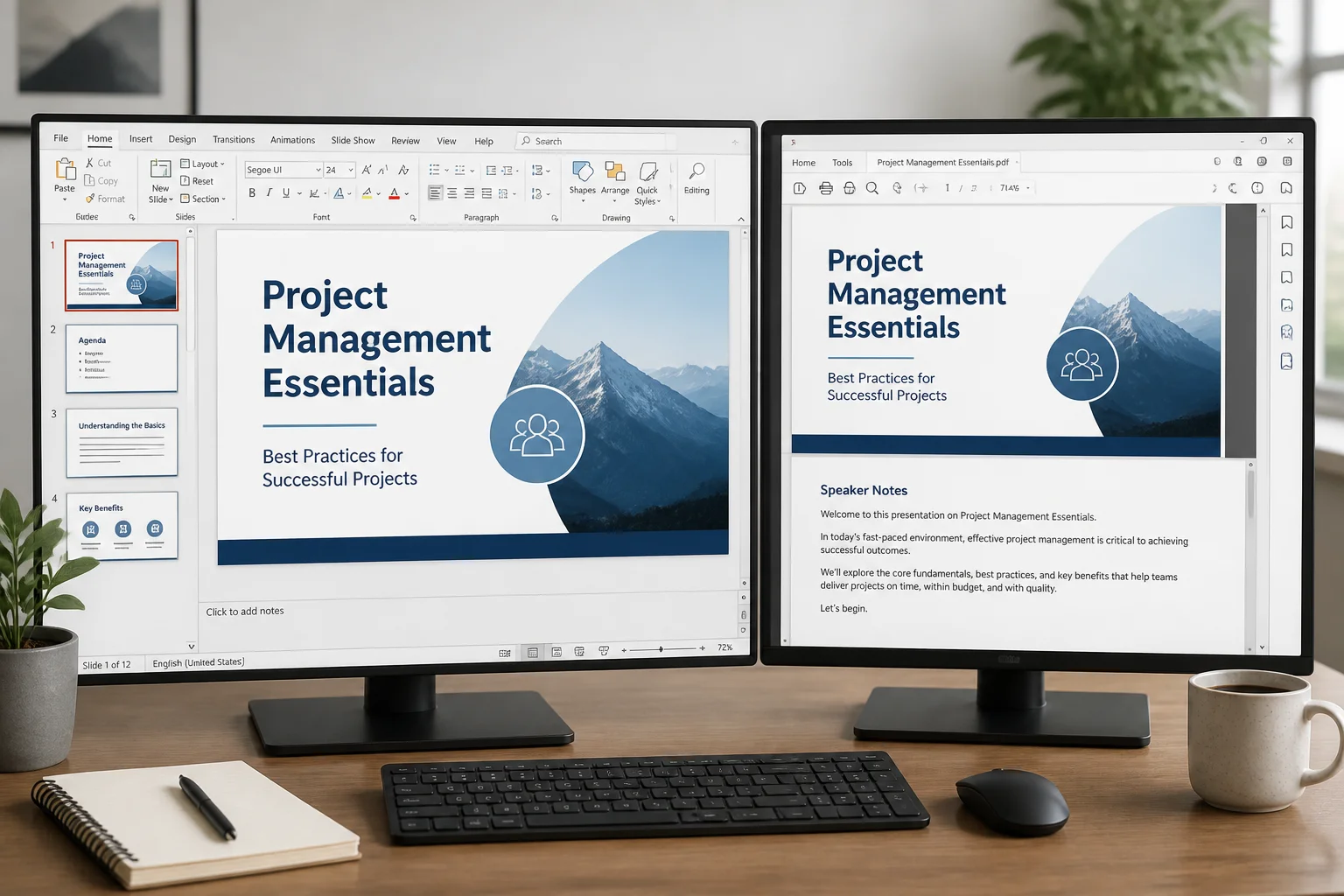
If you need a handout, study document, rehearsal copy, or presentation archive that includes both your slides and speaker notes, you need to export Notes Pages rather than using the standard slide-only PDF option.
The most reliable method is to open the presentation in PowerPoint, choose the print or export settings for Notes Pages, select a PDF printer or PDF output, and then save the file. A normal “Save as PDF” export usually creates one PDF page per slide and does not include the notes beneath it.
What a PowerPoint PDF with speaker notes contains
A speaker-notes PDF normally places one slide at the top of each page and the notes associated with that slide underneath. It is different from a standard slide PDF, which usually contains only the slide canvas.
This format is useful when you want to:
- Prepare presenter notes for a speech, lecture, or meeting
- Create a study guide from classroom slides
- Give a colleague both the visual content and delivery instructions
- Print slides with reminders, explanations, or discussion prompts
- Keep an offline reference copy of a presentation
Before exporting, check that your notes are actually stored in the Notes pane for each slide. Text placed in a regular slide text box is part of the slide design, not speaker notes, and will appear differently in the PDF.
How to export PowerPoint to PDF with speaker notes on Windows

PowerPoint’s print workflow gives you direct control over the layout. The exact wording can vary slightly between versions, but the process is generally the same.
- Open your presentation in PowerPoint.
- Review the notes for each slide by opening the Notes pane below the slide.
- Select File, then choose Print.
- Under the layout or settings menu, change Full Page Slides to Notes Pages.
- Choose a PDF printer, such as Microsoft Print to PDF, from the printer list.
- Check the preview to confirm that each page shows the slide and its notes.
- Select Print, choose a folder, enter a filename, and save the PDF.
The important setting is Notes Pages. If the preview shows only large slides with no text below them, the presentation is still configured for full-page slides rather than notes pages.
How to create a notes PDF on macOS
On a Mac, you can usually use PowerPoint’s print dialog and the built-in PDF menu.
- Open the presentation in PowerPoint for Mac.
- Choose File and then Print.
- Open the layout menu that controls what is printed and select Notes or Notes Pages, depending on the version.
- Review the preview to make sure the notes are visible.
- Open the PDF menu in the macOS print dialog.
- Choose Save as PDF, select a destination, and save the file.
If your version of PowerPoint does not show a notes-page option in the first print window, look for a PowerPoint-specific layout or “Print What” setting before using the Mac PDF menu.
How to export speaker notes from PowerPoint for the web
PowerPoint for the web can have fewer print and export controls than the desktop application. If the browser version does not offer a Notes Pages layout, download or open the presentation in the desktop version of PowerPoint and follow the print method above.
Do not assume that choosing a general PDF download will include notes. Always open the resulting PDF and verify several pages before sending it to someone else.
Why normal PowerPoint PDF export may leave out notes
PowerPoint treats slides and speaker notes as separate parts of a presentation. A standard PDF export is designed to reproduce the slide pages, including their visual layout, animations as static frames, and slide content. Speaker notes are not normally part of that slide canvas.
That is why these two actions produce different results:
| Method | Typical result | Best use |
|---|---|---|
| Export or Save As PDF | One slide per PDF page | Sharing or printing presentation visuals |
| Print using Notes Pages | Slide plus speaker notes | Presenter copies, study guides, and annotated handouts |
| Print using Handouts | Several slides per page, usually without speaker notes | Compact audience handouts |
How to make speaker notes easier to read in the PDF
PowerPoint’s default notes-page layout may not be ideal for long notes. Before exporting, consider the amount of text on each page and how the PDF will be used.
Keep notes short enough to fit
Long notes may continue onto additional pages or become difficult to read after printing. Remove duplicated wording, combine repeated instructions, and keep the most important speaking prompts near the beginning of each note.
Check the notes-page master
PowerPoint uses a Notes Master to control elements such as the slide placeholder, notes area, header, footer, date, and page number. If the notes area is too small, open the Notes Master and adjust the layout before exporting.
Use readable text
Small text may look acceptable on screen but become uncomfortable on paper. Use clear headings, short paragraphs, and enough spacing between note sections. Remember that the final PDF page may be printed at a different size than your PowerPoint editing window.
Remove unnecessary headers and footers
Headers, dates, and page numbers can be useful, but they can also consume space. Disable elements that do not help the reader if the notes are being squeezed onto the page.
How to check that the notes were exported correctly
Always inspect the PDF before uploading, printing, or emailing it. A quick quality check can prevent an incomplete file from reaching your audience.
- Open the first, middle, and last pages.
- Confirm that the correct notes appear under each slide.
- Check that special characters, punctuation, and bullet points display properly.
- Look for clipped text at the bottom or sides of the page.
- Verify that images, charts, and fonts on the slide still look correct.
- Make sure hidden or unwanted slides have not been included.
- Check the page count against the number of slides and any continuation pages.
If the PDF is intended for printing, print one test page when possible. Screen previews do not always reveal margins, scaling, or cut-off text.
Common problems and how to fix them
The PDF contains slides but no notes
Return to the print settings and change the layout from Full Page Slides to Notes Pages. Saving the presentation as a PDF through the regular export command is not the same as printing notes pages to a PDF.
Some notes are missing
Check the original presentation slide by slide. The missing content may not be in the speaker-notes area, may be hidden by an object in the Notes Master, or may be outside the printable notes region.
The notes are cut off
Reduce the amount of text, increase the notes area, adjust the notes-page layout, or change the page orientation and margins. Export again and inspect the affected page.
The PDF has unexpected blank pages
Blank pages can result from notes that overflow, print-range settings, section breaks, or layout changes. Review the print preview and look for a page that contains a continuation of notes or an empty notes placeholder.
Fonts or slide elements look different
PDF output can change when a font is unavailable, substituted, or rendered differently. Use common fonts when preparing the presentation, and inspect charts, icons, transparency, and text effects in the exported file.
Notes contain private information
Speaker notes are often written for the presenter and may include reminders, internal comments, draft wording, or confidential details. Read the notes as carefully as the slides before sharing the PDF. If necessary, create a separate audience version with sensitive notes removed.
Can you convert a PPTX to PDF with notes online?
Online PPTX-to-PDF converters are generally designed to reproduce the presentation slides. Whether speaker notes are preserved depends on the specific service and its supported output settings. Do not assume that an online conversion includes notes unless the tool explicitly provides a notes-page or speaker-notes option.
If you only need a standard slide PDF, an online converter may be convenient. You can learn more in this guide to converting PPTX to PDF online. For a PDF that must contain speaker notes, the PowerPoint print workflow is usually the clearer option because you can see the notes-page preview before saving.
If you do use an online service, review its privacy information and avoid uploading a presentation containing sensitive material unless you understand how the service handles uploaded files. See the privacy policy for this site’s stated information.
What if you do not have PowerPoint?
Without the desktop version of PowerPoint, your options depend on the application you use to open the PPTX file. Some presentation programs can display or edit speaker notes, while others may convert only the visible slides. Before relying on an alternative, open the file and confirm that the notes are present and that a notes-page print layout is available.
If you only need a slide-only PDF, this guide explains how to convert PowerPoint to PDF without PowerPoint. That approach may not preserve speaker notes, so verify the output requirements first.
Should you use notes pages or handouts?
Choose Notes Pages when the PDF is for the presenter or someone who needs the explanation beneath each slide. Choose Handouts when the PDF is for an audience that needs space to write but does not need your private speaking script.
For example, a teacher may use notes pages as a lesson-planning copy, while students may receive a slide-only or handout PDF. A consultant might keep a notes version internally and send a separate client version without internal prompts.
Quick checklist
- Put the text in PowerPoint’s speaker-notes area.
- Open the print settings rather than relying only on standard PDF export.
- Select Notes Pages.
- Choose a PDF printer or PDF save option.
- Preview several pages.
- Check for private notes, missing text, and clipping.
- Open the saved PDF before sharing or printing.
In short, the key to creating a PowerPoint PDF with speaker notes is selecting the notes-page layout. A standard slide export usually produces a clean slide-only document, while the print-to-PDF workflow lets you include the notes beneath each slide and verify the result before delivery.